
Find and Earn lets admins customize messages and email templates for users based on their progress, with dynamic short tags for personalization. It includes two areas: Settings, which provides an overview of message templates, and Events, which helps manage and track active events. This section details ‘Settings’. The link to the ‘Events’ guide is provided at the end of this section.
To configure, follow these steps:
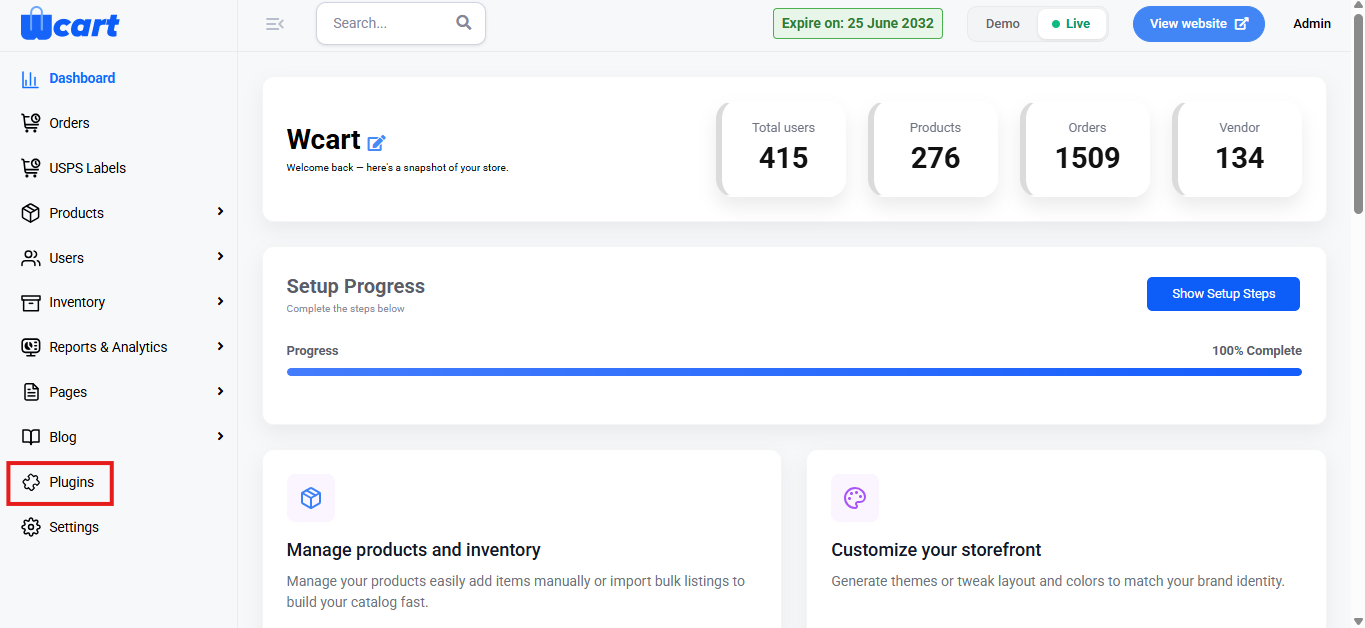
- Navigate to the sidebar menu and select ‘Plugins’.
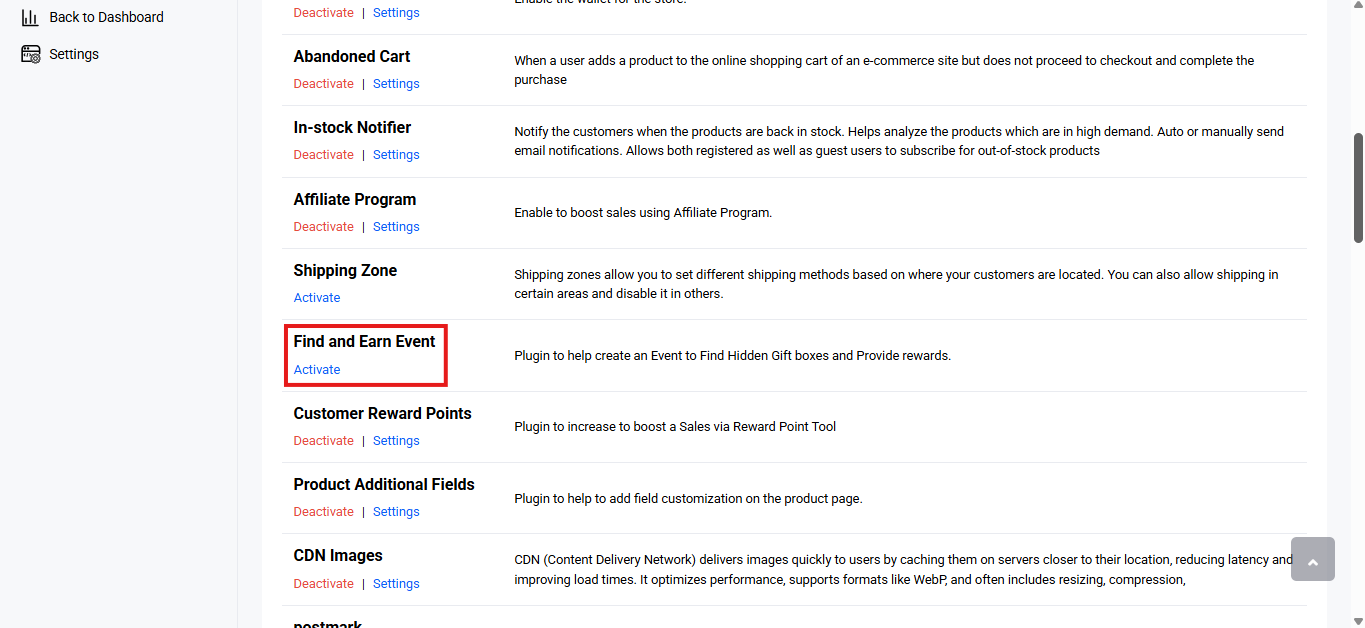
- Locate ‘Find and Earn’ and click ‘Activate’. You will now see two options: ‘Deactivate’ and ‘Settings’. When you click ‘Activate’ or ‘Deactivate’, a toast notification showing ‘Find and Earn Event Plugin Activated’ or ‘Find and Earn Event Plugin Deactivated’ will appear to confirm that the plugin has been activated or deactivated. You can configure ‘Find and Earn’ by clicking ‘Settings’ after activation.
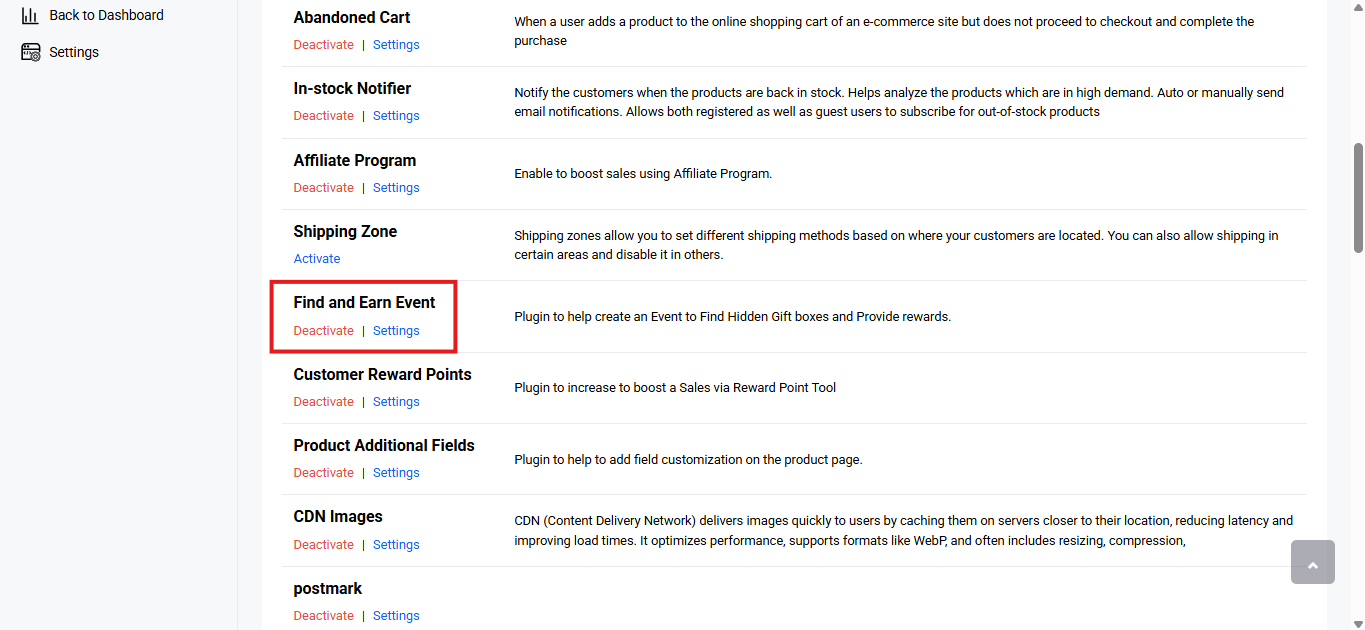
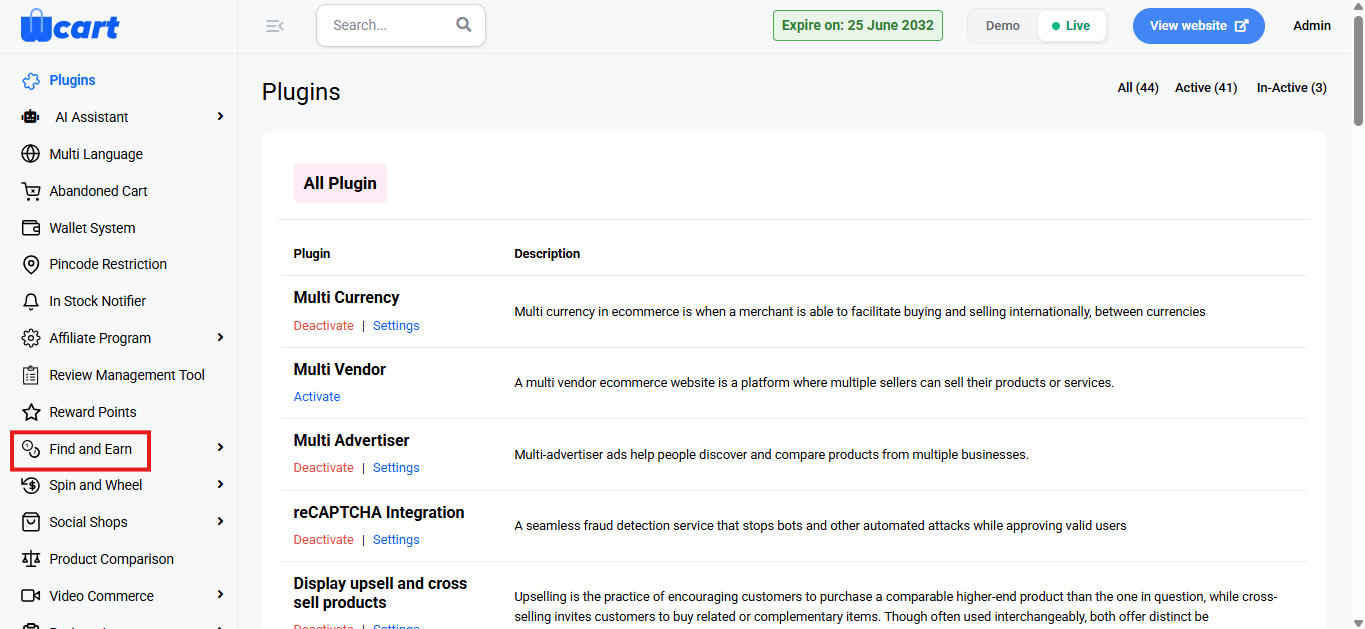
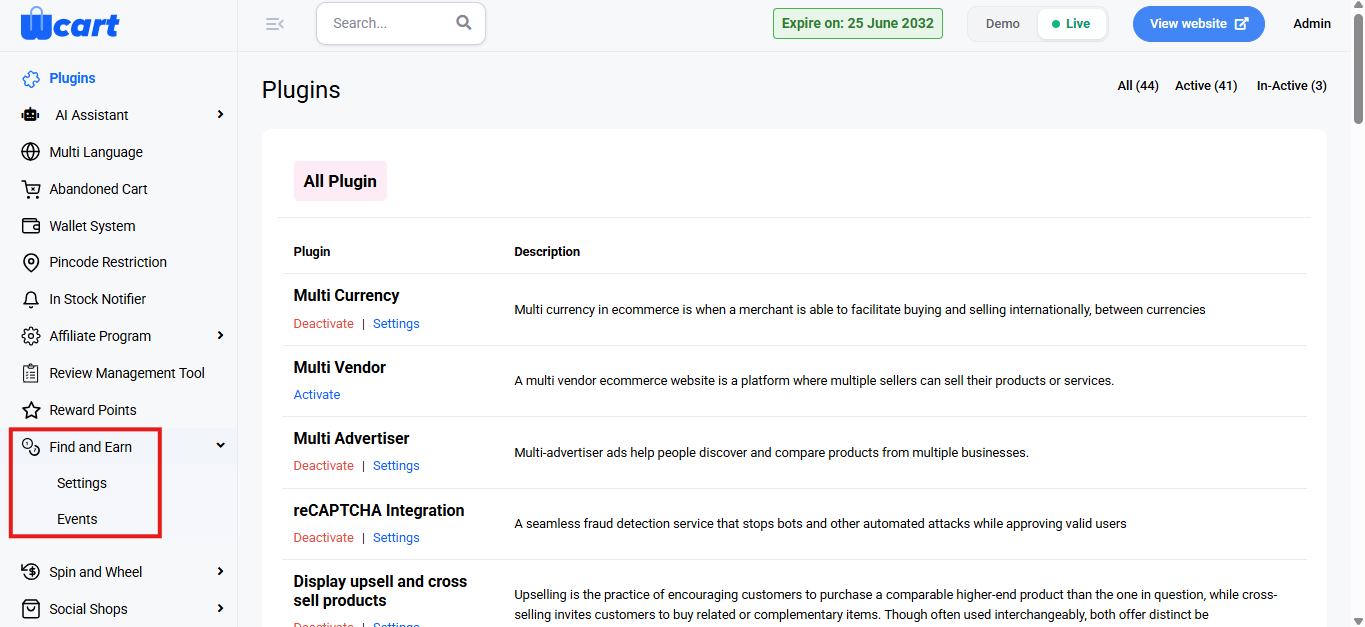
- After activation, it will appear in the ‘Plugins’ section of the sidebar menu, where ‘Settings’ and ‘Events’ are available for configuration.
Settings
Find Message
This template controls the message displayed when a user finds a gift in the event. You can customize the wording and insert Short Tags where dynamic information is needed.
Find Mail
This template manages the email sent to the user upon finding a gift. Use the editor to update the content and include Short Tags for personalization.
Item Reward Message
Displayed when a user finds a reward item associated with a coupon. Admins can modify this message and attach Short Tags related to reward details.
Item Reward Mail
Sent through email whenever a user receives a reward that includes a coupon code. You may update the message and insert Short Tags such as coupon value or code.
Complete Reward Message
Shown to users when they successfully find all required items in the event and earn the final reward. This template supports full customization via the editor.
Complete Reward Mail
Email notification sent when the user completes the event and receives the final reward. Admins can edit the content and include Short Tags for final coupon details.
Item Limit Reached Message
Displayed when the user reaches the item search limit for the event. You may adjust this message to guide the user or provide additional instructions.
Item Limit Reached Mail
This email is sent when a user hits the item limit. Customize the message and insert Short Tags to reflect event status.
Complete Limit Reached Message
Shown when the user reaches the total event participation limit. The editor allows you to modify text formatting and message tone.
Complete Limit Reached Mail
Email sent when the user has exhausted all event attempts. Short Tags can be used for username or other event data.
Already Opened Message
Displayed when a user attempts to open a gift they have already accessed. Admins can personalize the message and insert dynamic tags.
Editing Messages
The editor provides tools that allow you to adjust the visual presentation of your message, improve readability, and structure information in a clear and organized way. You can format the text as needed to create a polished and user-friendly message.
Submit
A toast notification such as ‘Find and Earn Settings Updated’ will appear to confirm the update.
This section allows you to customize event-related communications, ensuring personalized and dynamic messaging for users throughout the event.
Link to the ‘Events’ navigation tab: