
This section allows administrators to view, manage, and customize system-generated email templates used for various user and system notifications.
To configure, follow these steps:
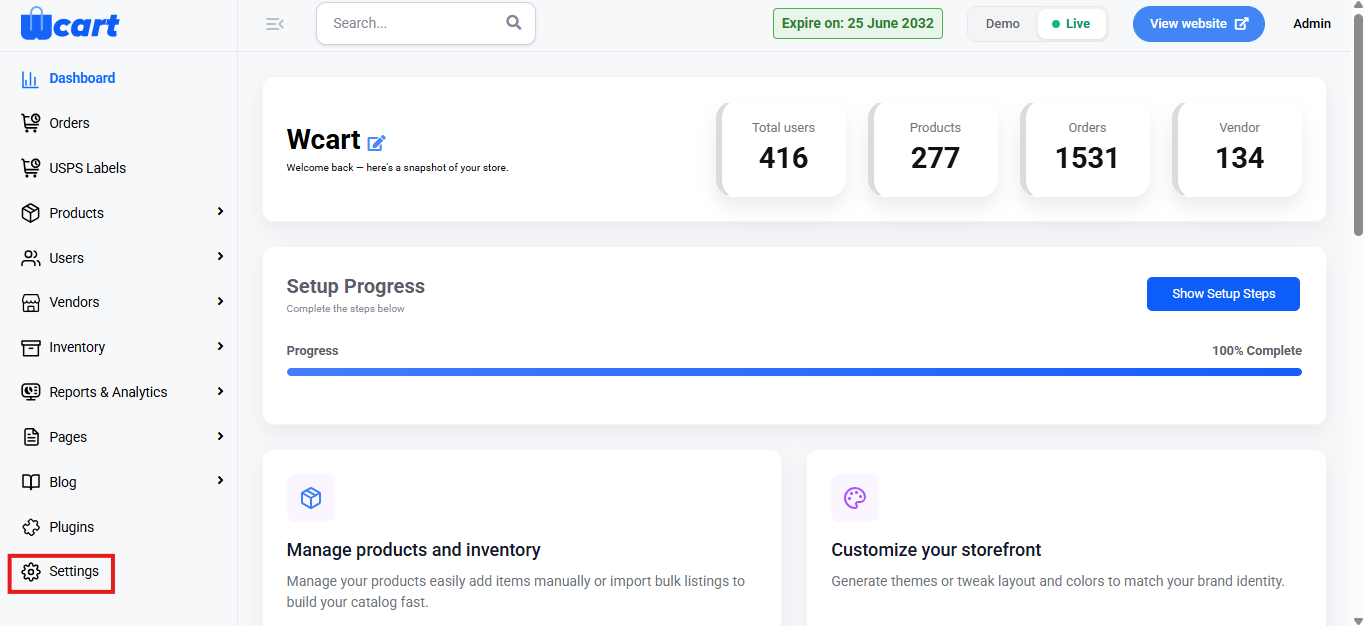
- Navigate to the sidebar menu and select ‘Settings’.
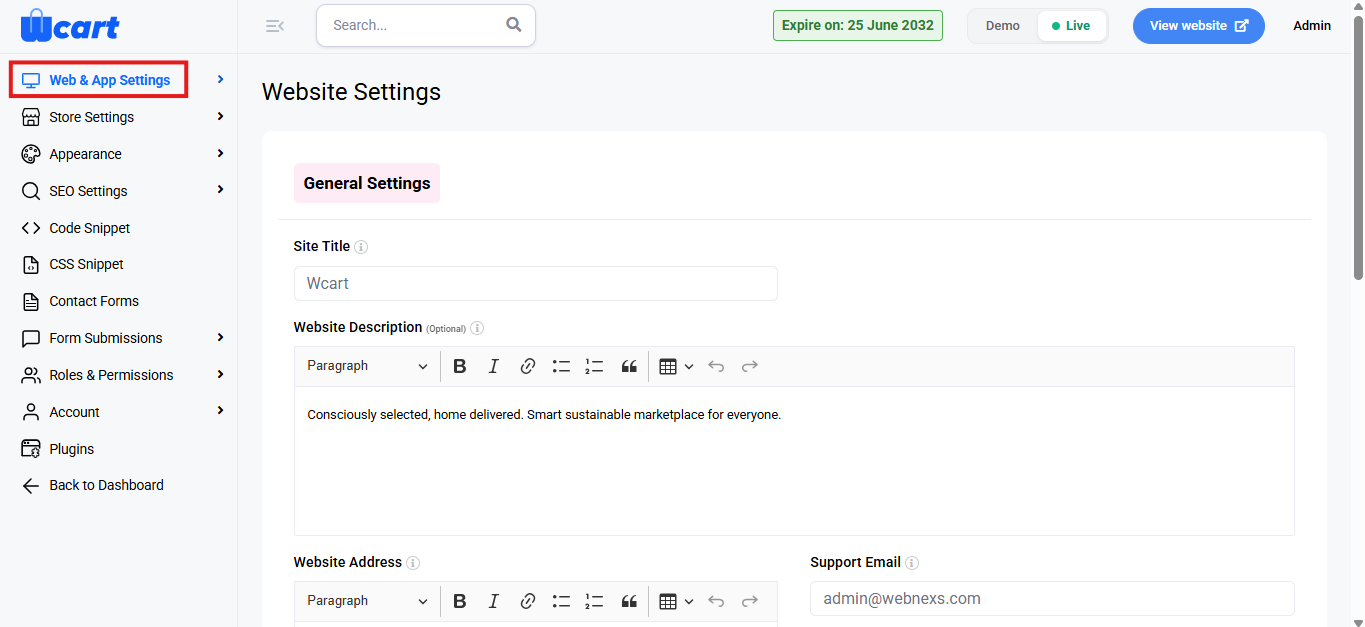
- Select ‘Web & App Settings’.
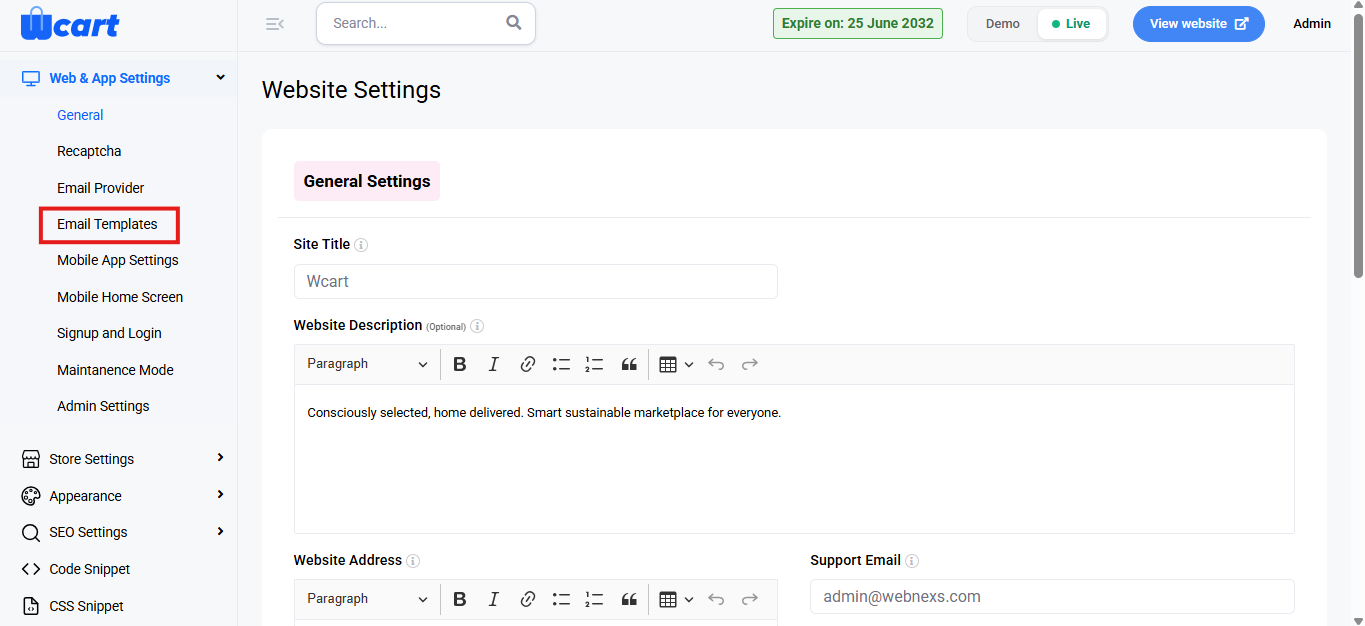
- Then, select ‘Email Templates’ from the submenu.
All Email Templates
This page displays a list of all available email templates in a tabular format, along with their current configuration details.
Template List Details
- S.No: Displays the serial number of the email template.
- Title: Indicates the purpose of the email template.
- Subject: Shows the email subject line that will be sent to recipients.
- Recipient: Displays the email address(es) configured to receive this notification.
- Status: Indicates whether the email template is currently enabled or disabled.
- Action: Click the edit icon to modify the selected email template. This page appears when clicking the ‘Action (Edit’ button for a specific email template.
- Basic Details
- Title: Displays the name of the email template. This field is view-only.
- Subject: Edit the subject line of the email as it will appear in the recipient’s inbox.
- Recipient: Shows the configured recipient email address(es), if applicable.
- Content: Allows administrators to customize the body of the email using the rich text editor.
- Short Tags: Predefined placeholders that dynamically insert data into the email content:
{{username}}– Inserts the recipient’s username{{verification_link}}– Inserts the verification link{{website_name}}– Inserts the website name
- Email Template Status
- Status: Enable or disable the email template based on whether the notification should be sent.
- Save Changes:
- Click ‘Update’ to save the changes made to the email template. A toast notification ‘Email Template Updated Successfully’ will appear to confirm the update.
- Click ‘Cancel’ to discard changes and return to the email templates list.
- Basic Details
This section enables administrators to manage and customize email notifications to ensure accurate, timely, and consistent communication with users.