
This section allows administrators to manage and customize the layout and content displayed on the mobile application’s home screen by creating and organizing multiple sections.
To configure, follow these steps:
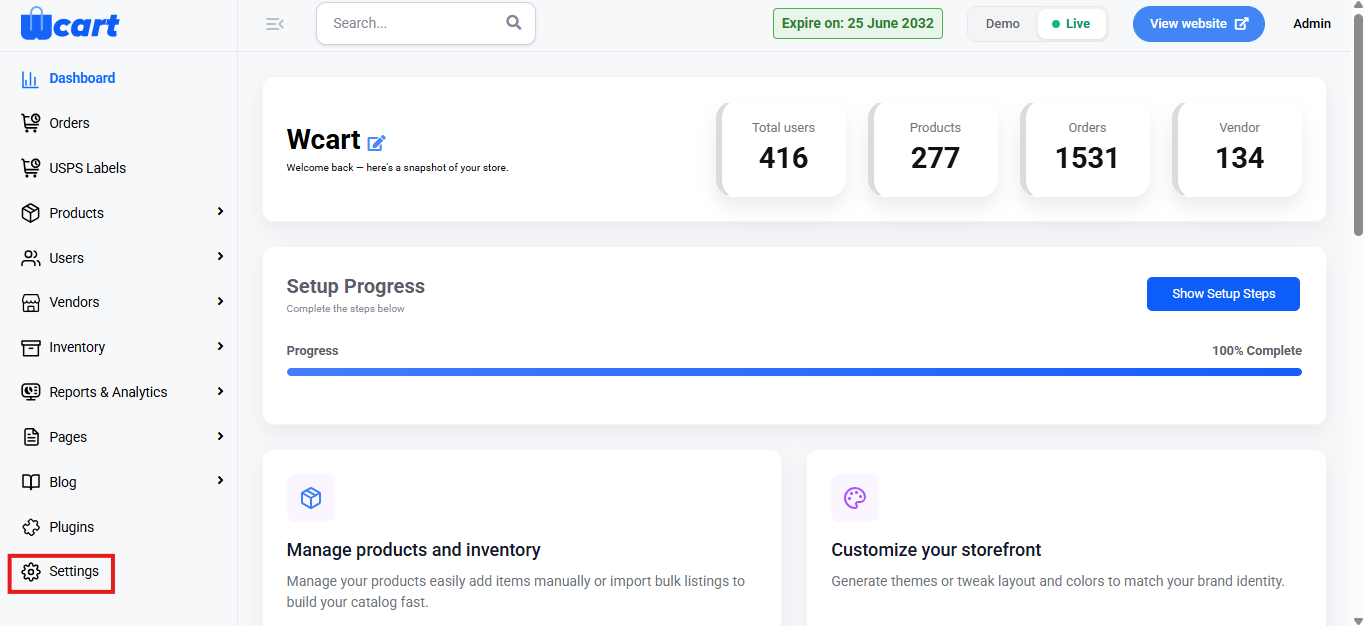
- Navigate to the sidebar menu, click ‘Plugins’.
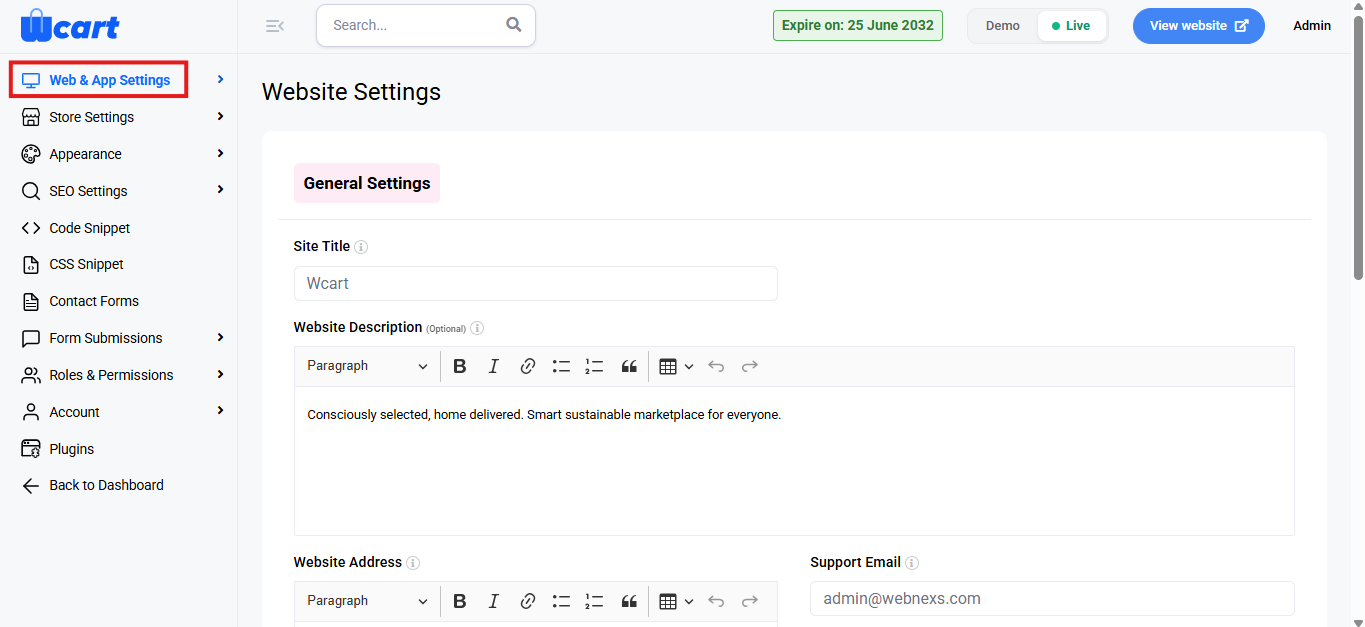
- Select ‘Web & App Settings’.
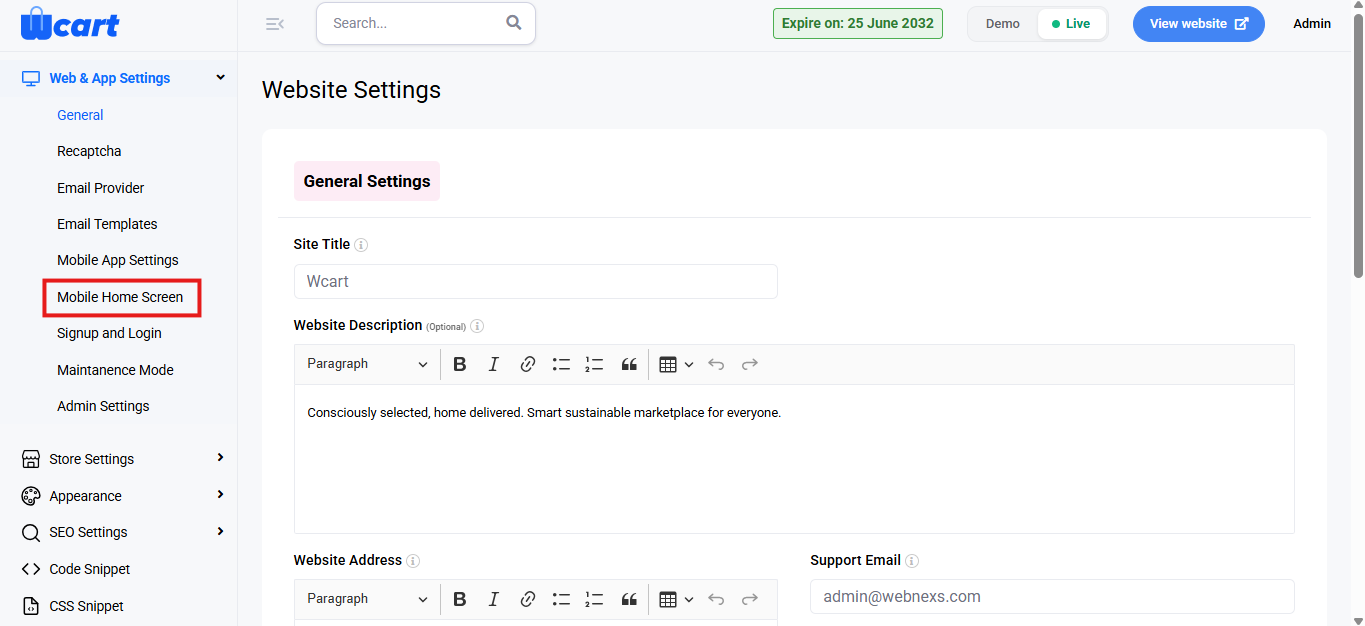
- Then, select ‘Email Templates’ from the submenu.
All Sections
The All Sections page displays a list of all configured home screen sections in a tabular format.
Section List Details:
- S.No: Displays the serial number of the section.
- Section Title: Shows the name of the home screen section.
- Layout: Indicates the type of content displayed in the section:
- Products
- Categories
- Brands
- Tags
- Banner
- Status: Shows whether the section is visible on the mobile app:
- Show
- Hide
- Action:
- Edit: Allows modifying the section details.
- Section Title: Enter a name for the section.
- Select Layout: Choose the layout type for the section. The available options include:
- Product: Displays products in this section.
- Brands: Displays brands in this section.
- Tags: Displays tags in this section.
- Categories: Displays categories in this section.
- Banner: Displays a banner in this section.
- Redirection Type: Choose how users are redirected when they interact with the section. The available options are:
- No Redirection: No redirection occurs when users interact with this section.
- App Screen: Redirects the user to a specific screen within the app.
- External Link: Redirects the user to an external URL.
- Button Text: If a button is included in the section, enter the text that will appear on the button.
- Layout Status: Choose the visibility of the section:
- Yes: The section will be visible to users on the mobile app.
- No: The section will remain hidden from users.
- Layout Mode: Select the mode for the layout. The available options are:
- Grid: Displays the content in a grid layout.
- Slider: Displays the content in a slider format.
- Delete: Removes the section from the home screen.
- Include Products: Select the products you wish to include in this section.
- Exclude Products: Select the products you wish to exclude from this section.
- Close: Click the button to exit the current section editing without saving any changes made.
- Submit: Click the button to save the changes and apply them to the section. A toast notification ‘Mobile Screen Settings page Updated Successfully’ will appear to confirm the update.
- Delete: Deletes the section. A dialog box ‘Remove Settings’ will appear with the text ‘Are you sure you want to delete this?’ along with ‘Close’ and ‘Delete’ options. Closing will remove the dialog box and clicking on ‘Delete’ will display this toast notification ‘Deleted Mobile Home screen Settings’ to confirm deletion.
- Edit: Allows modifying the section details.
Add a New Section
Click the ‘+ Section’ button at the top-right corner to add a new home screen section.
Section Configuration Fields
- Section Title: Enter a name for the section as it will appear on the mobile app home screen.
- Select Layout: Choose the type of content to display in the section. Available options include:
- Product
- Brands
- Tags
- Categories
- Banner
- Layout Status: Choose the visibility of the section:
- Show: Displays the section on the mobile app.
- Hide: Keeps the section hidden from users.
Click ‘Submit’ to add the section or ‘Cancel’ to discard changes.
Add Banner
Click the ‘Banners’ button at the top-right corner next to ‘+ Section’ button.
Banner Layout Configuration
- Banner Image: Upload the banner image for the web version.
- Banner Link: Enter the URL to which users will be redirected when the banner is clicked.
- Banner Image for Mobile Version: Upload a banner image optimized for mobile devices.
- Banner Link for Mobile Version: Enter the redirection URL specific to the mobile banner.
- Banner Place: Select the position where the banner should appear. Available options include:
- Place 1
- Place 2
- Place 3
- Place 4
- Place 5
- Banner Status: Define whether the banner should be active:
- Enable: Displays the banner on the mobile app.
- Disable: Keeps the banner inactive.
Click ‘Add Banner’ to save the banner configuration.
Manage Banners
The section displays all added banners in a list format.
Banner List Details:
- Image: Preview of the banner image.
- Link: Displays the redirection URL.
- Status: Indicates whether the banner is ‘Active’ or ‘Inactive’.
- Place: Shows the selected banner placement.
- Action:
- Edit: Already added banners are listed under the Manage Banners section. Clicking the Edit icon for any banner opens the same form used for Add New Banner, with all existing banner details pre-filled for easy modification.
- Delete: Removes the banner. A dialog box will appear with the text ‘Do you really delete the banner?’ along with ‘Ok’ and ‘Close’ options. Closing will remove the dialog box and clicking on ‘Ok’ will display this toast notification ‘Deleted Home Banner Successfully’ to confirm deletion.
This section enables administrators to efficiently manage and customize the mobile app’s home screen layout and banners.