
This section allows administrators to configure the core information, branding, and visibility settings of the website. These settings control how the website appears to users and how it is represented across platforms.
To configure, follow these steps:
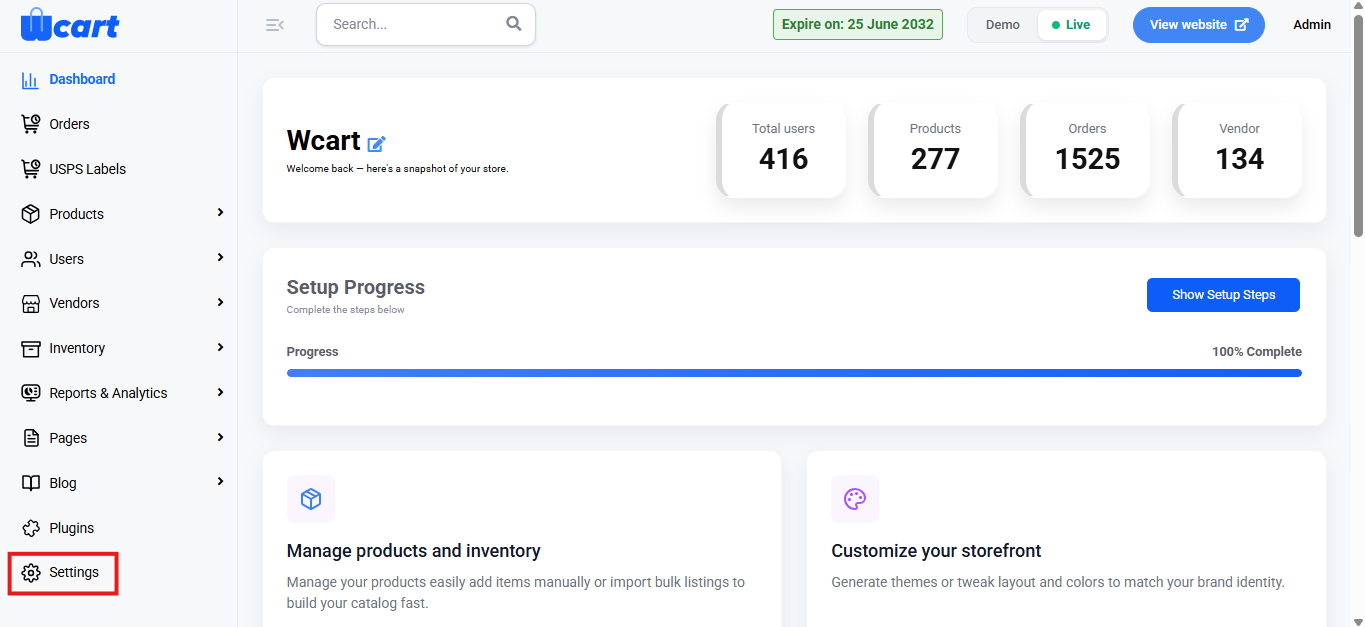
- Navigate to the sidebar menu and select ‘Settings’.
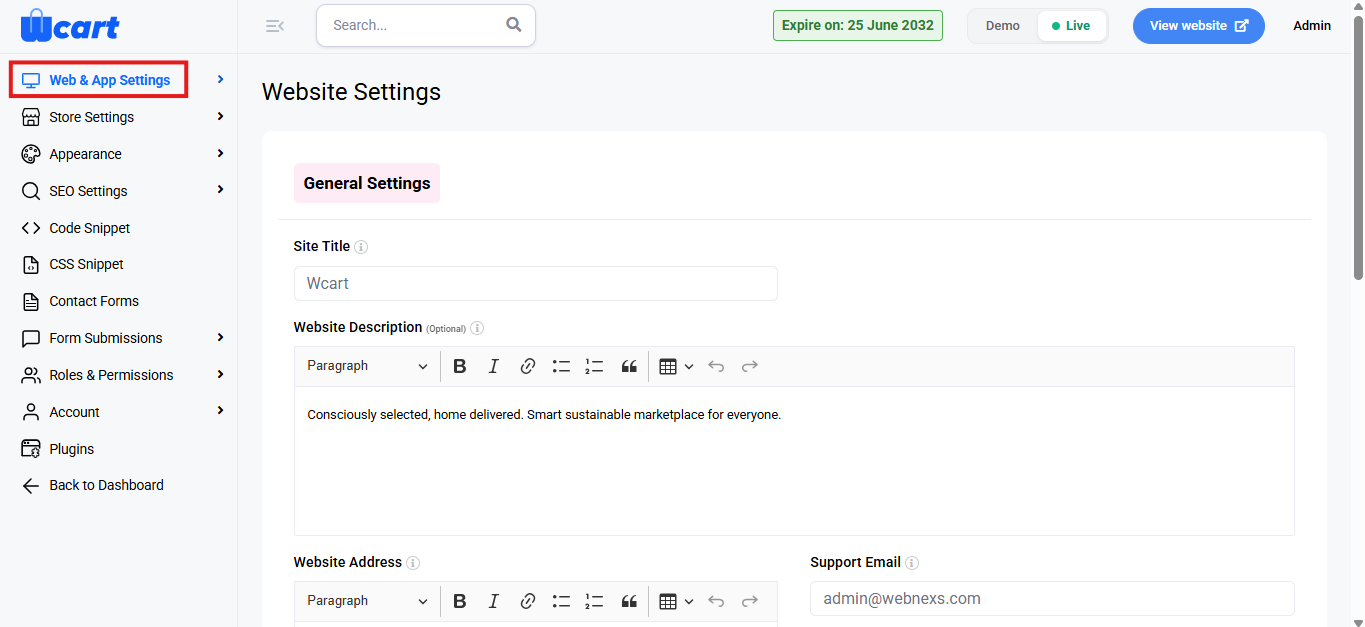
- Select ‘Web & App Settings’.
- Then, select ‘General’ from the submenu.
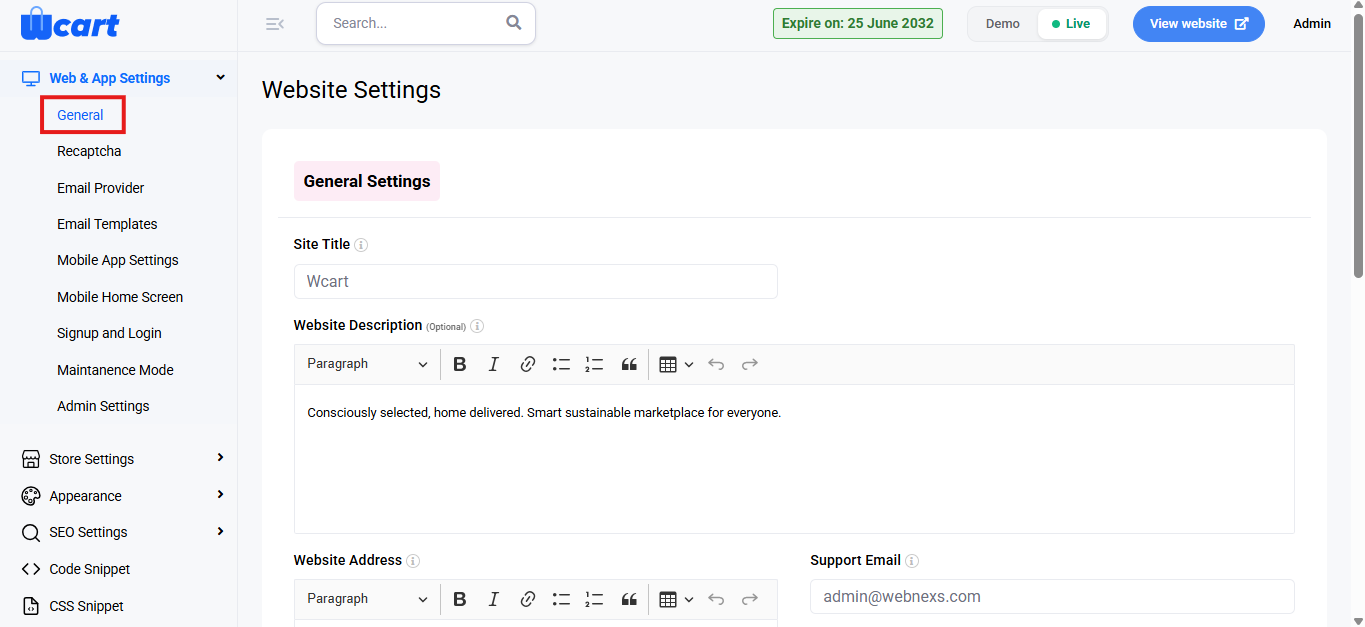
General Settings
- Site Title: Enter the name of the website as it should appear in the browser title and other system references.
- Website Description (Optional): Provide a brief description of the website. This content may be used for display purposes and search engine previews.
- Website Address: Enter the official website address or any relevant address details.
Contact Information
- Support Email Specify the email address users can contact for support-related queries.
- Support Contact: Enter the primary support phone number, including the country code.
- WhatsApp Contact: Provide the WhatsApp number users can use to reach support.
Branding & Logo Settings
- Primary Logo: Upload the website’s main logo in the following formats:
- Original Version: The default logo used across the website where no specific background styling is applied.
- Light Version: A logo optimized for display on dark or colored backgrounds to ensure clear visibility.
- Dark Version: A logo designed for light or white backgrounds, providing proper contrast and readability.
- Favicon: Upload the favicon icon that appears in the browser tab.
- Logo Width: Specify the horizontal size of the logo to ensure consistent alignment across the website.
- Logo Height: Specify the vertical size of the logo to maintain proper proportions and visual balance.
App Store Links
- Google Play URL: Enter the Google Play Store link for the mobile application.
- App Store URL: Enter the Apple App Store link for the mobile application.
- Search Engine Visibility: Choose whether the website should be visible to search engines:
- Yes: Allows indexing by search engines
- No: Prevents search engines from indexing the website
Save Settings
After completing all required fields, click ‘Submit’ to save the changes. To discard any modifications, click ‘Cancel’. A toast notification ‘Updated General Settings’ will appear to confirm the update.
These settings allow administrators to manage essential website information, branding, and visibility, ensuring a consistent appearance, accurate contact details, and proper discoverability across platforms.