
Displays a breakdown of sales and order count for each product.
To add multiple vendors, follow these steps:
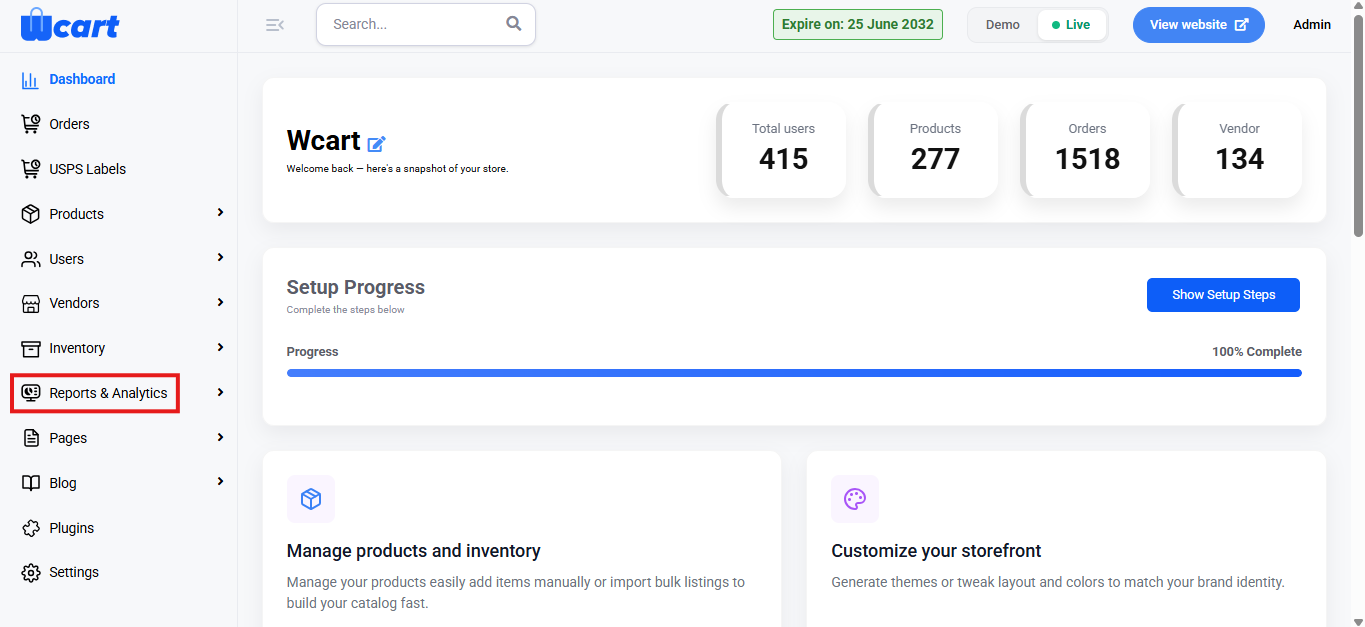
- Navigate to the sidebar menu and select ‘Reports & Analytics’.
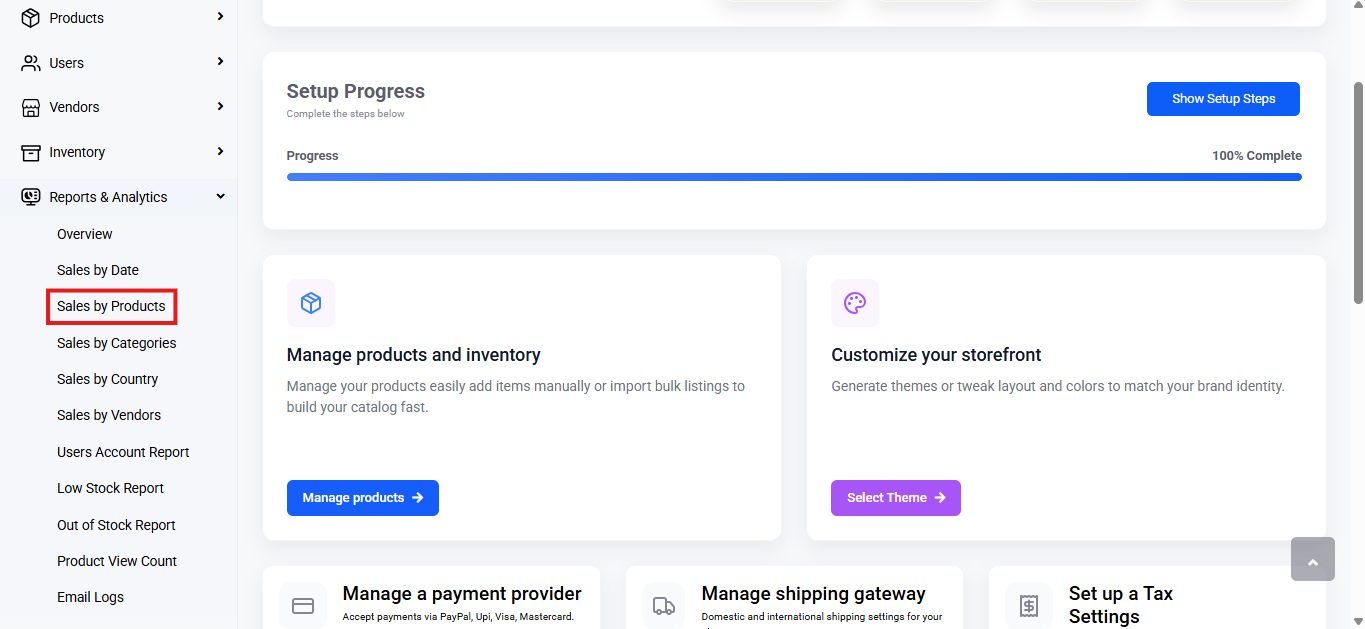
- Select ‘Sales by Product’ from the submenu.
Range Selector
- Purpose: Allows you to filter the data based on a specific time period.
- Options Available:
- Today
- Yesterday
- This Week
- Last Week
- This Month
- Last Month
- Custom Range: Select Custom Range to filter data for a specific period.
- Choose start (From) and end (To) dates.
- Click Submit to apply.
- All reports will update based on the selected range.
When a range is selected, all data in the dashboard is updated accordingly.
Report Table:
Shows the following columns:
- Product Name: Name of the product
- Order Quantity: Number of units ordered for the product
- Sales: Total sales amount for the product
- Action: Clicking the ‘View’ button opens a modal window that provides specific order details, including:
- Order ID: Unique identification number for the order
- Order Date: Date of the order
- Quantity Sold: Number of units sold in that order
- Total Amount: Total monetary value of the order
- View: Redirects to a comprehensive order management page. Click the link given at the end of this section to the guide to orders.
Export
Click ‘Export’ at the top-right corner to export the data. Click Export to download the report.
File Types Available:
- CSV
- Excel
Choose a format and click Export to download.
It enables efficient tracking and analysis of product sales and order performance, providing valuable insights that support informed decision-making and enhance operational efficiency.