
Displays a breakdown of sales and order count based on the selected date range.
To add multiple vendors, follow these steps:
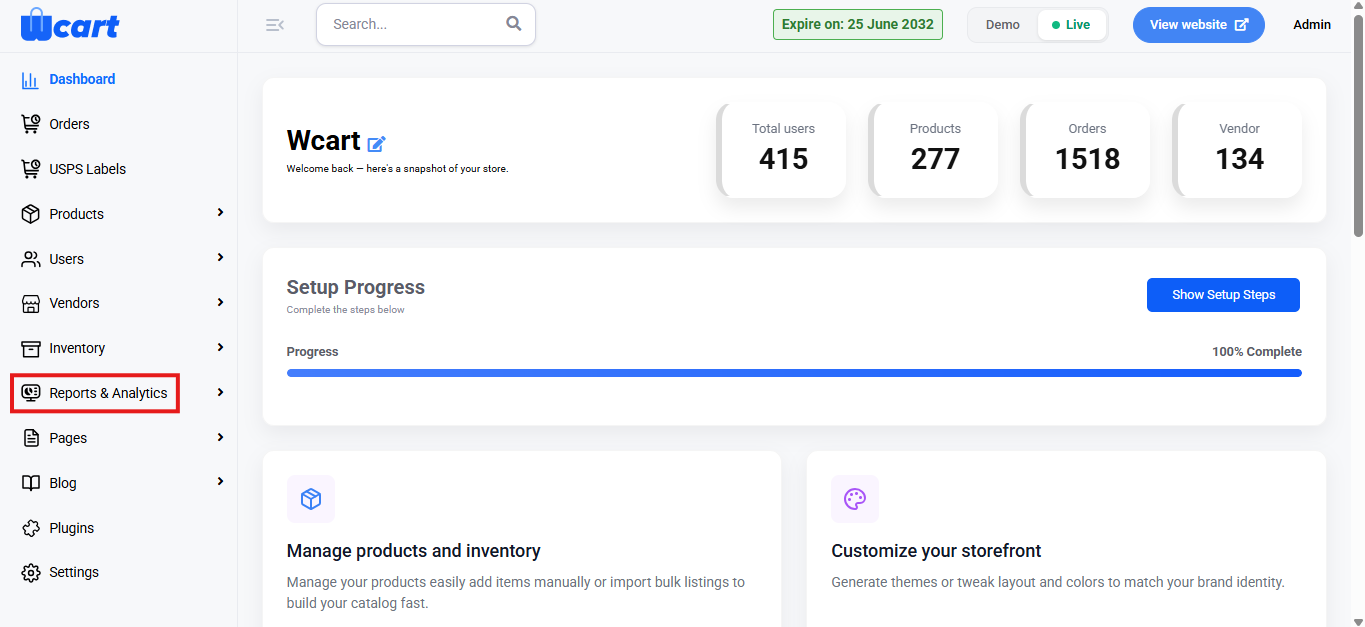
- Navigate to the sidebar menu and select ‘Reports & Analytics’.
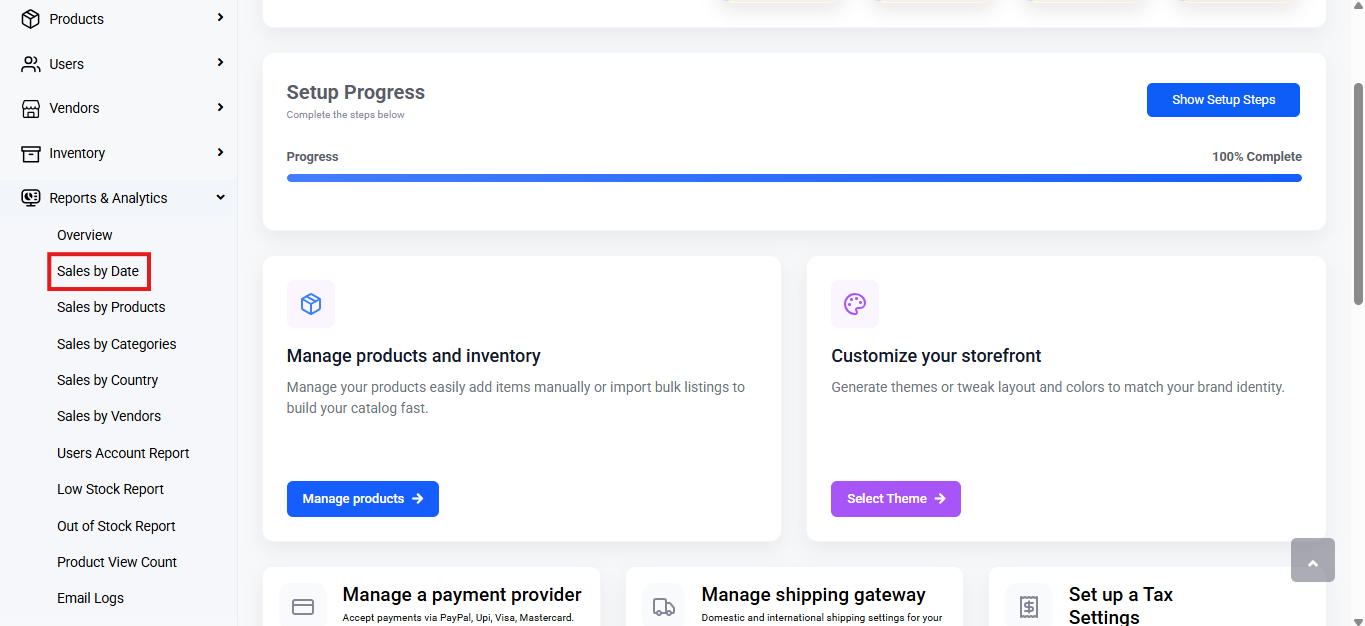
- Select ‘Sales by Date’ from the submenu.
Range Selector
- Purpose: Allows you to filter the data based on a specific time period.
- Options Available:
- Today
- Yesterday
- This Week
- Last Week
- This Month
- Last Month
- Custom Range: Select Custom Range to filter data for a specific period.
- Choose start (From) and end (To) dates.
- Click Submit to apply.
- All reports will update based on the selected range.
When a range is selected, all data in the dashboard is updated accordingly.
Report Table
Shows the following columns:
- Order Date: Date of order
- Order Count: Number of orders placed
- Sales:Total sales amount
- Action: Clicking the ‘View’ button will open a modal window to provide specific order details. The modal window has a table that has the following column headers:
- Order ID: Unique identification number for the order.
- Name: Name of the customer associated with the order.
- Email: Email address of the customer associated with the order.
- View: Redirects to a comprehensive order management page.
This order management page has a table with various columns to interpret orders data quickly and accurately. The columns are listed below:
- S.No: Serial number of the order record.
- Order Map ID: Unique internal mapping ID for the order.
- Order Date: Date the order was placed.
- Buyer Name: Name of the customer who placed the order.
- Total Amount: Total monetary value of the order, including the currency.
- Payment Mode: Method of payment used for the order. The options are mentioned below:
- Checkout.com
- Adyen
- PayU
- PayHere
- Cashfree
- PayPal
- Pesapal
- Stripe
- Razorpay
- Cash on delivery
Order Status
- Order Status: Current status of the order. The options are mentioned below:
- Pending Payment
- Processing
- Ready to Ship
- Ready to Pickup
- In Transit
- Delivered
- Failed
- Cancel Initiated By Customer
- Cancelled
- Refund Initiated By Customer
- Refund Accepted By Admin
- Initiate Pickup From Customer
- Picked Product From Customer
- Product Received and Refund Initiated
- Refund Completed
- Exchange Initiated By Customer
- Exchange Accepted By Admin
- Exchange Pickup From Customer
- Exchange Product Picked From Customer
- Exchange Product Received
- Exchange Ready to Ship
- Exchange Ready to Pickup
- Exchange In Transit
- Exchange Delivered
- Exchange Order Placed
- Action: Redirects to the orders module to view complete order details.
Export
Click ‘Export’ at the top-right corner to export the data. Click Export to download the report.
File Types Available:
- CSV
- Excel
Choose a format and click Export to download.
It enables efficient tracking and analysis of product sales and order performance, providing valuable insights that support informed decision-making and enhance operational efficiency.