
This feature allows you to add custom scripts or code snippets to specific sections of your website layout. This is commonly used for analytics tools, tracking scripts, chat widgets, or third-party integrations.
To configure, follow these steps:
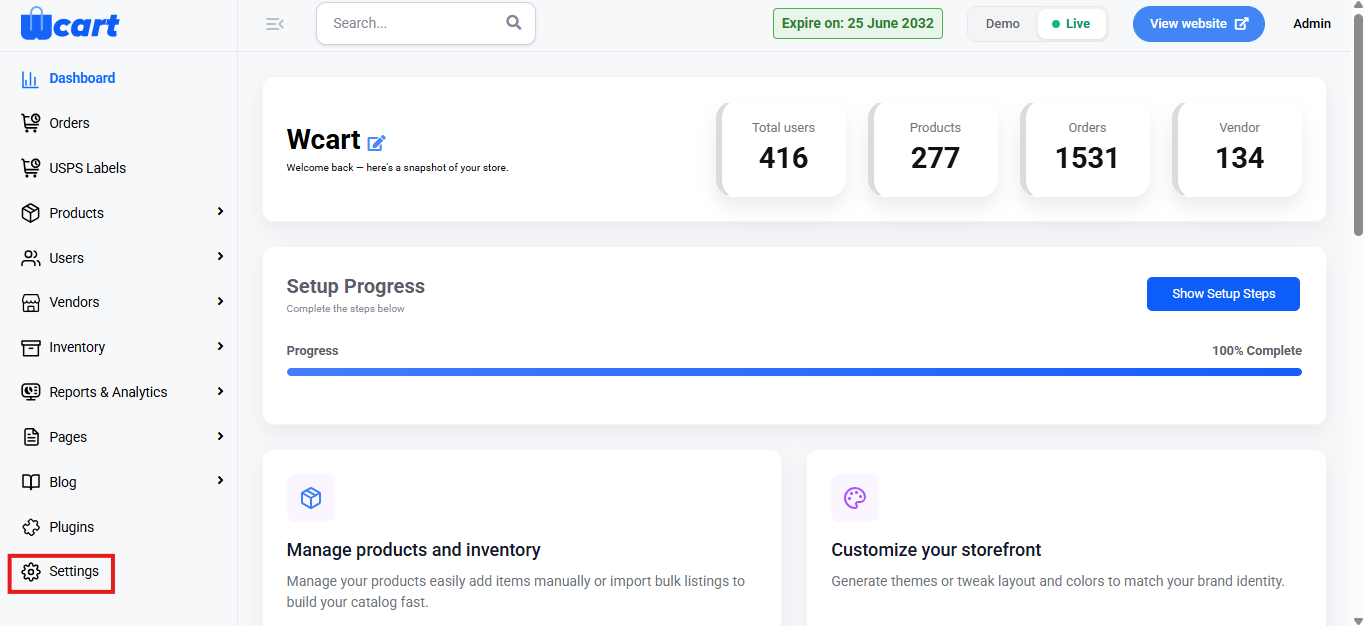
- Navigate to the sidebar menu, click ‘Settings’.
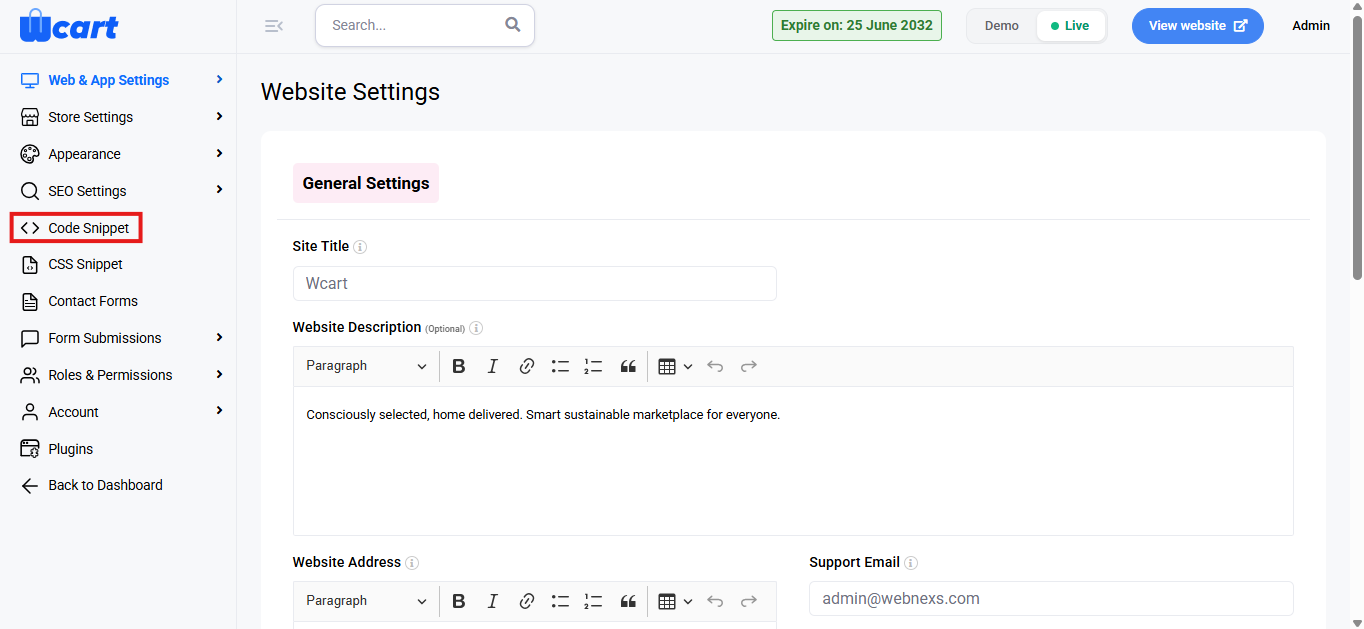
- Select ‘Code Snippet’.
Header and Footer Links
This section provides dedicated fields to insert code snippets based on where they should appear on the website.
Header Link
- Use this field to add scripts that need to load in the header section of the website.
- Common use cases include analytics tools, tracking scripts, or verification codes.
- Paste the complete script code into the field as provided by the service.
Footer Link
- Use this field to add scripts that should load in the footer section of the website.
- Footer scripts are typically used for performance optimization or non-critical integrations.
Below Footer
- Use this field to insert code that should appear below the footer section of the website.
- This is useful for custom widgets, additional tracking scripts, or footer-level customizations.
Actions
- Click ‘Submit’ to save the added code snippets. The changes will be applied across the website based on the selected placement. A toast notification ‘Code Snippet Updated Successfully’ will appear to confirm the update.
By managing scripts through this section, you can update or remove integrations without redeploying your website. This helps improve operational efficiency and reduces dependency on developers.