
This section displays a report highlighting products that are approaching low stock levels within the platform.
To add multiple vendors, follow these steps:
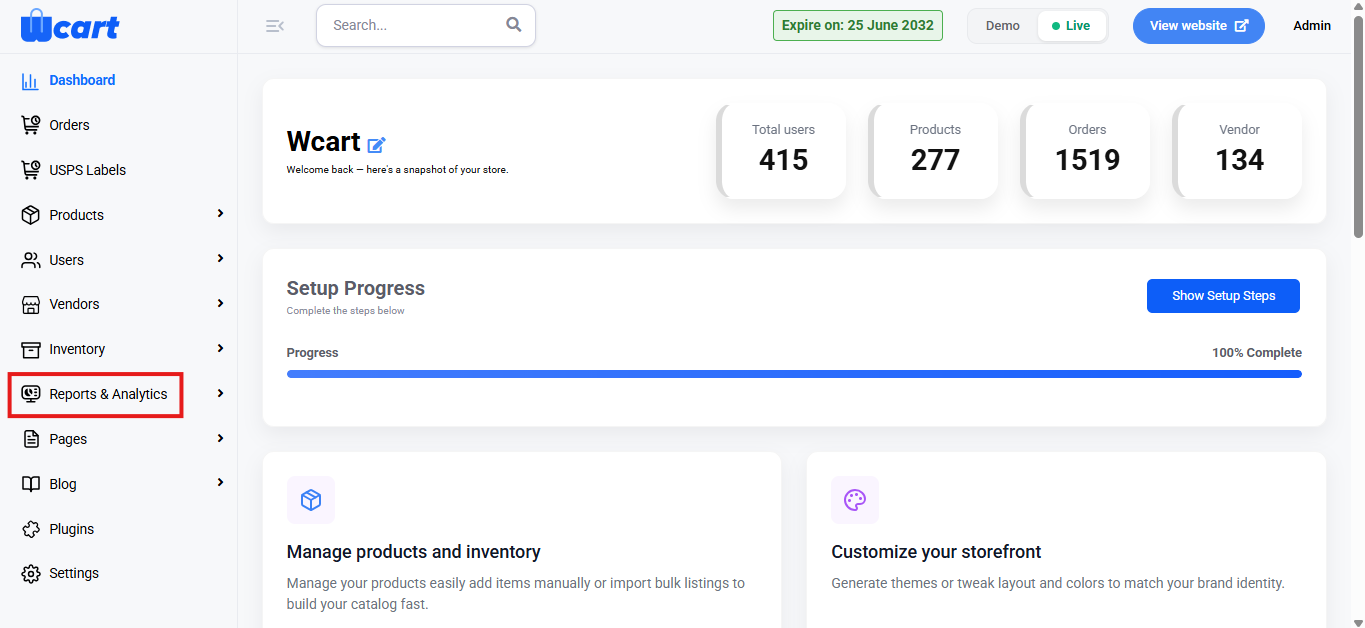
- Navigate to the sidebar menu and select ‘Reports & Analytics’.
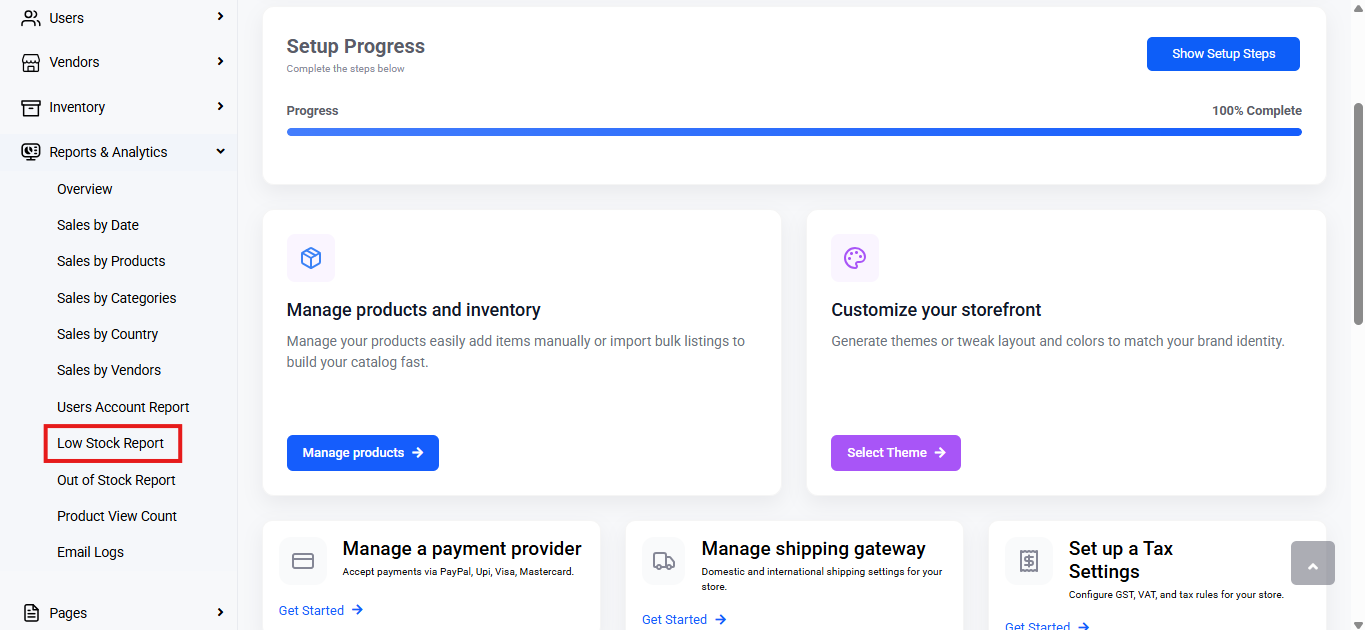
- Select ‘Low Stock Report’ from the submenu.
You will find a table with various columns to interpret low stock data quickly and accurately. The columns are listed below:
- Name: Displays the product name along with its URL slug.
- Quantity: Shows the current available stock quantity of each product.
- Threshold: Indicates the predefined stock threshold set for low stock alerts.
- Status: Indicates the status of the product.
- Draft: The product is saved as a draft and is not visible to customers. It can be edited before it is published.
- Publish: The product is live and visible in the storefront for customers to purchase.
- Verification Pending: The product is awaiting admin or system approval before it can go live.
- Action: Provides quick-access icons to update or modify the product details. It will open the Edit product page in ‘All Products’ under Products.
This report helps admins efficiently monitor products nearing low stock levels, enabling proactive management of inventory. By providing clear visibility into product status and stock quantities, it supports timely restocking decisions and ensures seamless operations.