
This feature allows you to manage social media platforms used for content sharing on the website.
To configure, follow these steps:
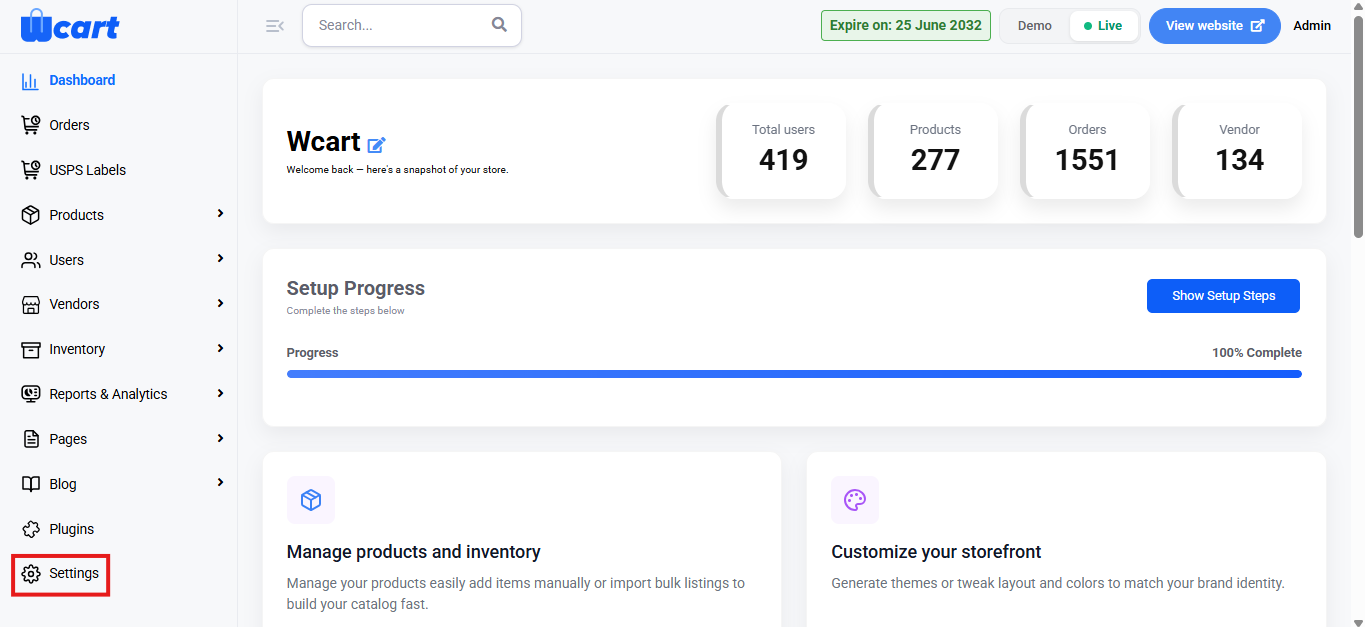
- Navigate to the sidebar menu, click ‘Settings’.
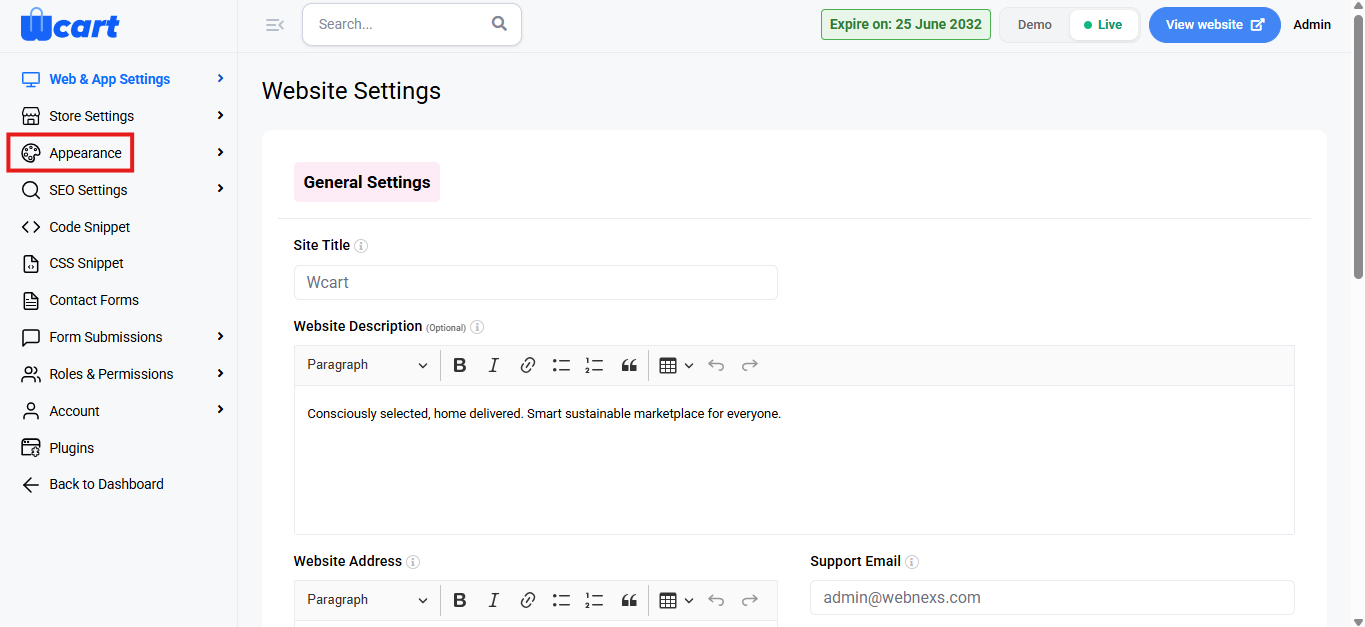
- Select ‘Appearance’.
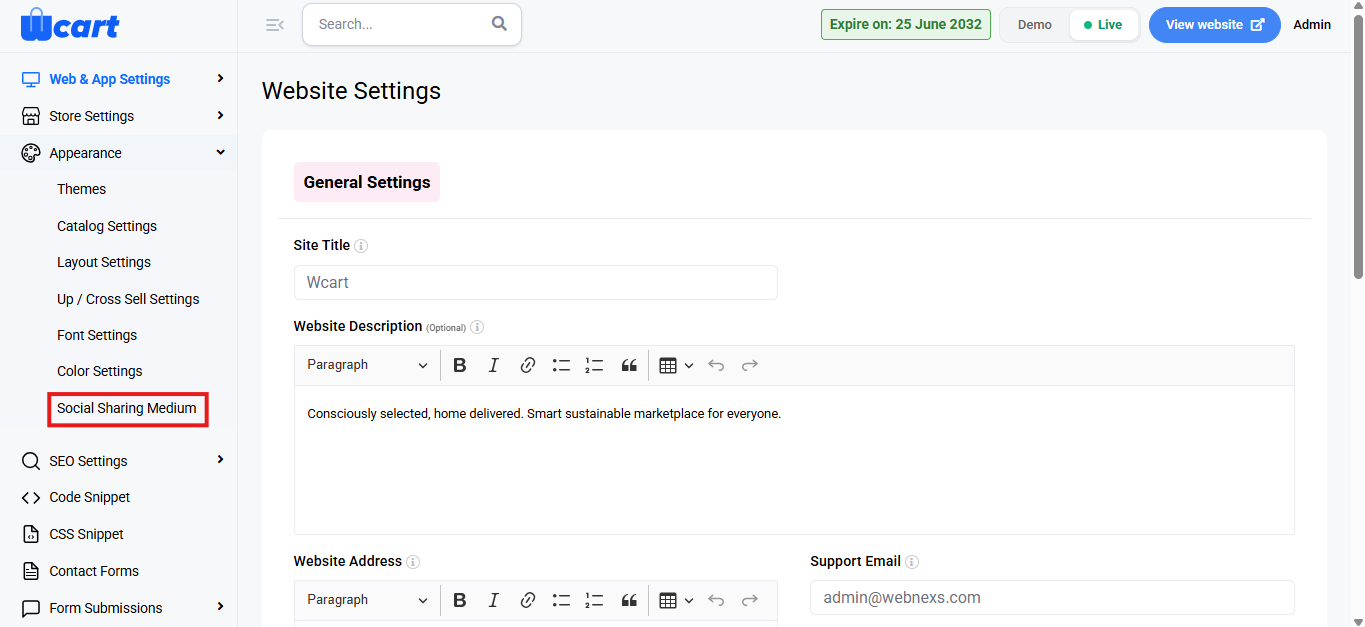
- Next, choose ‘Social Sharing Medium’.
Add Social Sharing Medium
Click ‘+ New’ at the top-right of the page. Enter the required details as mentioned below:
- Social Media Name: Enter the name of the social media platform.
- Icon: Enter the icon class for the platform.
- URL: Enter the sharing URL for the platform.
- Submit: Click this button to save. A toast notification ‘Social Sharing Medium Added Successfully’ will appear to confirm the addition.
- Close: Click this button to cancel.
View Social Sharing Medium List
This section displays all configured social sharing mediums in a tabular format.
You will see a list with the following information:
- S.No: Displays the serial number of the entry.
- Name: Displays the social media platform name.
- Icon: Displays the icon class used for the platform.
- URL: Displays the configured sharing URL.
- Action: Options to edit or delete.
- Edit: The same form fields used when adding a new social link will be available for modification.
- Delete: Removes the social link. A dialog box will appear with the text ‘Are you sure you wish to delete this Social link?’ along with ‘Ok’ and ‘Cancel’ options. Cancelling will remove the dialog box and clicking on ‘Ok’ will display this toast notification ‘Social Sharing Medium Deleted’ to confirm deletion.
These settings help keep social media sharing clear and consistent across the website, with clear messages confirming each action.