
This section under ‘Affiliate Program’ allows you to add, manage, and track all affiliate users connected to your store. Follow the steps below to register new affiliates, review their details, and monitor their performance effectively.
To configure, follow these steps:
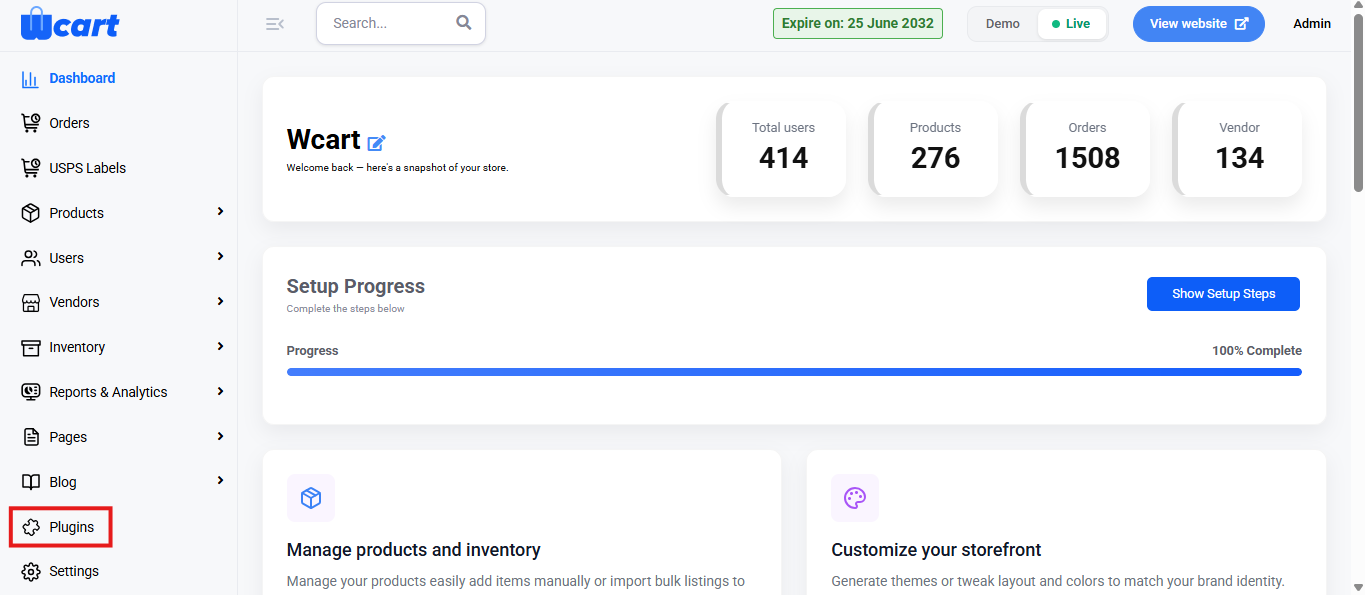
- Navigate to the sidebar menu and click ‘Plugins’.
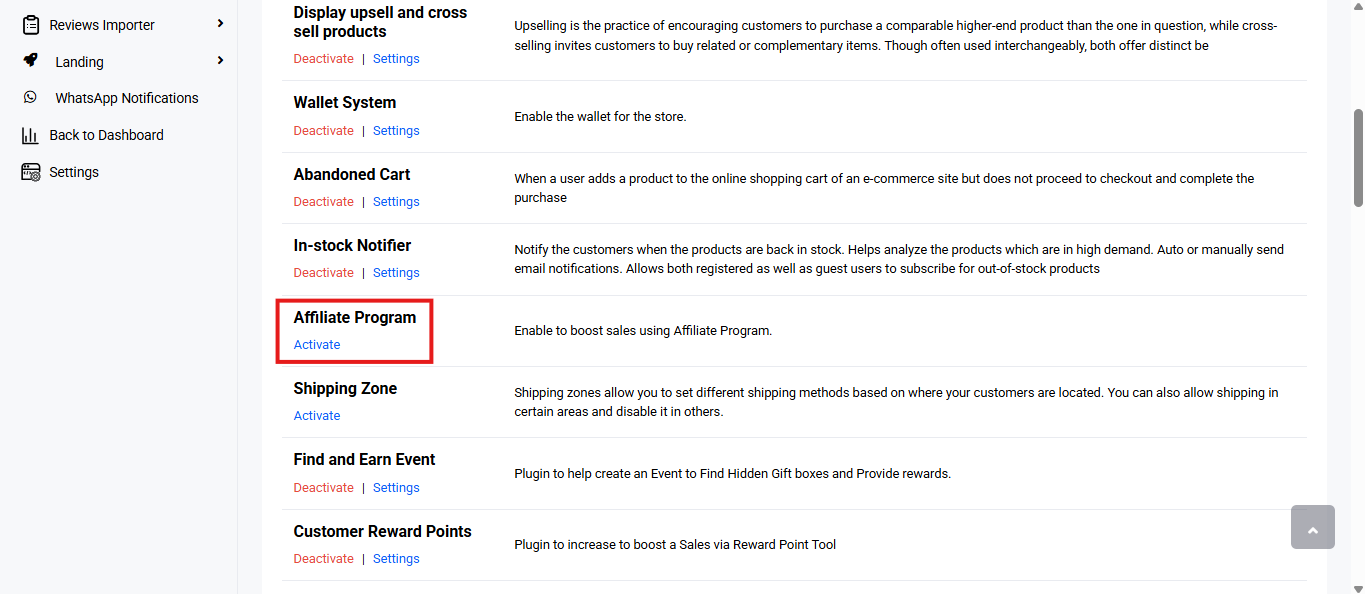
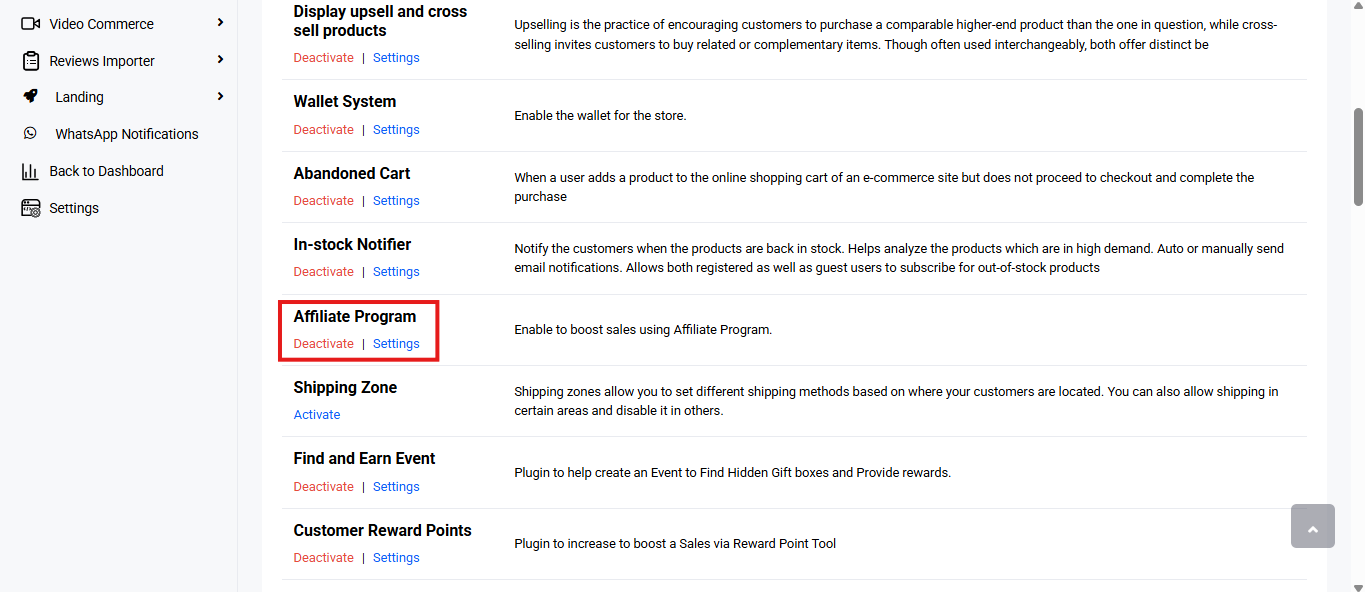
- Locate ‘Affiliate Program’ and click ‘Activate’. You will now see two options: ‘Deactivate’ and ‘Settings’. When you click ‘Activate’ or ‘Deactivate’, a toast notification showing ‘Affiliate Program Plugin Activated’ or ‘Affiliate Program Plugin Deactivated’ will appear to confirm that the plugin has been activated or deactivated. You can configure ‘Affiliate Program’ by clicking ‘Settings’ or by selecting ‘Affiliate Program’ from the left sidebar menu after activation.
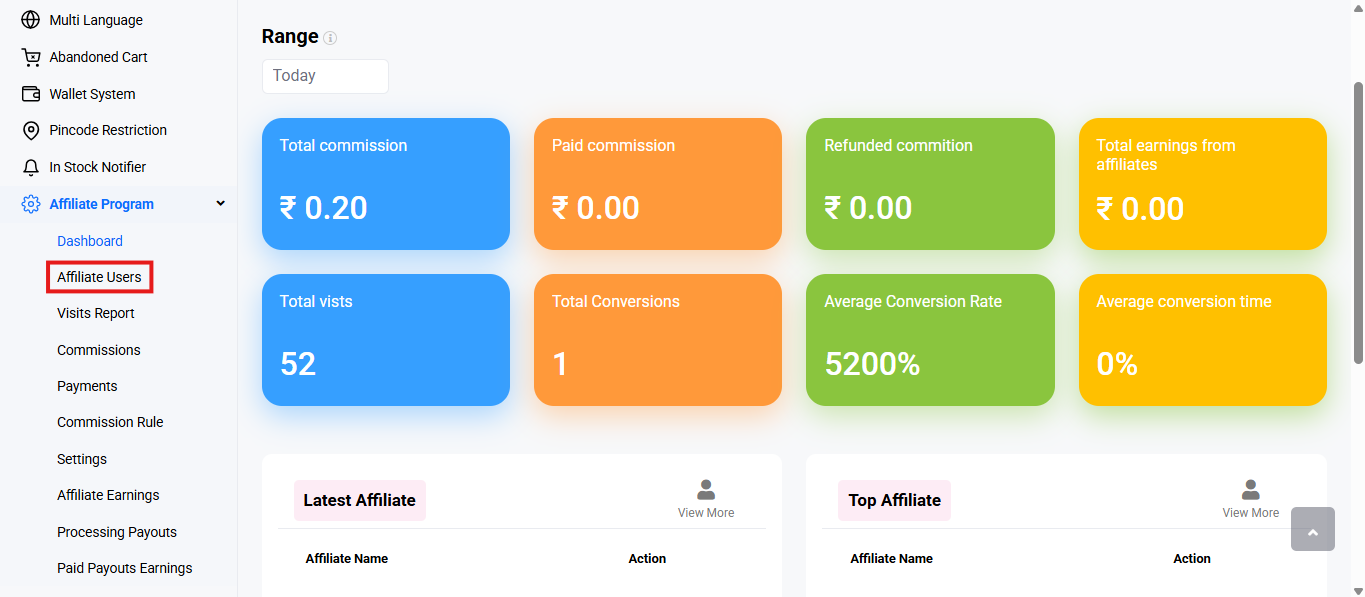
- Select ‘Affiliate Users’ from the submenu.
Click ‘Add Affiliates’ at the top right corner to add new affiliates . A modal dialog box will appear with the following input field:
Choose Existing User
- A searchable input field appears.
- Begin typing the name of an existing user and select the desired user from the suggestions.
- Click Continue to assign affiliate status to the selected user.
Create New
Manage and register affiliates to help promote your store and boost sales through referral marketing.
All Affiliates: Clicking this button will redirect you to the Affiliate Users list page, where you can view and manage all registered affiliate accounts.
Basic Details
Fill out the following required personal information:
- Name: Enter the full first and last name of the affiliate.
- Email: Enter a valid and unique email address.
- Phone Number with Country Code: Select country code and enter the affiliate’s phone number.
- Gender: Select Male/Female/Other from the dropdown.
- DOB (Date of Birth): Click the calendar icon to select the date.
- Password: Set a secure password for the affiliate account.
Affiliate Info
Provide promotional and profile details:
- Tell us something about you: A short bio or introduction.
- How will you promote our site?: Choose your main promotion method.
- Specify how you will promote our site: Describe your strategy or promotional approach in detail.
- Website: Provide the URL of the website (if applicable).
- Social Profiles: Enter links to social media profiles.
Bank Details
These details are required for processing payouts:
- Account Holder: Name of the account holder (as per bank).
- Bank Account Number: Enter the full account number.
- Bank Name: Full name of the bank.
- Bank Branch: Branch name or code.
- Bank Country: Country in which the bank account is held.
- IFSC Code: The bank’s IFSC code used for online transfers.
Cancel: Discards the form input and returns to the affiliate users list page.
Submit: Save your changes. A toast notification ‘User Registered Successfully, Check your email and verify your account!!!’ will appear to confirm the new addition.
Now click ‘All Affiliates’ and return to the all affiliates section. You will find a table with various columns to interpret affiliate user data quickly and accurately. The columns are listed below:
- S.No: Serial number of the row in the current view.
- Name: Displays the name of the registered affiliate user.
- Token: A unique identifier automatically generated for each affiliate.
- Rate: Specifies the commission rate assigned to the affiliate. (Note: Appears empty if not set.)
- Earnings: Shows the total earnings generated by the affiliate through successful conversions.
- Balance: Displays the current available balance for the affiliate that can be requested or used for payouts.
- Conversions Rate: Indicates the success rate of conversions from referred users.
- Status: Represents the approval status of the affiliate user. The two options include:
- Accepted: The affiliate has been approved and is active.
- Pending: Affiliate’s registration is under review and awaiting admin approval.
- Action: Provides quick access to perform actions related to each affiliate.
View Info: Clicking the eye icon redirects to the ‘Affiliate Profile’ page, which shows detailed performance metrics and transactions for the selected affiliate.
Affiliate Profile
Provides a summary of the selected affiliate’s performance and transactions:
- Total Earning: Total amount earned through all commissions. The icon redirects to the ‘Manage Users’ section.
- Paid: Amount already paid to the affiliate.The icon redirects to the ‘Manage Products’ section.
- Refunded: Amount deducted from earnings due to refunds. The icon redirects to the ‘Manage Orders’ section.
- Active Balance: Current balance available for withdrawal or future payouts. The icon redirects to the ‘Manage Vendors’ section.
Commissions: Lists all individual commissions earned by the affiliate:
- ID: Unique identifier for the commission entry.
- Name: Name of the customer or affiliate associated with the commission.
- Product: Product that generated the commission.
- Commission Amount: Amount earned from that sale.
- Status: Indicates if the commission is approved, pending, or refunded.
Payments: Displays payout history for the affiliate:
- ID: Unique identifier for the payout record.
- Amount: The payout amount transferred to the affiliate.
- Created on: Date the payout request was generated.
- Completed on: Date the payout was successfully processed.
- Status: Indicates the payout status.
These settings help you manage affiliates smoothly and track accurate performance. Regular reviews ensure better payouts, stronger affiliate activity, and improved conversions for your store.
Links to other ‘Affiliate Program’ navigation tabs: