
This section allows administrators to manage inventory and stock transfers between warehouse and store locations. It provides tools to track product quantities, update stock levels, and ensure accurate availability across the system.
To configure, follow these steps:
- Navigate to the sidebar menu and select ‘Plugins’.
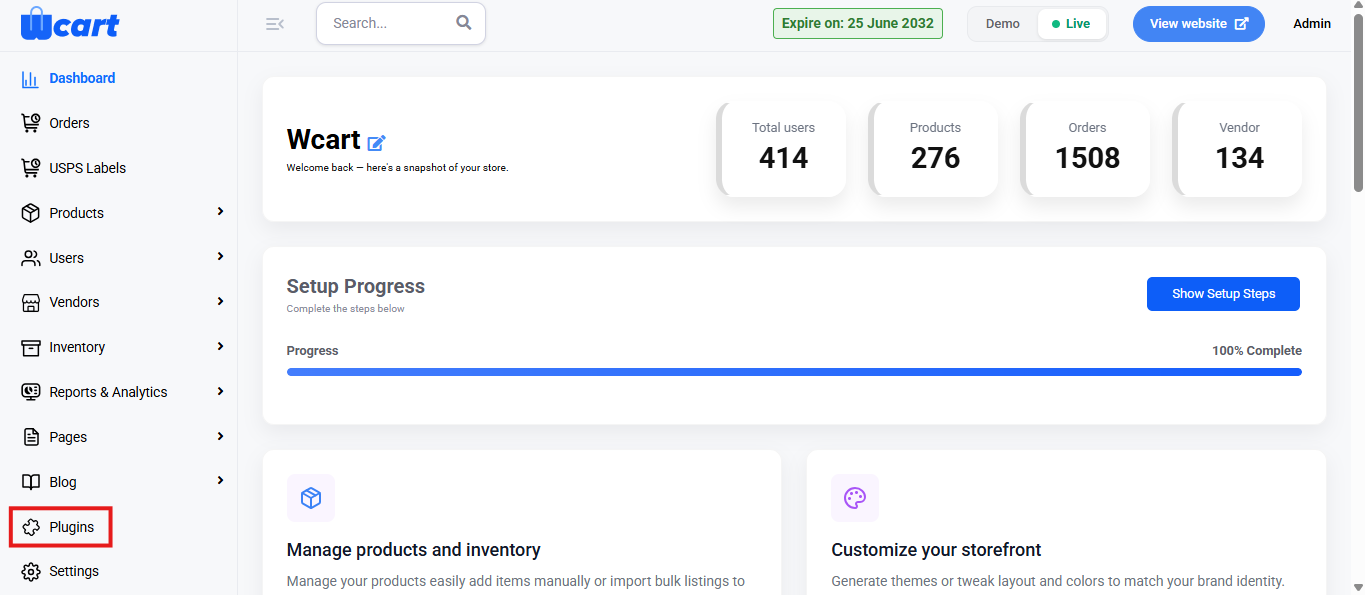
- Locate ‘Display upsell and cross sell products’ and click ‘Activate’. You will now see two options: ‘Deactivate’ and ‘Settings’. When you click ‘Activate’ or ‘Deactivate’, a toast notification showing ‘Display Upsell and Cross-Sell Products Plugin Activated’ or ‘Display Upsell and Cross-Sell Products Plugin Deactivated’ will appear to confirm that the plugin has been activated or deactivated. You can now configure upsell and cross-sell products by clicking ‘Settings’ after activation.
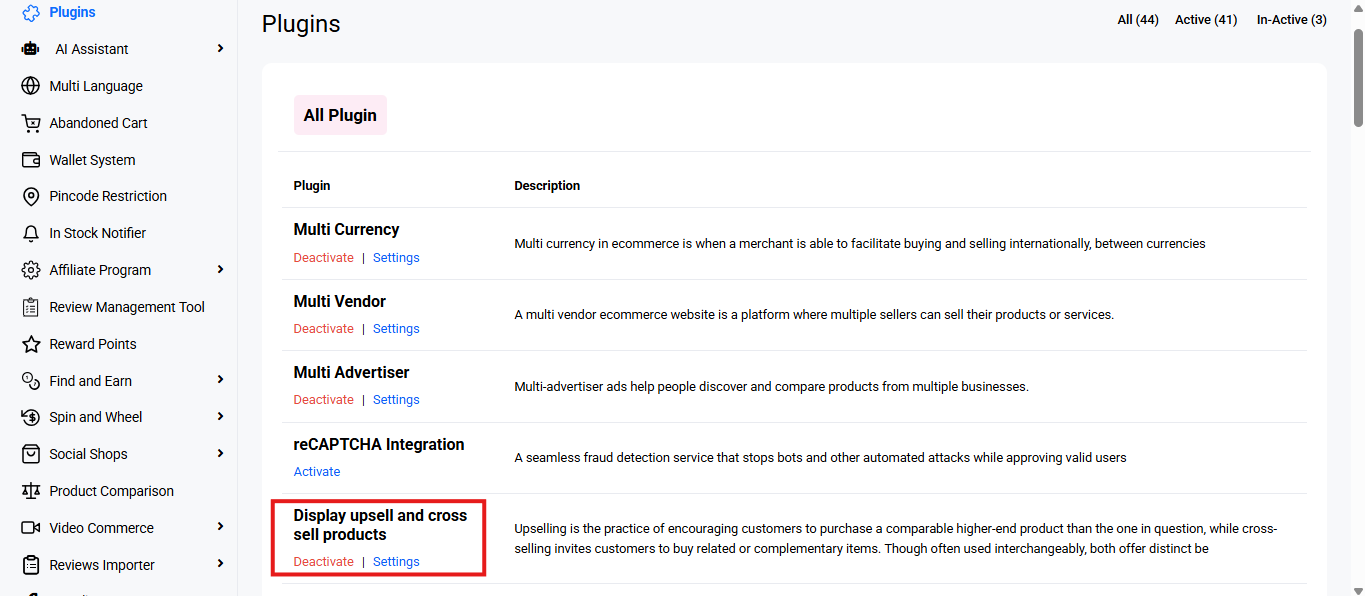
Clicking on Settings will open the configuration panel with the following fields:
- Title: This field allows the admin to define a custom heading that will appear above the upsell or cross-sell product block on the frontend.
- Status: The Status drop down determines whether the upsell or cross-sell block is enabled on the storefront. It provides two options:
- Yes: Activates the section and displays the configured product suggestions to users.
- No: Deactivates the section, and the suggestions will not be shown.
- Description: Enter a short description that appears below the title on the frontend.
- Complete: Clicking on ‘Complete’ saves the changes made to the active tab (either Upsell or Cross Sell). Toast notification ‘Update Upsell Product Settings’ and ‘Update Cross Sell Product Settings’ will appear to confirm the update.
These settings ensure customers can subscribe for restock alerts and receive timely notifications when their desired products are available again. Always click Submit in each section to save your changes and confirm updates via the toast message.