
This section is used to create interactive promotional campaigns that allow users to spin and win rewards. It provides options to configure reward emails, manage events and track user form submissions from the admin panel.
It has three navigation tabs: ‘Settings’, ‘Events’ and ‘Form Submission’. Each is detailed below.
To configure, follow these steps:
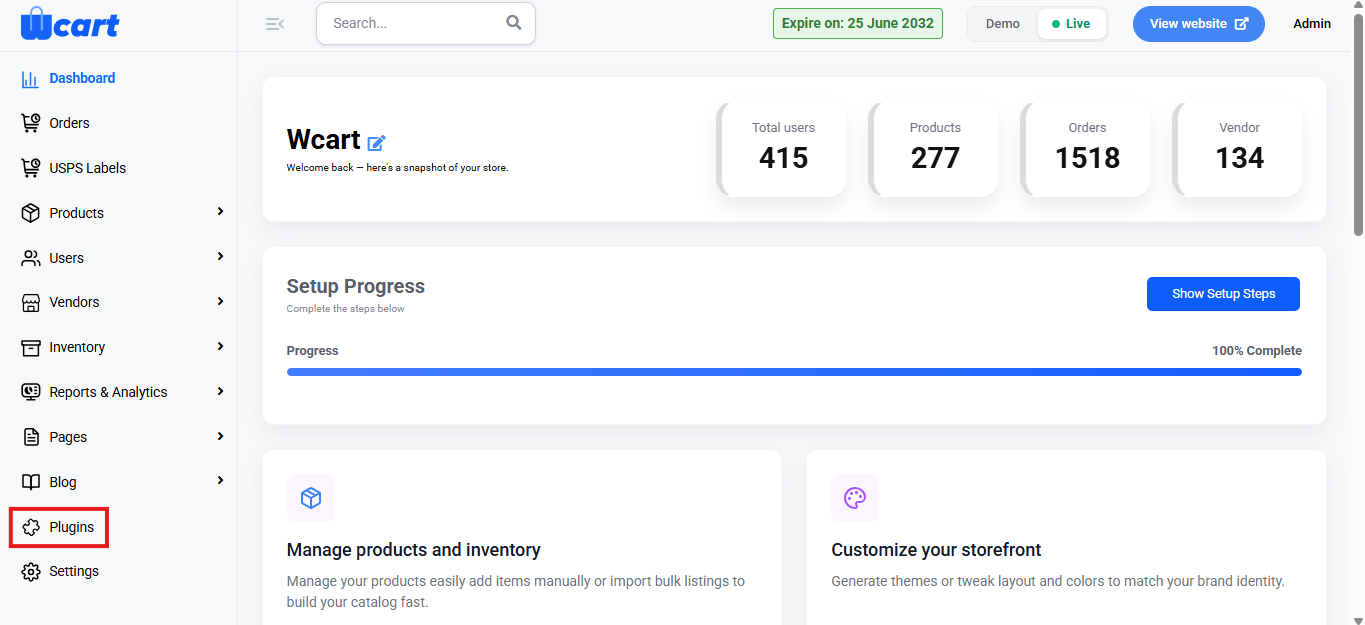
- Navigate to the sidebar menu and select ‘Plugins’.
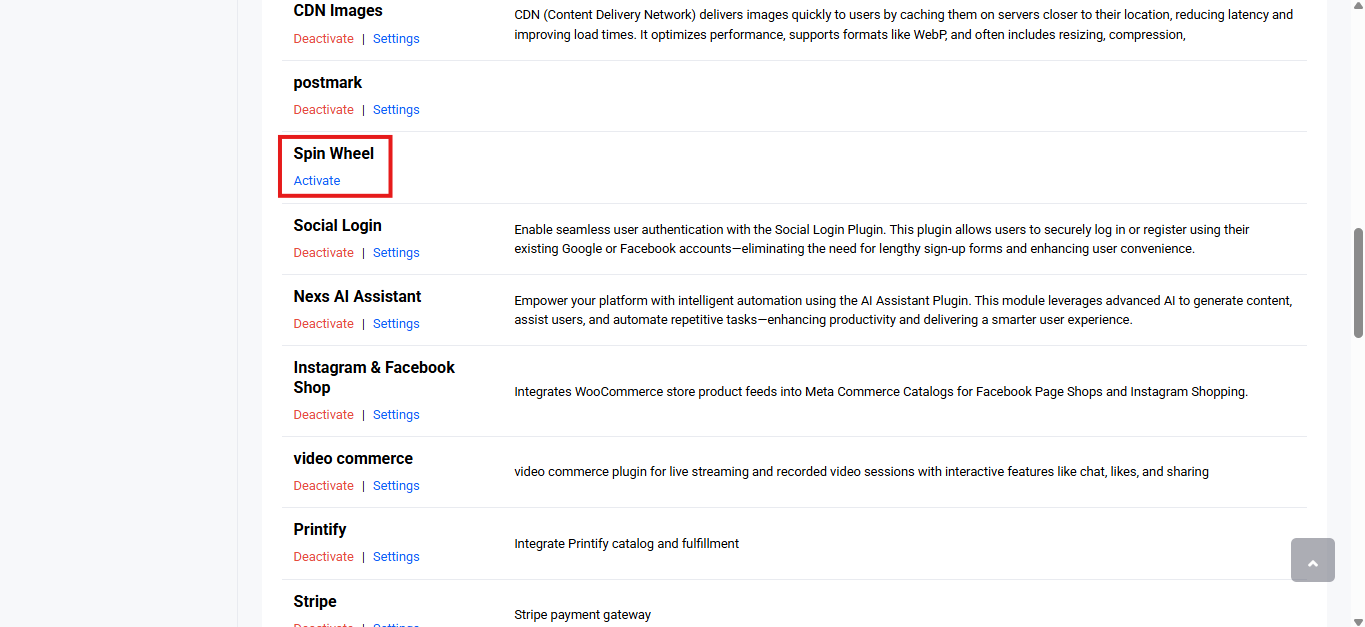
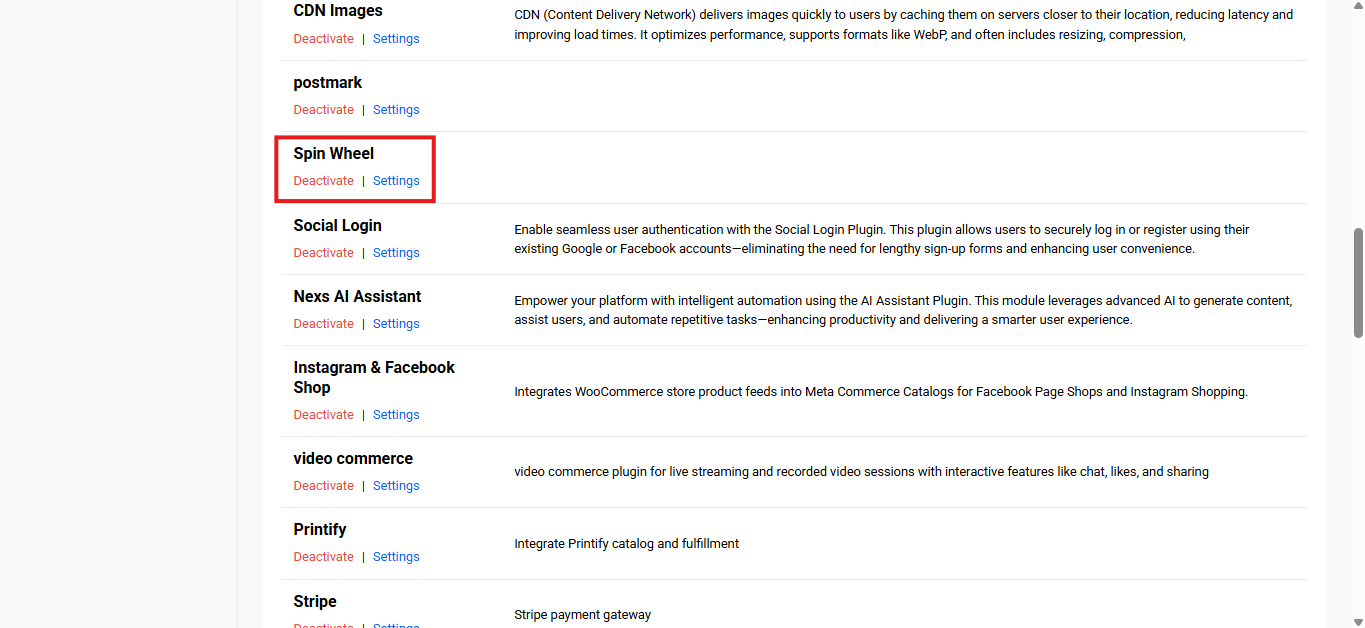
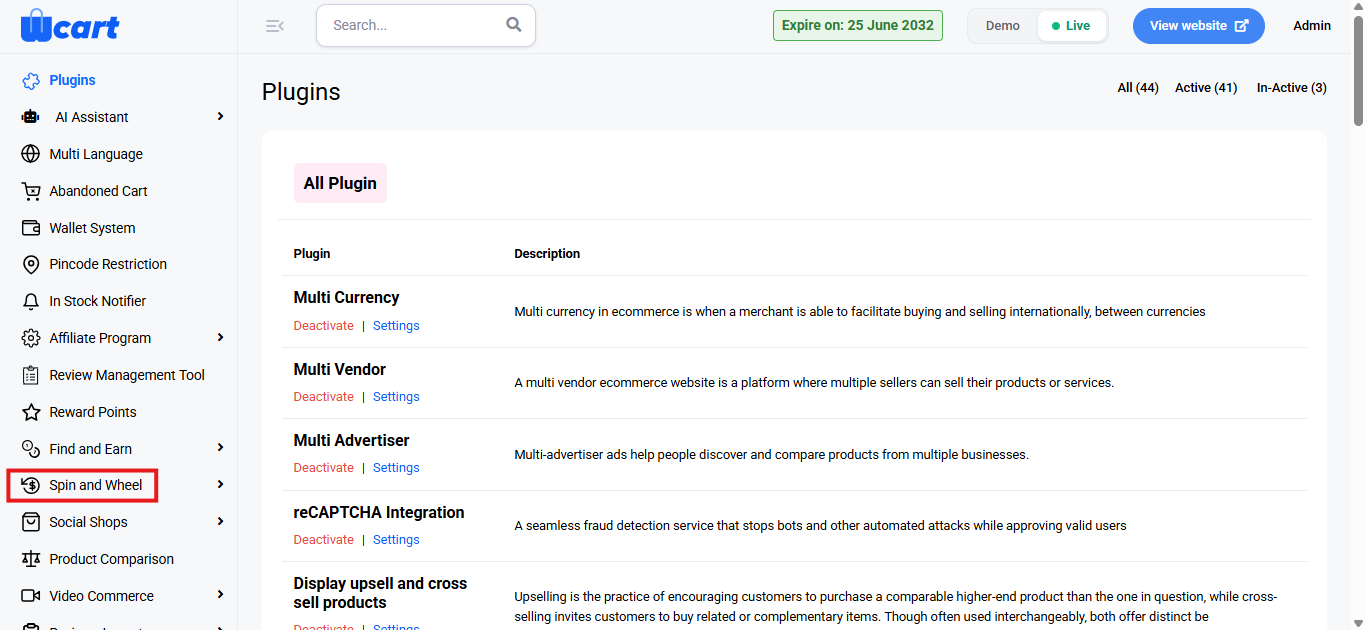
- Locate ‘Spin Wheel’ and click ‘Activate’. You will now see two options: ‘Deactivate’ and ‘Settings’. When you click ‘Activate’ or ‘Deactivate’, a toast notification showing ‘Spin Wheel Plugin Activated’ or ‘Spin Wheel Plugin Deactivated’ will appear to confirm that the plugin has been activated or deactivated. You can configure ‘Spin Wheel’ by clicking ‘Settings’ or by selecting ‘Spin Wheel’ from the left sidebar menu after activation.
Settings
The Settings section is used to configure the reward email content that users receive after winning a spin wheel reward.
Item Reward Mail
This allows you to define the email message sent to users when they win an item or reward.
Submit
Once saved, this email template will be automatically used whenever a reward mail is triggered for a spin wheel event. A toast notification ‘Spin Wheel Settings Updated’ will appear to confirm the update.
Events
Allows you to to create, schedule and manage spin wheel campaigns by defining their active period, behavior and reward settings.
Adding Spin Wheel
Click on the ‘+ Add Spin Wheel’ button at the top-right corner to create a new spin wheel event.
- Title: Enter the name of the spin wheel event.
- Status: Use the dropdown to enable or disable the spin wheel event.
- Enable: The spin wheel event is active and visible to users.
- Disable: The spin wheel event is inactive and will not be shown to users.
- Start Date: Select the date from which the spin wheel event should become active.
- End Date: Select the date on which the spin wheel event should expire. After this date, the event will no longer be available to users.
- Spin Sound: Choose the sound effect that plays while the wheel is spinning.
- Smooth Rotation: Provides a continuous and smooth spinning sound effect.
- Bouncing Stop: Plays a sound that mimics a bouncing effect as the wheel slows down.
- Elastic Stop: Adds an elastic-style sound effect when the wheel comes to a stop.
- Flash Effect: Uses a quick, sharp sound effect for a dynamic spinning experience.
- Win Animation: Select the animation effect displayed when a user wins a reward.
- Spin Duration (Sound Effect 1): Define the duration for the first stage of the spin sound effect.
- Spin Duration (Sound Effect 2): Define the duration for the second stage of the spin sound effect.
- Spin Duration (Sound Effect 3): Define the duration for the third stage of the spin sound effect.
- Spin Duration (Sound Effect 4): Define the duration for the fourth stage of the spin sound effect.
- Number of Slice: Enter the total number of slices (reward segments) to be displayed on the spin wheel.
- Max Spins per User: Specify the maximum number of times a single user is allowed to spin the wheel.
- Send Email: Choose whether reward emails should be sent to users after winning.
- Yes: Users will receive a reward email.
- No: No email will be sent after winning.
- Save & Continue: Saves the spin wheel configuration and creates the event. A toast notification ‘Spin Wheel Setting Added Successfully’ will appear to confirm the addition.
- Spin Wheel: The number of spin wheel slices you have selected will appear here, allowing you to choose which coupon to assign to each slice.
Now return to the all events section. You will find a table with various columns to interpret all spin wheel events data quickly and accurately. The columns are listed below:
- S.No: Serial number of the row in the current view.
- Title: Displays the name of the spin wheel event.
- Start Date: Shows the date on which the spin wheel event starts.
- End Date: Shows the date on which the spin wheel event ends.
- Send Mail: Indicates whether reward emails are enabled for the event.
- Yes: Email notifications are enabled.
- No: Email notifications are disabled.
- Status: Displays the current status of the event.
- Active: The event is currently live.
- Inactive: The event is not active.
- Action: Provides icons for quick actions related to each spin wheel event.
- Edit: Opens the spin wheel setting form to update event details. The form fields are the same as those shown in the ‘Add Spin Wheel’ section.
- Delete: Deletes the category. A dialog box ‘Remove Spin Wheel’ will appear with the text ‘Are you sure you want to delete this Spin Wheel?’ along with ‘Close’ and ‘Delete’ options. Closing will remove the dialog box and clicking on ‘Delete’ will display this toast notification ‘Removed Spin Wheel Successfully’ to confirm deletion.
- Preview: It opens the spin wheel’s frontend view.
Form Submission
This section allows users to view and manage the participants who have filled out the spin wheel form. It enables users to easily track and take action on form submissions.
- S.No: The serial number of the entry.
- Name: The name of the participant who submitted the form.
- Email ID: The email address provided by the participant.
- Action: The action column contains a trash icon to delete the form submission if necessary. A dialog box ‘Remove Spin Wheel’ will appear with the text ‘Are you sure you want to delete this Spin Wheel?’ along with ‘Close’ and ‘Delete’ options. Closing will remove the dialog box and clicking on ‘Delete’ will display this toast notification ‘Removed Spin Wheel Entries Successfully’ to confirm deletion.
Overall, the ‘Spin Wheel’ section enables administrators to efficiently create, manage and control spin wheel campaigns, ensuring engaging promotions and smooth participant tracking.