
Allows customers to load and use funds within a digital wallet tied to their account on the store.
To configure, follow these steps:
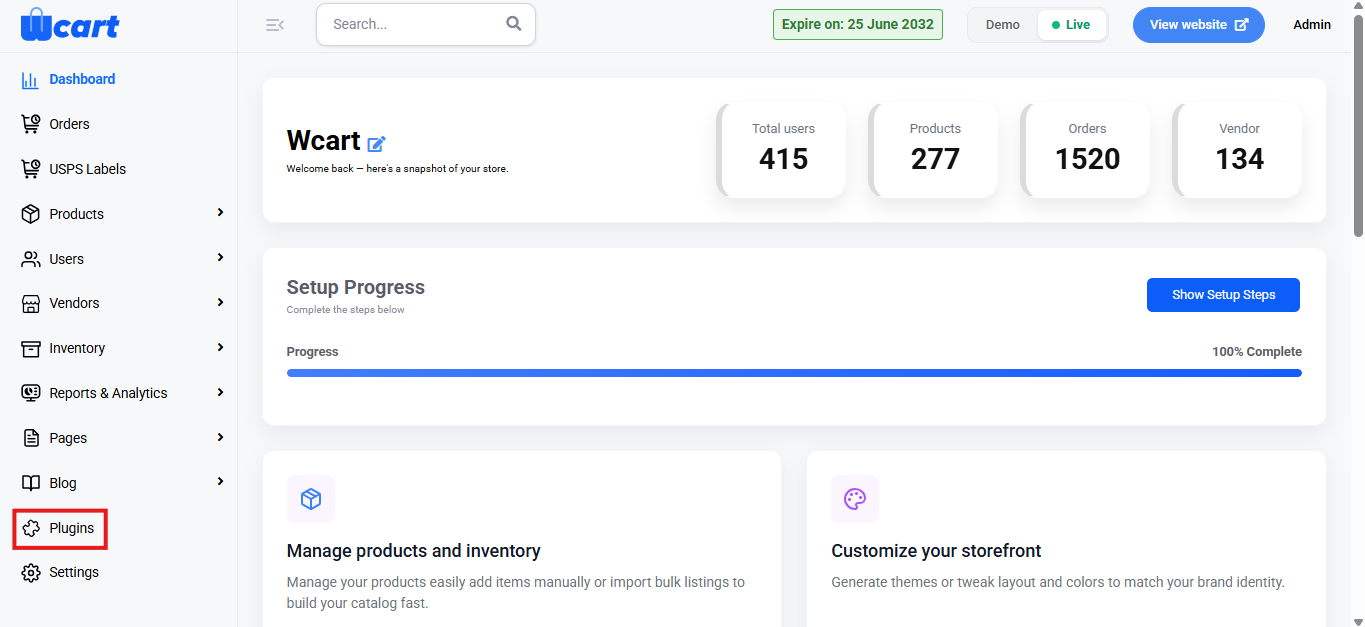
- Navigate to the sidebar menu and select ‘Plugins’.
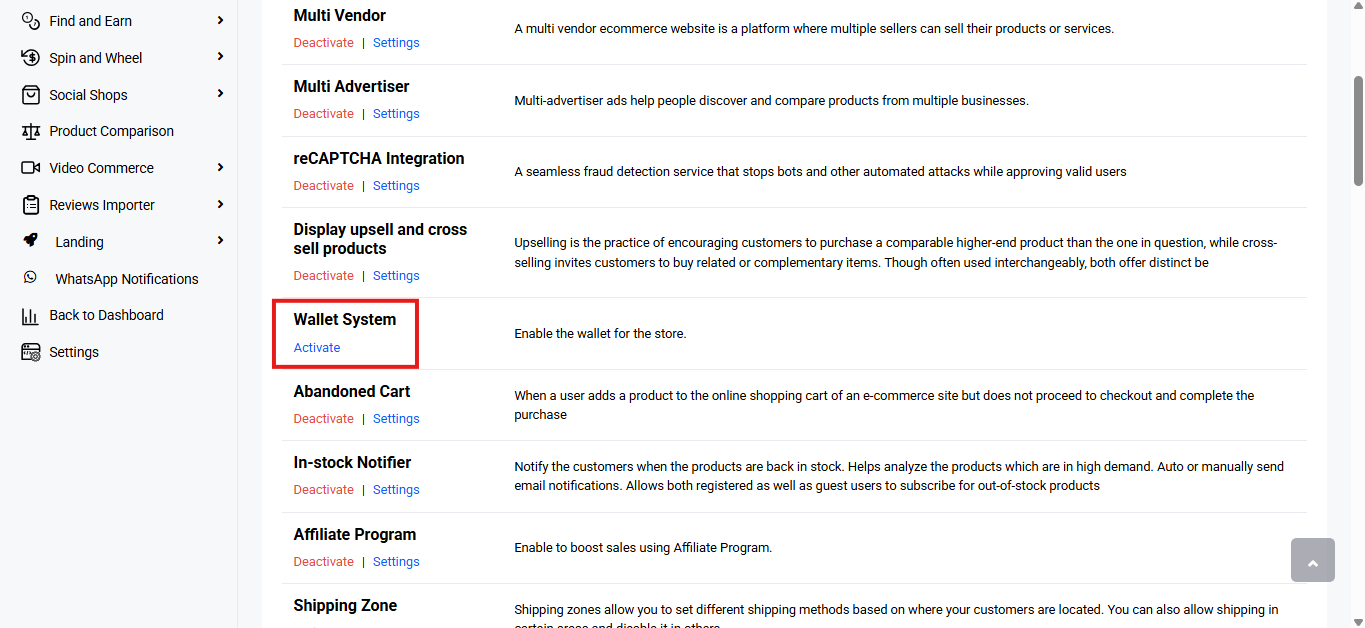
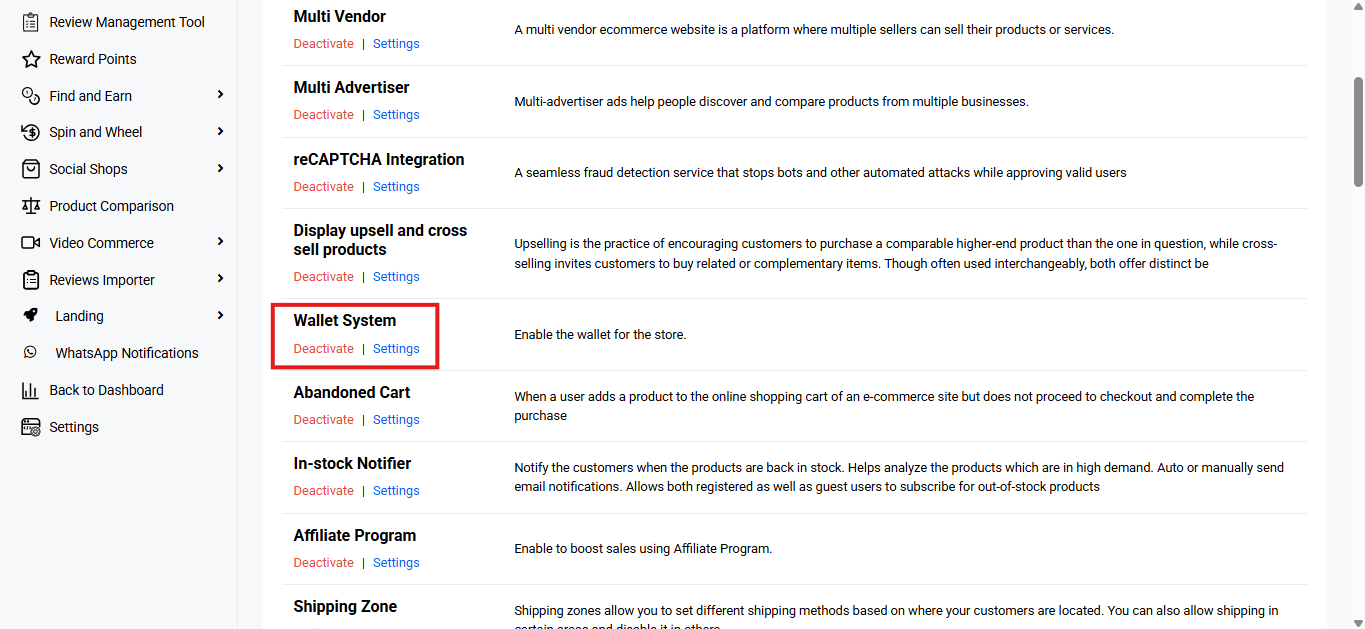
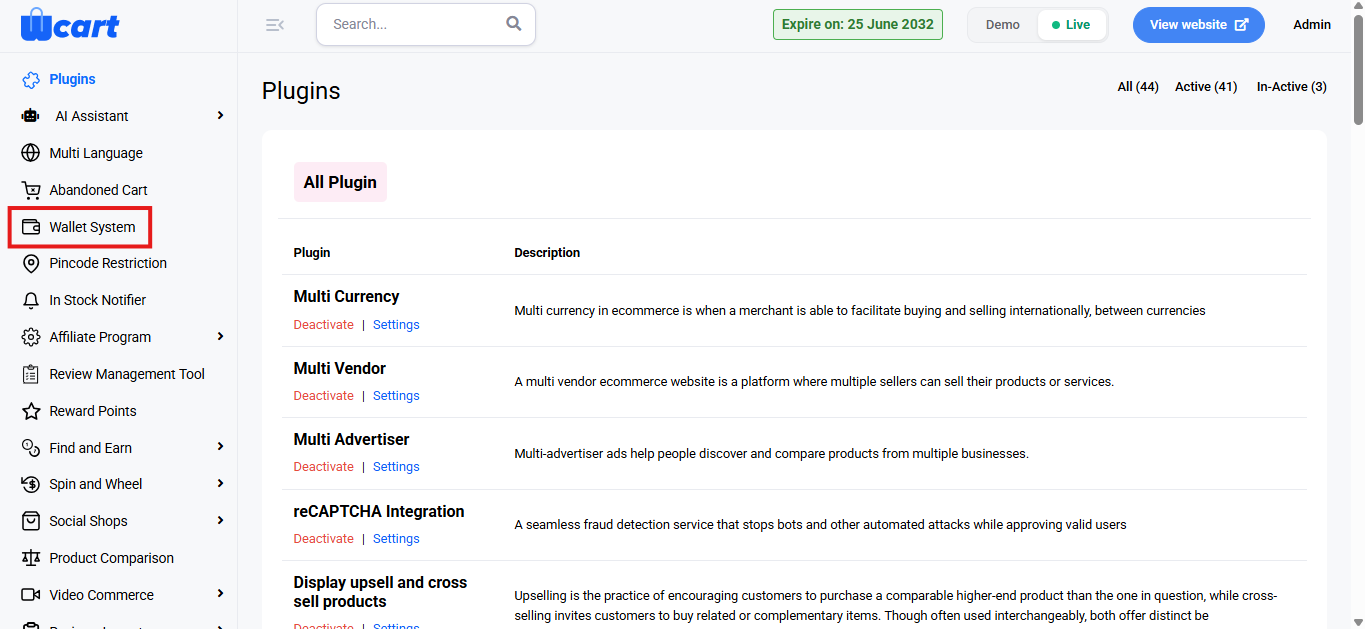
- Locate ‘Wallet’ and click ‘Activate’. You will now see two options: ‘Deactivate’ and ‘Settings’. When you click ‘Activate’ or ‘Deactivate’, a toast notification showing ‘Wallet System Plugin Activated’ or ‘Wallet System Plugin Deactivated’ will appear to confirm that the plugin has been activated or deactivated. You can configure ‘Wallet System’ by clicking ‘Settings’ or by selecting ‘Wallet System’ from the left sidebar menu after activation.
- Enable Email Notifications: When enabled, the system will automatically send email alerts to users whenever there is an update to their wallet balance.
- Enable Refund to Wallet: When this option is enabled, any refunds processed through the system will be credited directly to the user’s wallet instead of their original payment method.
- Enable Payment Method: Determines how wallet balances are used at checkout:
- Submit: Saves the current configuration for all wallet settings. Displays the toast message ‘Wallet Settings Updated’ to confirm the update.
The Wallet System settings let admins manage wallet usage, refunds, and notifications easily, improving convenience and control for both the store and customers.