
Tracks abandoned shopping carts and helps in recovering lost sales by reminding users via email or notifications. From the Abandoned Cart navigation tabs, this section covers ‘Email Settings’, ‘Email Template’ and ‘Email Logs’.
To configure, follow these steps:
- Navigate to the sidebar menu and select ‘Plugins’.
- Locate ‘Abandoned Cart’.
- Click ‘Activate’. You will now see two options: ‘Deactivate’ and ‘Settings’. When you click ‘Activate’ or ‘Deactivate’, a toast notification showing ‘Abandoned Cart Plugin Activated’ or ‘Abandoned Cart Plugin Deactivated’ will appear to confirm that the plugin has been activated or deactivated. You can configure the Abandoned Cart settings by clicking ‘Settings’ or by selecting ‘Abandoned Cart’ from the left sidebar menu after activation.
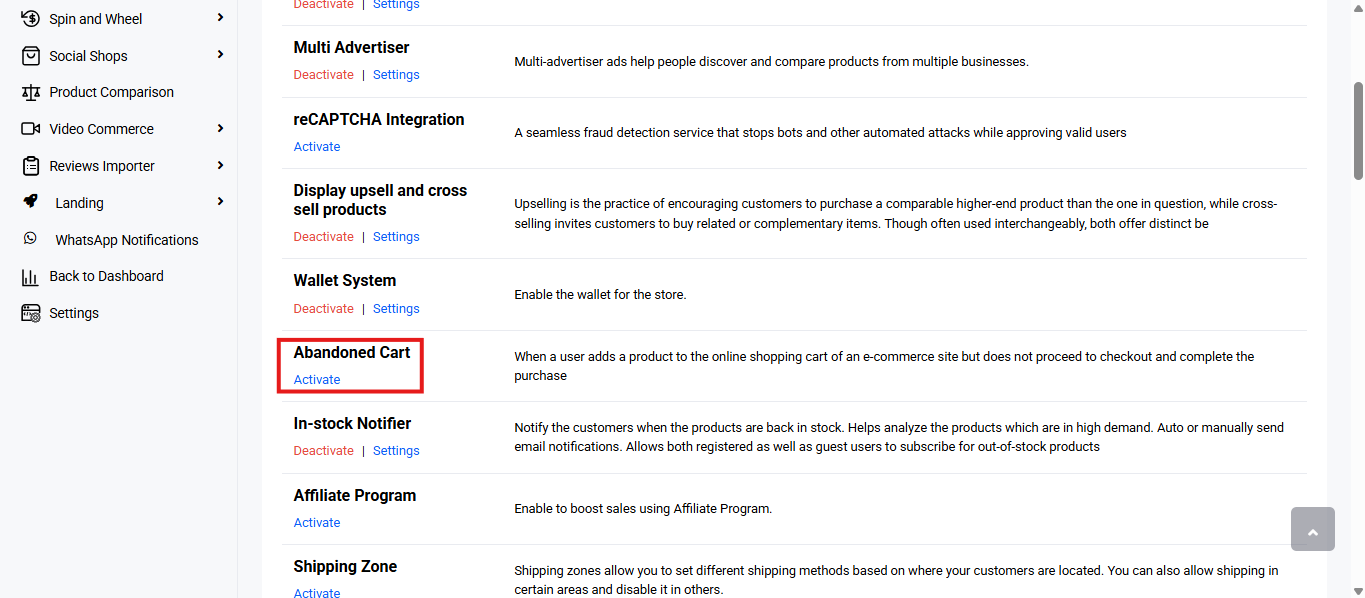
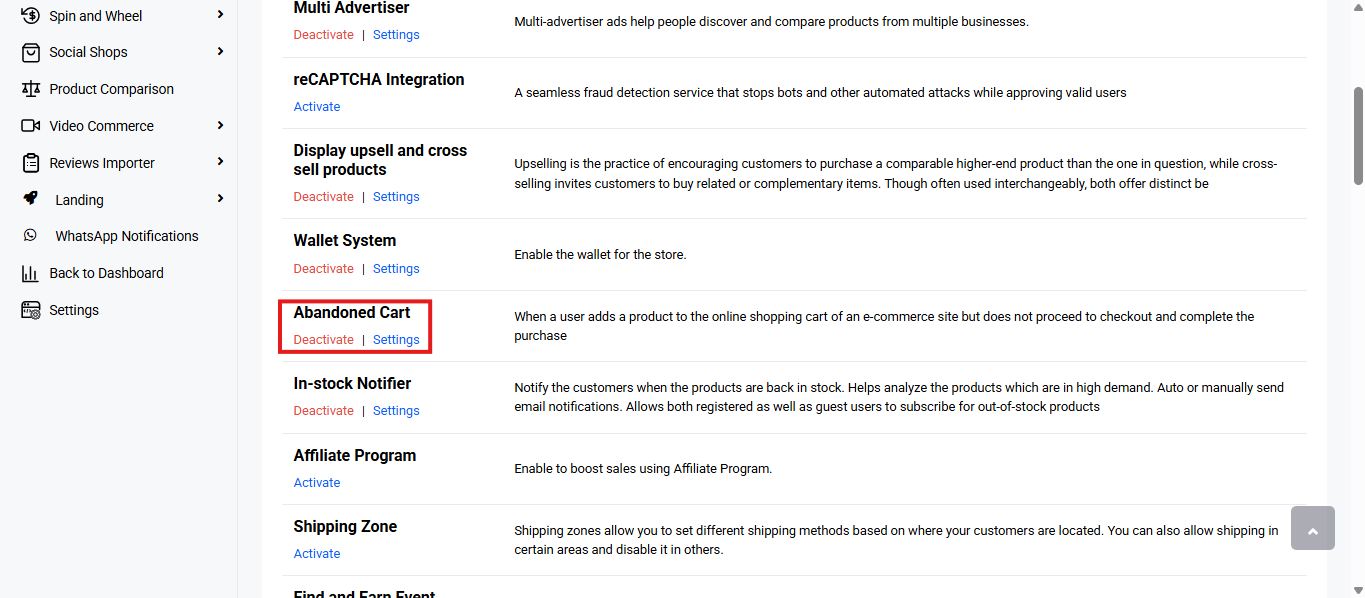
- From the navigation tab, select ‘Email Settings’ or ‘Email Template’ to configure or ‘Email Logs’ to view the email content.
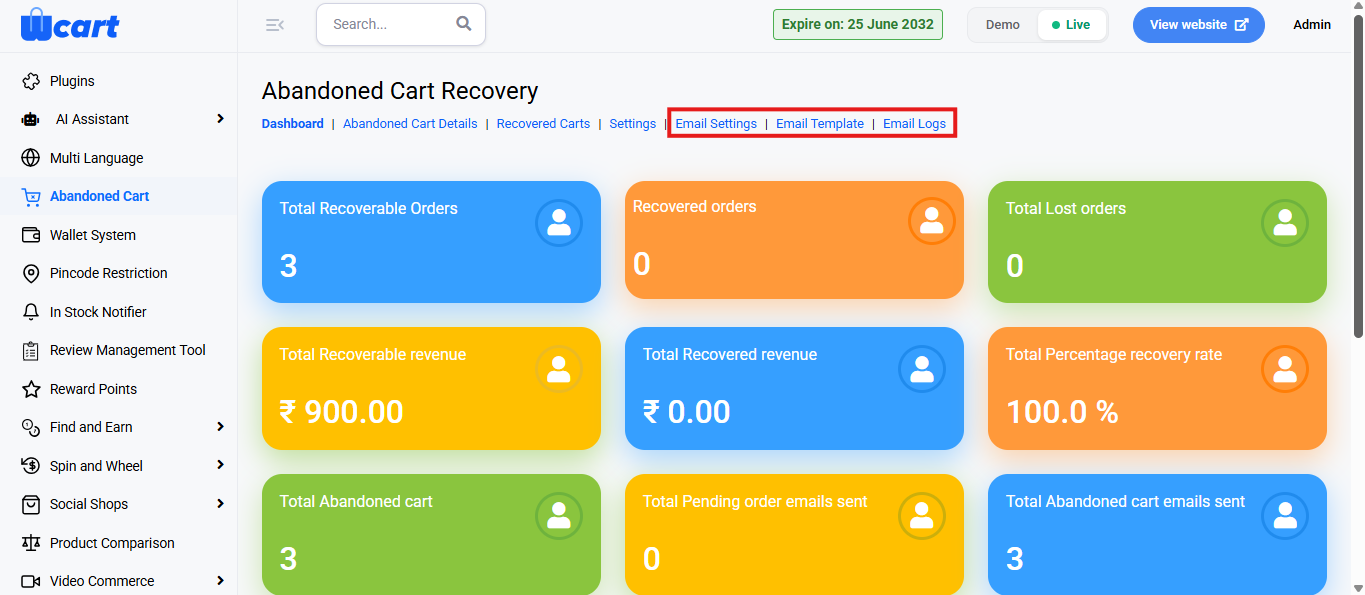
Email Settings
Configure and automate the sending of recovery emails to users that have abandoned their carts.
Click ‘Add Mail’ at the top right corner to add new mail templates. A modal dialog box will appear with the following input fields:
- Email Template Name: Enter a recognizable name.
- Enter Subject: This will be the subject line of your email.
- Enter Template: Use the rich text editor to write messages.
- Close: Closes the box without saving.
- Save Template: Saves the email template for future use.
Below the ‘Add Mail’ option you will find a table with various columns to interpret the email templates data quickly and accurately. The columns are listed below:
- S.No: Serial number for reference.
- Template Name: Name of the email template.
- Subject: Subject line of the email.
- Content: Email body content shown in preview.
- Action:
- Edit: The same modal dialog box in the ‘Add Mail’ section will appear, the fields can be edited and updated.
- Delete:
Email Logs
This section displays a report of email activity maintained within the platform.
Export
Click Export to download the report.
File Types Available:
- CSV
- Excel
Choose a format and click Export to download.
You will find a table with various columns to interpret email logs data quickly and accurately. The columns are listed below:
- S.No: Displays the serial number of the email log entries.
- Subject: Shows the subject line of the sent email.
- Send to: Indicates the recipient’s email address.
- Status: Reflects the email delivery status.
- Success: The email was successfully sent and delivered to the recipient’s mail server.
- Failed: The email could not be delivered to the recipient.
- Send Date: The date the email was sent.
- Content: Clicking the eye icon allows you to view the content of that specific email.the popup shows the following information:
- Subject: Displays the email subject line.
- Content: Displays the main body of the email message.
- Close Button: Click Close to exit the popup without making changes.
Together, Email Settings, Email Templates, and Email Logs streamline recovery emails, ensure consistent messaging, and provide full visibility into email performance.
Links to other Abandoned Cart navigation tabs: