
This section allows administrators to configure and manage multiple currencies for the store. It provides options to enable multi-currency support, define exchange rates, and maintain details for each currency used in transactions.
Accessing the Manage Currency Settings
To configure, follow these steps:
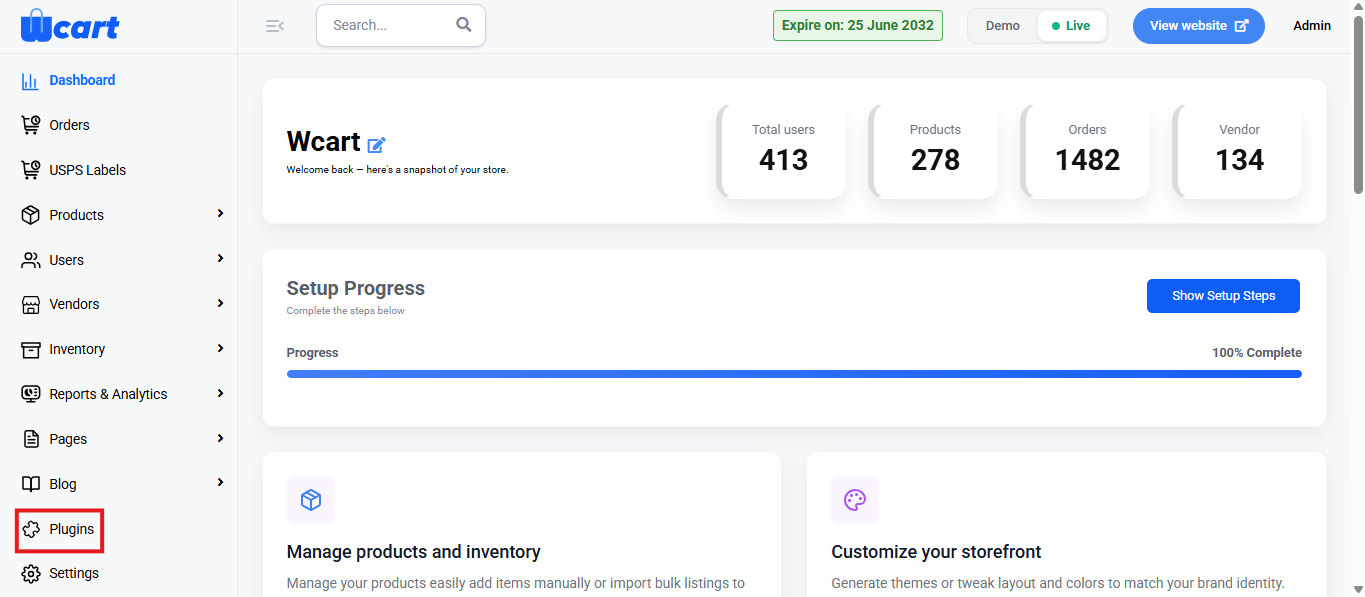
- Go to the Dashboard and select ‘Plugins’ from the sidebar menu.
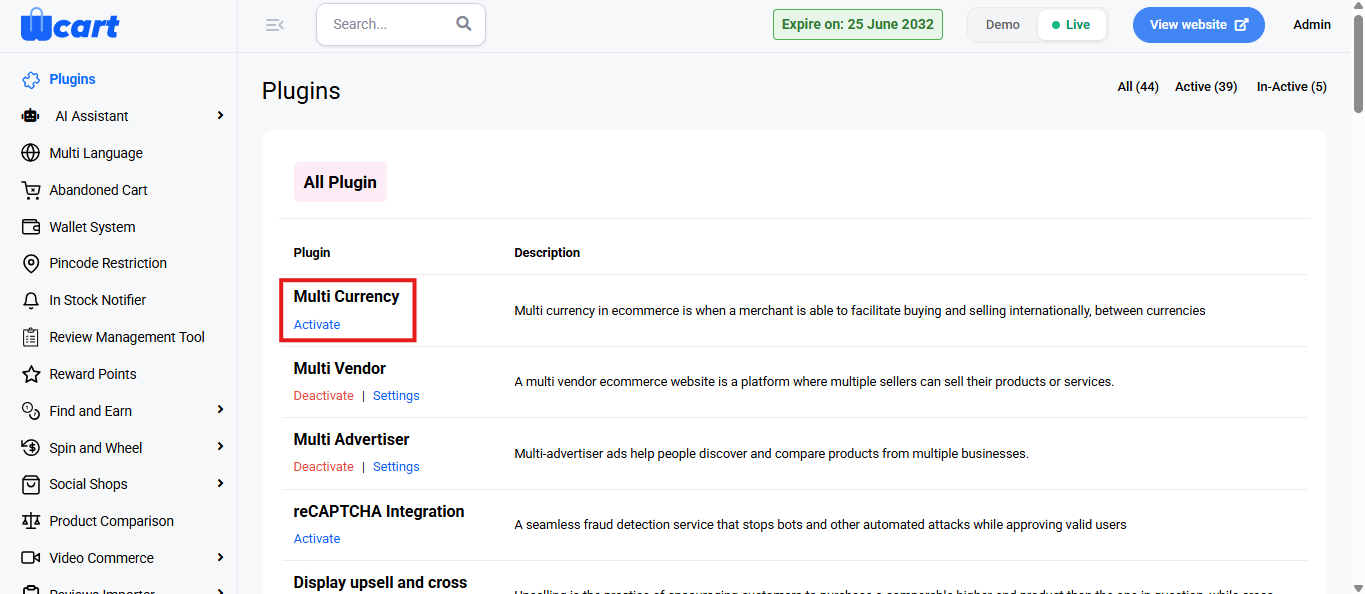
- Locate the Multi Currency plugin in the list.
- Click ‘Activate’. You will now see two options: ‘Deactivate’ and ‘Settings’. A toast notification showing ‘Multi Currency Plugin Activated’ or ‘Multi Currency Plugin Deactivated’ will appear to confirm that the plugin has been activated or deactivated. You can configure the Multi Currency settings by clicking ‘Settings’ after activation.
Manage Currency Section
This section provides control over enabling or disabling multi-currency support and selecting the default store currency.
- Default Currency:
Displays the primary currency used in the store.
The Edit icon allows modification of the default currency.
- Enable Multi Currency:
Selecting this option allows customers to view prices and complete transactions in various currencies.
Deselecting it restricts transactions to a single default currency.
- Choose Currency Section
This section is used to add or remove active currencies available in the store.
- Available Currencies:
The dropdown field lists available currency codes.
Selected currencies appear as tags.
The ‘x’ icon beside a tag removes that currency from the active list.
Click ‘Update’ to apply the latest selections.
List of Currency
This table displays all active currencies configured in the system.
Columns:
- Currency Code: ISO code representing the currency.
- Currency Symbol: Symbol associated with the currency.
- Currency Value: Conversion rate relative to the default currency.
- Currency Name: Full name of the currency.
- Action: Icons for editing or deleting currency entries.
Actions:
- Edit: Opens the currency details for modification.
- Delete: Removes the currency from the list after confirmation.
Add Currency
Select the ‘+ Currency’ icon to open the ‘Add Currency’ popup form.
Fields:
- Currency Name: Full name of the currency. (Required)
- Currency Code: Official ISO code. (Required)
- Currency Value: Conversion rate compared to the base currency. (Required)
- Currency Symbol: Symbol representing the currency. (Required)
- Currency Decimal (Optional): Number of decimal places displayed.
- Currency Symbol Position (Optional): Placement of the symbol (before or after the value).
- Status: Defines whether the currency is Enabled or Disabled
- Currency Flag (Optional): Flag image representing the associated country or region.
After entering the details, select ‘Save Changes’ to add the new currency, or choose Close to cancel.
Edit Currency
The Edit icon beside each currency entry allows modification of currency details.
Editable Fields:
- Currency Name
- Currency Code
- Currency Value
- Currency Symbol
- Currency Decimal (Optional)
- Currency Symbol Position (Optional)
- Status
- Currency Flag (Optional)
Once edits are complete, select ‘Save’ to update the information.
Delete Currency
- Selecting the Delete icon removes a currency from the list.
- A confirmation message appears stating: “Are you sure you want to delete this currency?”
- Select ‘OK’ to confirm or ‘Cancel’ to abort the action.
Currency Logs
This section displays the record of all automatic and manual updates related to currency configurations.
Columns:
- S.No: Serial number for each entry.
- Currency Log Status: Outcome of the update.
- Latest Updated: Timestamp of the last modification.
- Currency Log Response: System feedback message.
These settings ensure accurate pricing and a consistent shopping experience across different currencies. Ensure all details are configured correctly and saved before moving to the next configuration sections.