
General Store Settings
This section can be used to establish your store’s core presence and identity. It provides the basic configuration that defines your website’s appearance and overall behavior. Setting this up ensures your platform is aligned with your brand and ready for customers.
To configure, follow these steps:
- Navigate to the sidebar menu and find the ‘Settings’ section.
- Click ‘Web & App Settings’.
- Select ‘General Settings’ from the submenu.
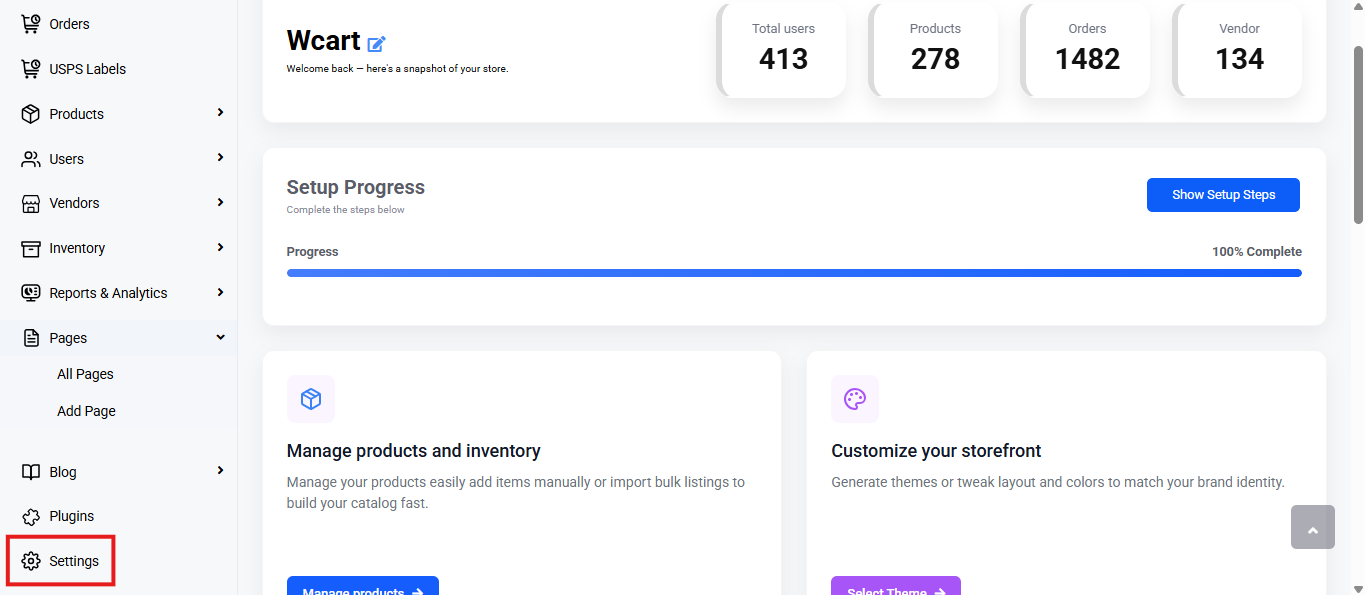
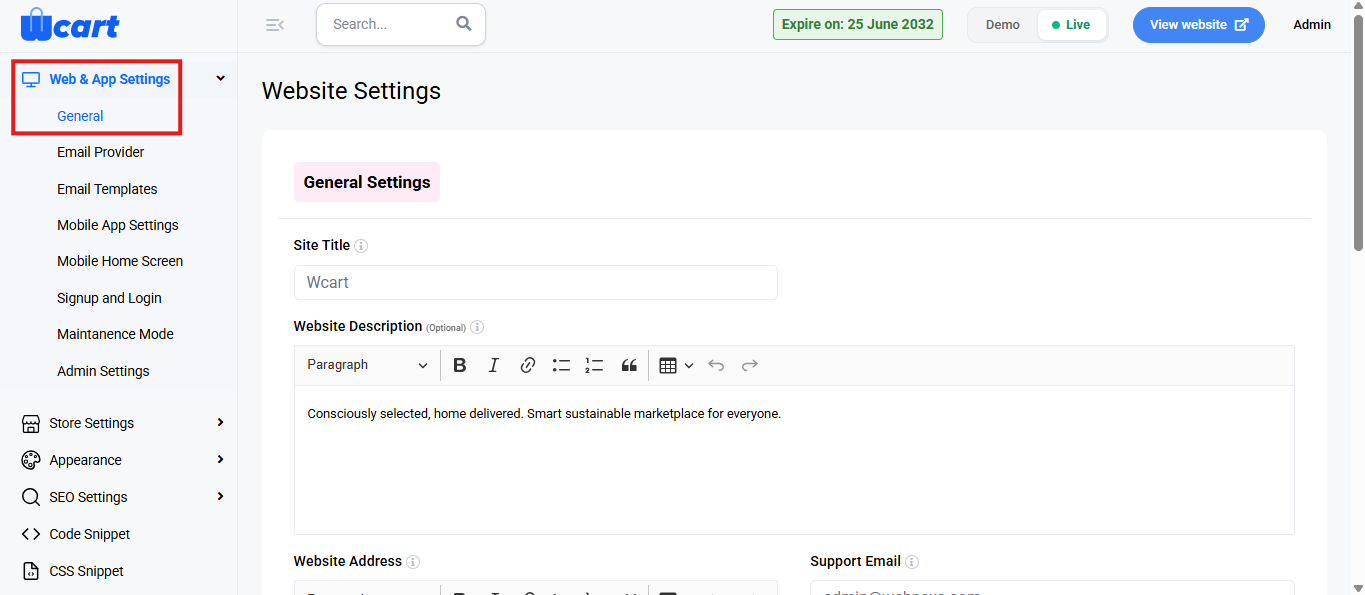
The fields available on this page are listed below:
Store Identity & Contact Information:
- Site Title: Enter the name of your website. This will be displayed in the browser title bar and across various site areas.
- Website Description (Optional): Provide a short description about your website.
This will be used in various display sections and can help convey your brand purpose. - Website Address: Enter your website’s URL or domain address.
- Support Email: Enter the email address where customers can reach you for support.
- Support Contact: Enter the phone number for customer support. Include the country code if needed.
- WhatsApp Contact: Provide a WhatsApp number for instant customer support and inquiries.
Logo and Branding Settings:
- Primary Logo – Original Version: Click ‘Choose File’ to upload the main website logo.
- Light Version: Upload the logo version suitable for light backgrounds.
- Dark Version: Upload the logo version suitable for dark backgrounds.
- Favicon: Upload a favicon icon. This small icon appears in the browser tab next to the site title.
- Logo Width: Enter the width of the displayed logo in pixels.
- Logo Height: Enter the height of the displayed logo in pixels.
Application Store Links (If Applicable):
- Google Play URL: Enter the app link if your platform has an Android mobile app.
- App Store URL: Enter the app link if your platform has an iOS mobile app.
Search Engine Visibility:
Choose whether the website should be visible to search engines.
- Yes: The website will be indexable and discoverable by search engines.
- No: The website will be hidden from search engine indexing.
Save Changes:
After filling all required fields, click ‘Submit’ to save the settings. A confirmation toast notification will appear to indicate that the settings have been updated successfully.
If you wish to discard changes, click ‘Cancel’.
Links to other menus under Web & App Settings:
- Recaptcha Settings
- Email Settings
- Email Templates
- Mobile App Settings
- Mobile Screen Settings
- Signup and Login settings
These settings help maintain a consistent and professional identity for your store. Ensure all details are filled correctly and saved before moving to the next configuration sections.