
This module allows administrators to view and manage all static pages on the platform. These pages can be either system-generated or manually created CMS pages.
To configure, follow these steps:
- Navigate to the sidebar menu and select ‘Blogs’.
- You can add, manage and view blogs, as well as add, manage and view blog categories.
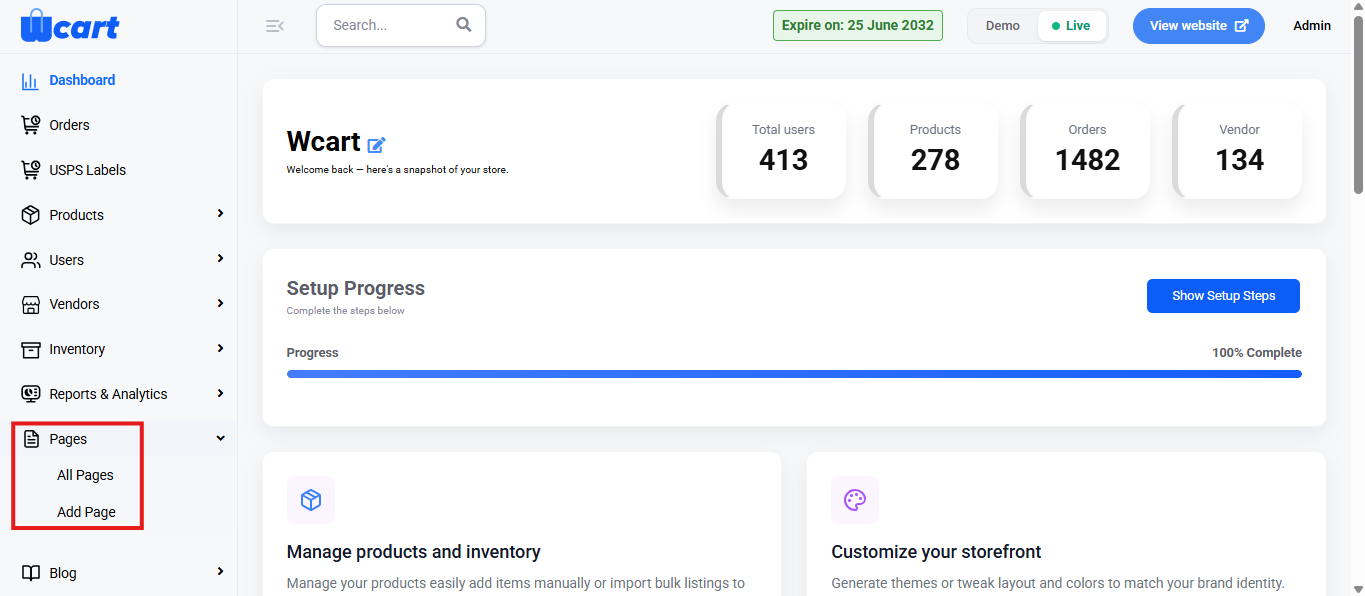
All Pages
This section displays a list of all created pages along with their associated details and management options.
Add Page
Click the ‘+ Add Page’ button to manually add a new page. You will be directed to the ‘Add New Page’ page with the following form fields:
Basic Details
- Title: Specifies the name of the page.
- Description: Text editor that allows you to enter and format the content of the page.
Meta Details
- Meta Title: Title shown in browser tabs and search engine results.
- Meta Keyword: Enter SEO-related keywords that describe the page’s content.
- Meta Description: Summary that may appear in search engine result previews.
- Short Tags: Predefined dynamic tags that auto-fill meta fields using global SEO settings.
- Page Status: Dropdown to set the visibility state of the page:
- Publish: The page is live and accessible on the site.
- Draft: The page is saved but not yet visible publicly.
- Cancel: Discards the changes and returns to the previous page.
- Submit: A toast notification ‘Page Added Successfully’ will appear to confirm the addition.
Now, return to the All Pages section, where you will find a table with various columns to interpret page data quickly and accurately. The columns are listed below:
- S. No: Serial number of the page in the list.
- Title: Name of the page.
- Slug: The URL identifier used to access the page.
- Type: Specifies the category of the page within the system.
- General Page: System-defined pages used for core functions.
- CMS: Admin-created content pages for informational purposes.
- Status: Indicates the status of the product.
- Draft: Product is saved as a draft and is not visible to customers.
- Publish: Product is live and visible in the storefront for customers to purchase.
- Action:
- View the page: Redirects to the storefront page available for the public to view.
- Edit the page: All the fields in ‘Add Page’ will be displayed to edit.
- Pencil icon: Clicking the pencil icon redirects you to the homepage layout editor. This page allows you to customize the content sections of the storefront homepage.
In addition to viewing and managing all existing pages, the platform provides a dedicated option to directly add a new page for faster setup.
Add Page
NOTE: It contains the same form fields present in the ‘Add Page’ form section in the previous sidebar menu.
This section helps to create, edit, and manage all static pages while controlling their content and visibility across the platform.