
This section helps administrators configure and manage all refund, return, exchange, and cancellation rules for their store. With these settings, you can define eligibility criteria, set limits, enable reasons and attachments, and ensure a smooth post-purchase experience for customers.
To configure, follow these steps:
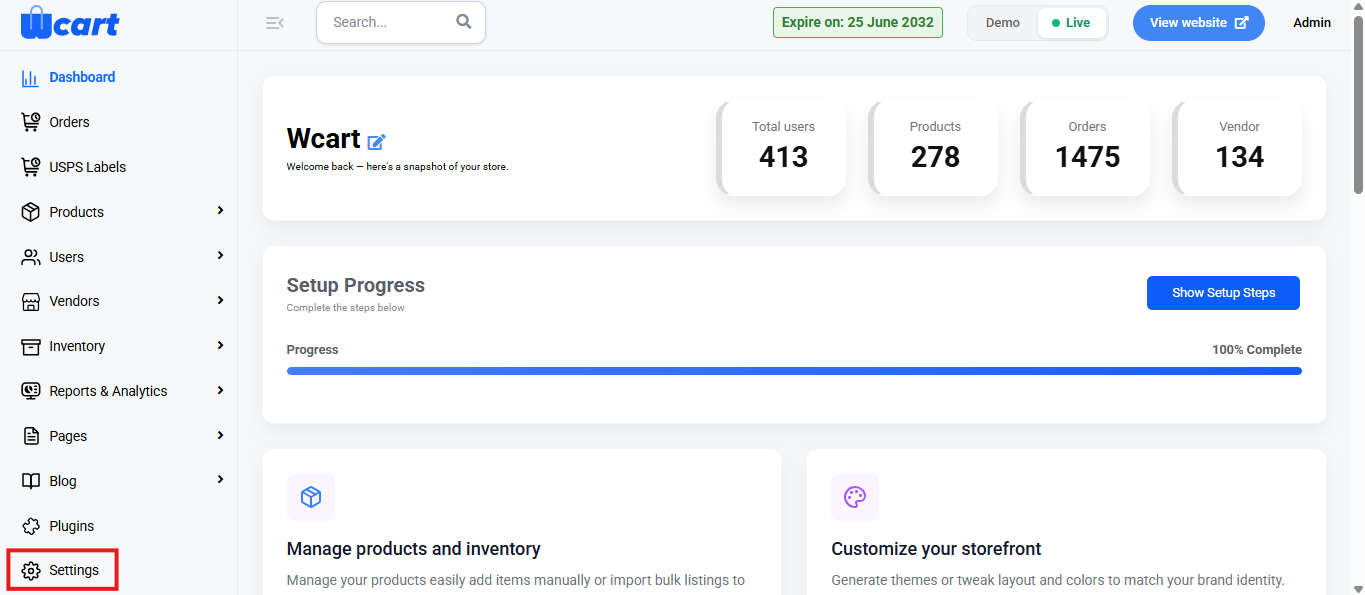
- Go to the Dashboard and select ‘Settings’ from the sidebar menu.
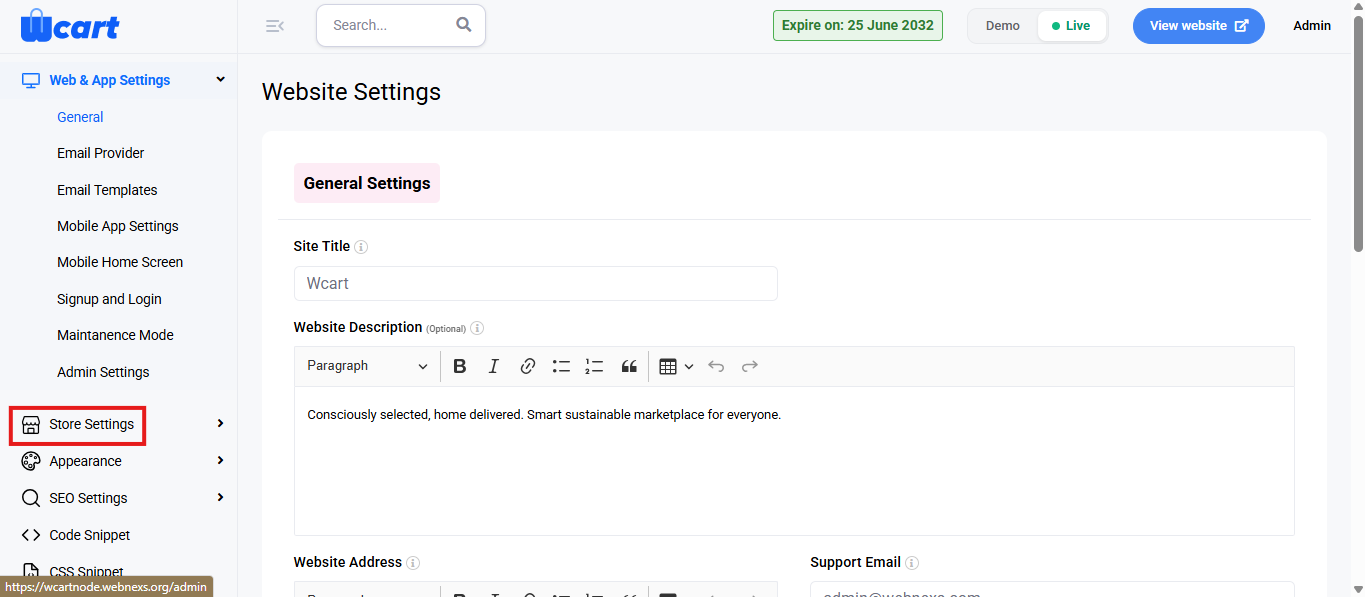
- Again, from the sidebar menu click ‘Store Settings’.
- Now click ‘Return Configuration’ to open the configuration page.
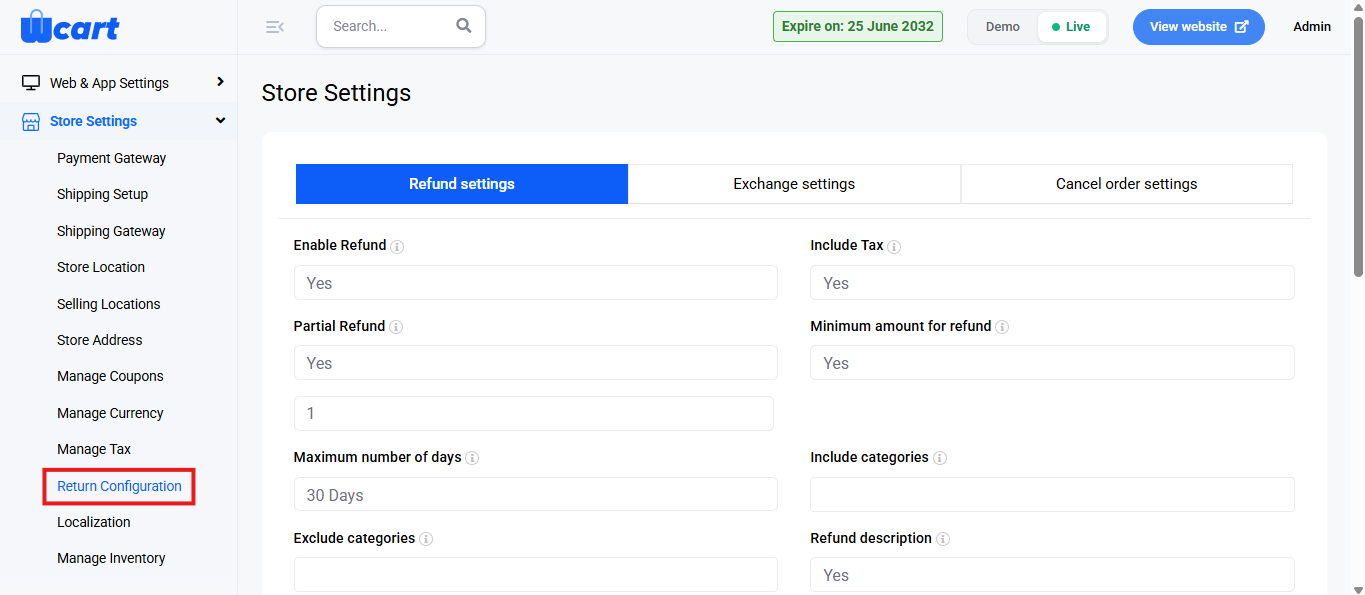
Refund Settings
- Enable Refund: Enables or disables the refund feature.
- Options: Yes / No
- Include Tax: Decides whether the tax amount should be included in the refund.
- Options: Yes / No
- Partial Refund: Allows refunding part of the order amount instead of the full value.
- Options: Yes / No
- Minimum amount for refund: Enables the store to set a minimum value below which refunds cannot be initiated.
- Options: Yes / No
- Maximum number of days: Defines the maximum number of days from the purchase date within which the refund can be requested.
- Include categories: Enter product categories to include in the refund policy.
- Exclude categories: Enter product categories to exclude from refund eligibility.
- Refund Description: Enables a text field where customers can describe the reason for the refund.
- Options: Yes / No
- Enable Reason: Allows users to select a reason for refund from predefined values.
- Options: Yes / No
- Enter Reasons: Tags representing pre-filled refund reasons that customers can choose from.
- Enable Attachment: Allows customers to attach files to support their refund request.
- Options: Yes / No
- Attachment Limit: Sets the maximum number of attachments a user can upload.
- Refund Policy Description: A rich-text editor to add a detailed description of your store’s refund policy. This will be visible to customers.
- Submit: Saves the refund settings. A toast notification such as ‘Refund Settings Updated’ will appear to confirm the update.
Exchange Settings
Enable Exchange: Enables or disables the exchange feature.
Options: Yes / No
Include Tax: Decides whether the tax amount should be included in the exchange calculation.
Options: Yes / No
Partial Exchange: Allows exchanging part of the order instead of the entire order.
Options: Yes / No
Minimum Amount for Exchange: Enables the store to set a minimum value below which exchanges cannot be initiated.
Options: Yes / No
Maximum Number of Days: Defines the maximum number of days from the purchase date within which the exchange can be requested.
Include Categories: Enter product categories to include in the exchange policy.
Exclude Categories: Enter product categories to exclude from exchange eligibility.
Enable Stock Management: Enables inventory management for exchanged items.
Options: Yes / No
Enable Shipment Cost: Enables applying shipment costs for exchanges.
Options: Yes / No
Accept Exchange Reasons Exclude: Allows specifying reasons that should be excluded from acceptable exchange reasons.
Options: Yes / No
Exchange Description: Enables a text field where customers can describe the reason for the exchange.
Options: Yes / No
Enable Reason: Allows users to select a reason for exchange from predefined values.
Options: Yes / No
Enter Reasons: Tags representing pre-filled exchange reasons that customers can choose from.
Enable Attachment: Allows customers to attach files to support their exchange request.
Options: Yes / No
Attachment Limit: Sets the maximum number of attachments a user can upload.
Exchange Policy Description: Text editor to add a detailed description of your store’s exchange policy. This will be visible to customers.
Submit: Saves the exchange settings. A toast notification such as ‘Exchange Settings Updated’ will appear to confirm the update.
Cancel Order Settings
Enable Cancel: Enables or disables the order cancellation feature.
Options: Yes / No
Include Tax: Decides whether the tax amount should be included in the cancellation refund.
Options: Yes / No
Partial Cancel: Allows cancelling part of the order instead of the entire order.
Options: Yes / No
Minimum Amount for Cancel: Enables the store to set a minimum value below which cancellations cannot be initiated.
Options: Yes / No
Maximum Number of Days: Defines the maximum number of days from the purchase date within which the cancellation can be requested.
Include categories: Enter product categories to include in the cancellation policy.
Exclude categories: Enter product categories to exclude from cancellation eligibility.
Cancel Description: Enables a text field where customers can describe the reason for the cancellation.
Options: Yes / No
Before Pickup: Allows cancellation only before the item is picked up for delivery.
Options: Yes / No
Enable Reason: Allows users to select a reason for cancellation from predefined values.
Options: Yes / No
Enter Reasons: Tags representing pre-filled cancellation reasons that customers can choose from.
Cancel Policy Description: A rich-text editor to add a detailed description of your store’s cancellation policy. This will be visible to customers.
Submit: Saves the cancel order settings. A toast notification such as ‘Cancel Settings Updated’ will appear to confirm the update.
By setting up these refund, exchange, and cancellation options, you create a clear and reliable process for customers while maintaining full control over store operations. Review these settings regularly to keep your policies transparent, efficient, and aligned with your business workflow.