
The In Stock Notifier module includes two main sections to help you manage alerts effectively. The Settings section lets you configure how stock notifications work, while the Subscribers section shows all customers who signed up to be notified when products are back in stock.
To configure, follow these steps:
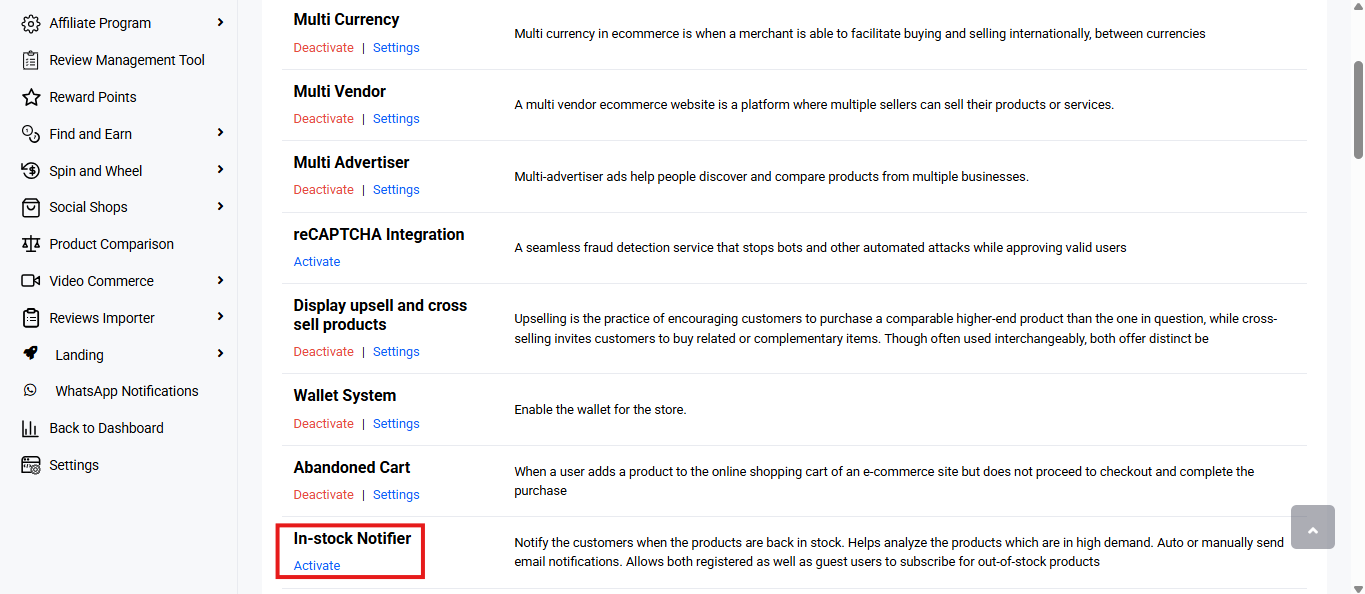
- Navigate to the sidebar menu and select ‘Plugins’.
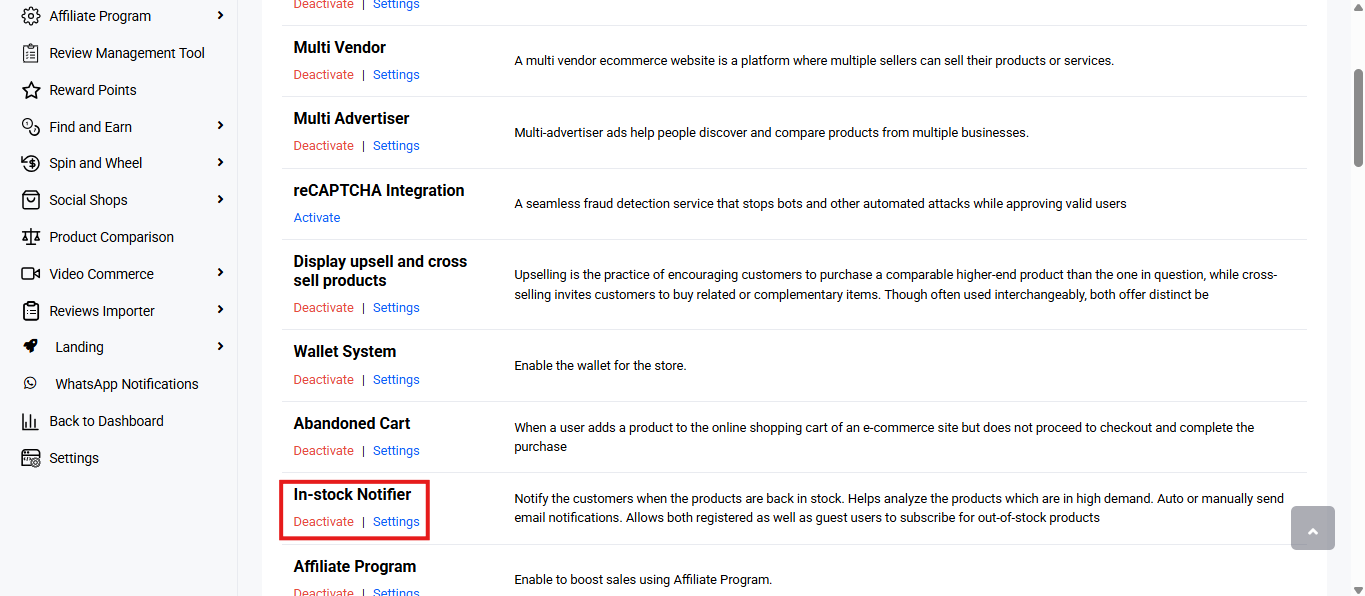
- Locate ‘In-stock Notifier’ and click ‘Activate’. You will now see two options: ‘Deactivate’ and ‘Settings’. When you click ‘Activate’ or ‘Deactivate’, a toast notification showing ‘In-stock Notifier Plugin Activated’ or ‘In-stock Notifier Plugin Deactivated’ will appear to confirm that the plugin has been activated or deactivated. You can configure the In-stock Notifier by clicking ‘Settings’ after activation or by selecting ‘In Stock Notifier’ from the left sidebar menu.
You will find two sections: ‘Settings’ and ‘Subscribers’. Here is the detailed description of the available configuration options under ‘Settings’:
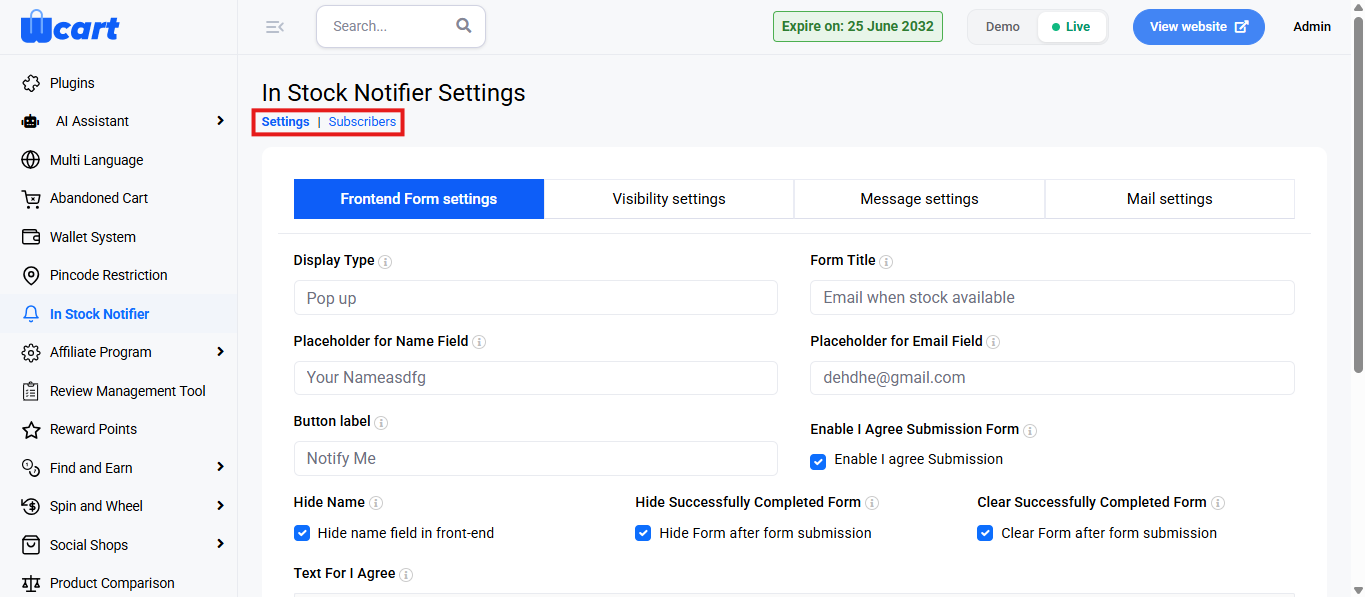
Frontend Form Settings
Controls the appearance and behaviour of the form shown to customers.
- Display Type
- Form Title
- Placeholder for Name Field
- Placeholder for Email Field
- Button Label
- Hide Name Field in front-end
- Enable “I Agree” Submission
- Text for I Agree (privacy policy text)
- Hide Form after form submission
- Clear Form after form submission
When clicking “Submit”
Toast Message: Successfully Updated Frontend Form Settings
Visibility Settings
Defines where and to whom the form appears.
- Hide Subscribe Form for Guests Users
- Hide Subscribe Form for Users (logged-in)
- Show/Hide Subscribe Form for specific Products
- Show/Hide Subscribe Form for specific Categories
- Show/Hide Subscribe Form for specific Tags
- Enable reCAPTCHA for spam protection
When clicking “Submit”
Toast Message: Successfully Updated Visibility Settings
Message Settings
Sets the on-screen messages that customers see when submitting the form.
- Success Subscription Message
- Email Already Subscribed Message
- Name Field Empty Error
- Invalid Email Error
- Email Field Empty Error
- I Agree Error
When clicking “Submit”
Toast Message: Successfully Updated Message Settings
Mail Settings
Configures the automated emails sent to subscribers.
Subscription Confirmation Email
- Enable Subscription Mail
- Mail Subject
- Mail Message (supports placeholders)
Instock Notification Email
- Enable Instock Mail
- Mail Subject
- Mail Message (supports placeholders)
When clicking Submit
Toast Message: Successfully Updated Mail Settings
Subscribers
Here is the description of the available configuration options under ‘Subscribers’:
- S.No: Displays the serial number of each entry.
- Email ID: Shows the subscriber’s email address.
- Status: Indicates the subscription or mail status:
- Subscribed
- Unsubscribed
- Mail Sent
- Product Name: Displays the product for which the user subscribed.
- Registered User: Indicates whether the subscriber is a registered customer (Yes/No).
- Last Modified : Shows the date and time of the latest update to the record.
Frontend View
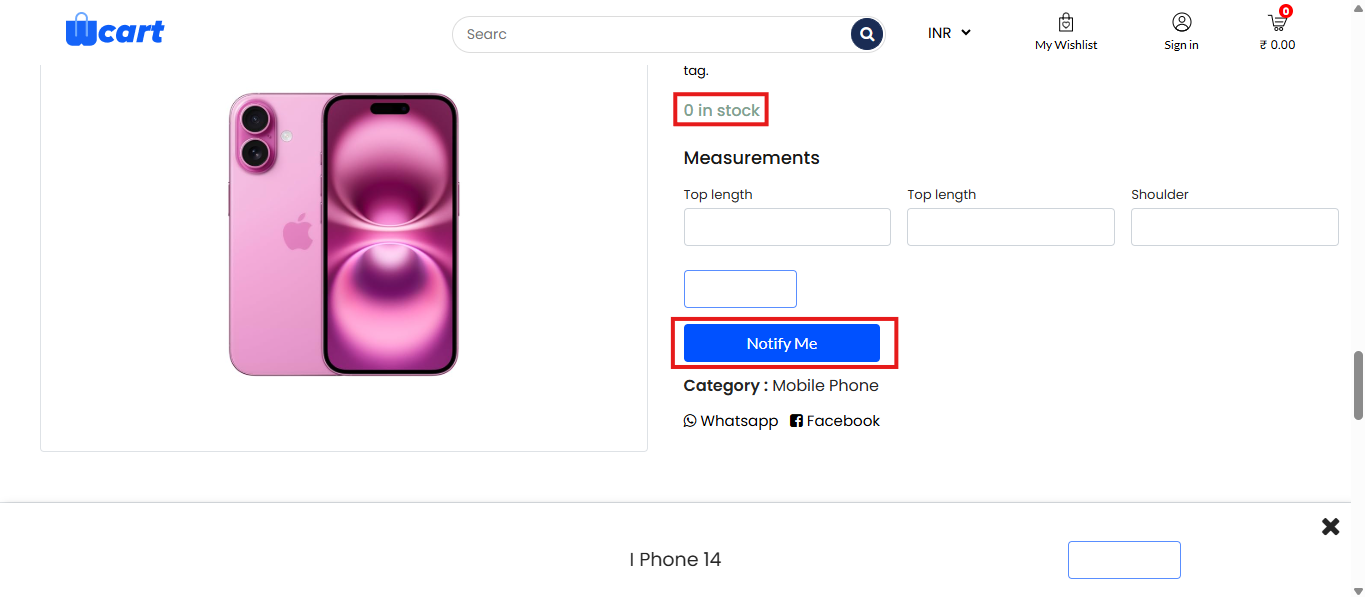
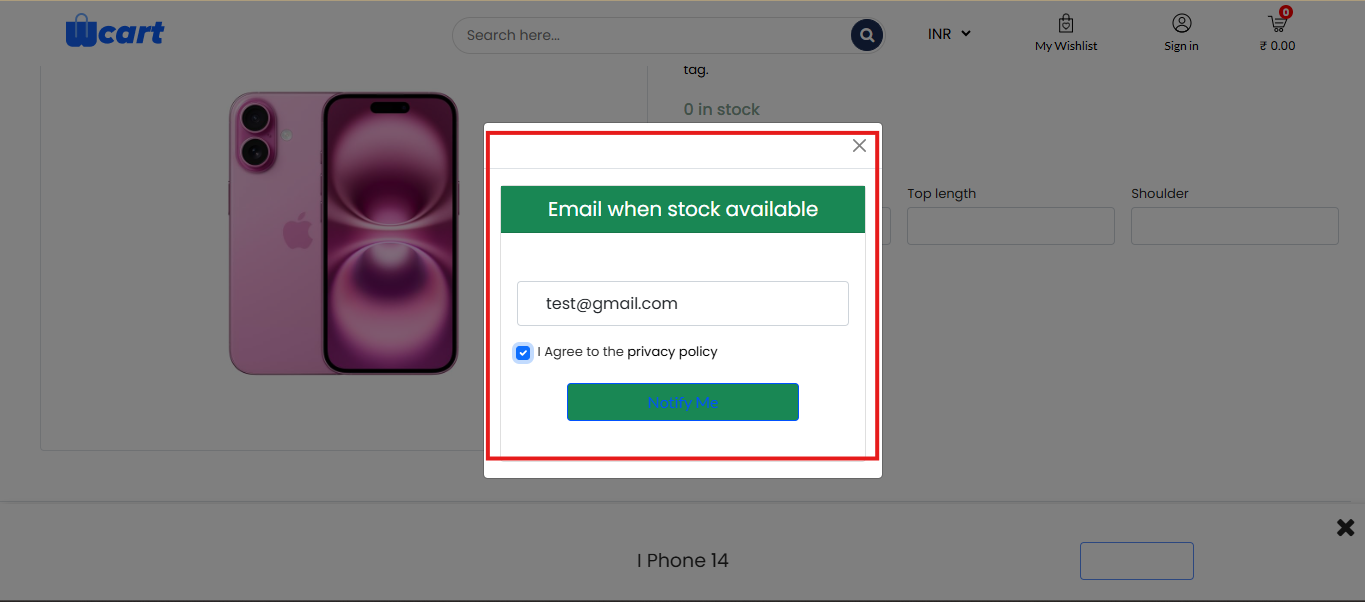
Customers will see the following indicators and options on the product display page when an item is out of stock.
- Out of Stock Indicator: The product shows a “0 in stock” message, indicating that the item is currently unavailable for purchase.
- Notify Me Button: If a product is out of stock, a ‘Notify Me’ button will be available. Customers can click this button to sign up for alerts and an email will be sent when the product is back in stock.
Together, the Settings and Subscribers sections give you complete control over how stock alerts are configured and delivered. They ensure a smooth experience for customers while helping you efficiently manage and monitor all stock notification requests.