
This section allows administrators to add visual and descriptive content for Simple Products. It includes fields to provide product details, highlight features, and upload supporting media to enhance product visibility and presentation on the storefront.
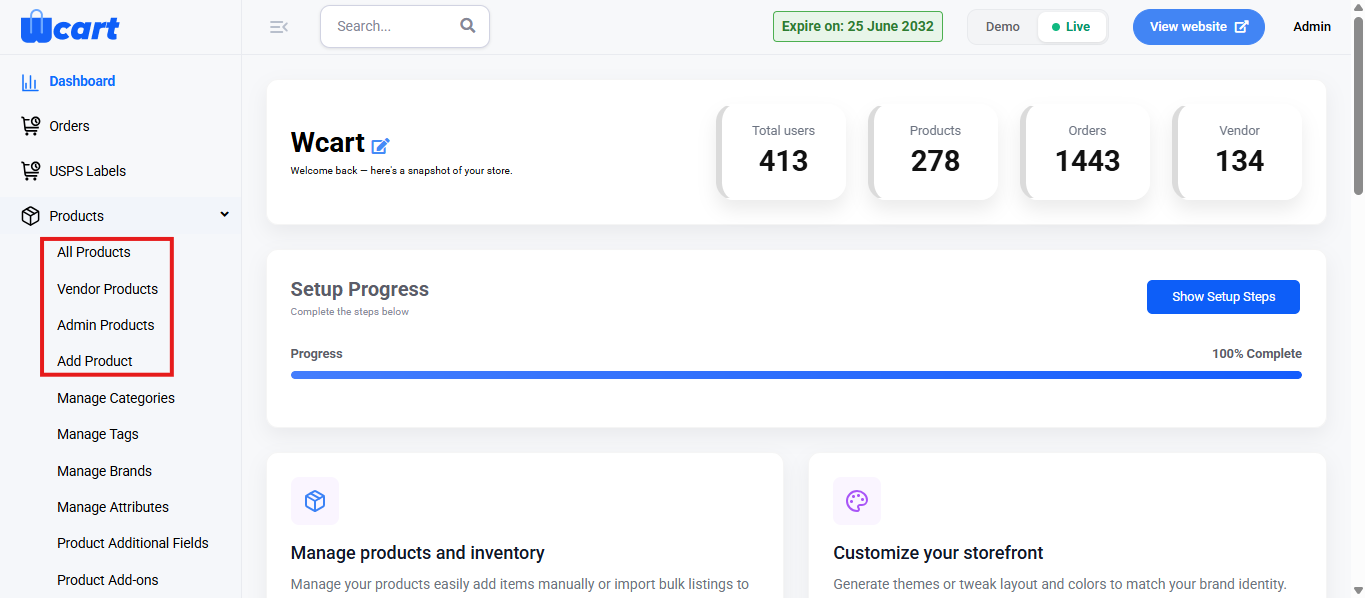
You can manage product variants from All Products, Vendor Products, Admin Products, or Add Products under the Products module.
To configure using All Products, Vendor Products and Admin Products, follow these steps:
- Navigate to the sidebar menu and select Products.
- Choose one of the following options: All Products, Vendor Products, Admin Products or Add Products.
- In the product list, locate the product you want to add images and descriptions.
- Click the Edit icon under the Action column.
- Proceed to the configuration page to modify and save your changes.
To add images and descriptions for a new product, follow these steps:
- Navigate to the sidebar menu and find the ‘Products’ section.
- Click ‘Add Product’
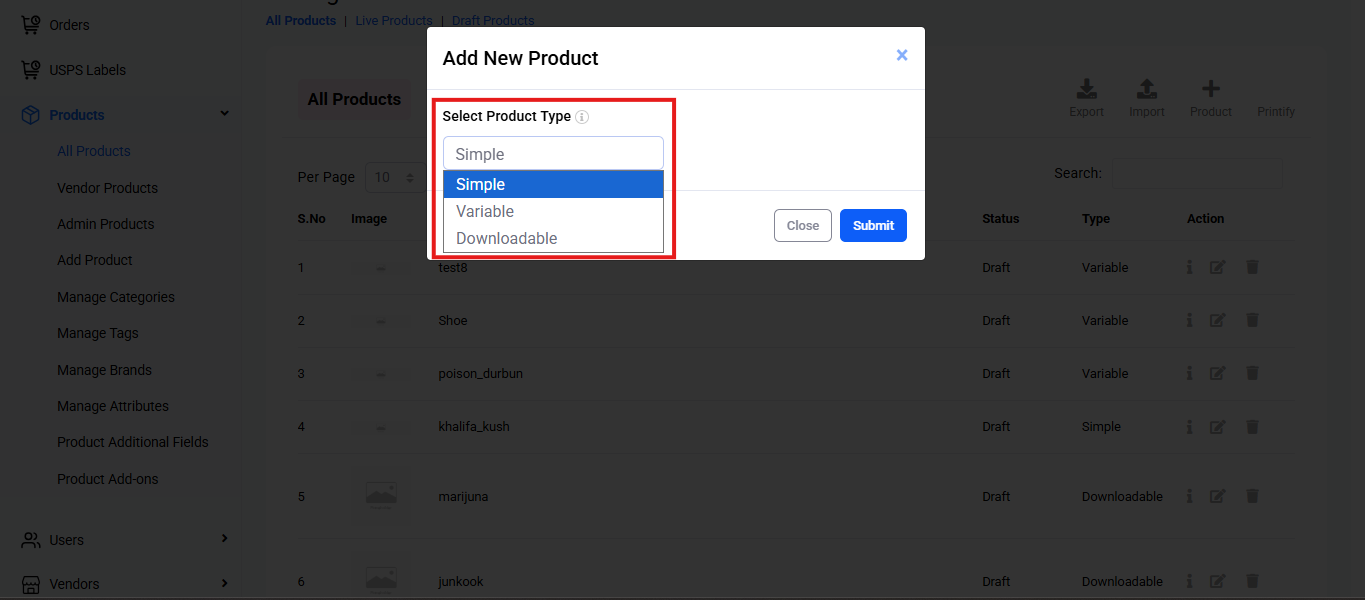
- Select ‘Product Type’
- In the ‘Select Product Type’ dropdown, choose the desired product type.
- The available options are:
- Simple: Basic product with no variations.
- Variable: Product with different variations
- Downloadable: Product that can be downloaded digitally.
- Click on the required type and click ‘Submit’
- Proceed to the second page of the configuration to modify and save your changes.
In both scenarios, you will find the following form fields:
Fields and Actions
Short Description: Provide a brief summary of the product’s key highlights and main selling points.
Long Description: Enter a detailed explanation covering product features, specifications, benefits, and other relevant information that helps customers make informed decisions.
Upload Product Images: Drag and drop or browse to upload one or more product images. Ensure that high quality images are used to represent the product accurately.
Upload Product Video: Click Choose File to upload a product related video such as a demo, overview, or promotional clip.
Save & Continue: Click to save your pricing updates. The following toast notifications will appear confirming the update based on the product type when you edit an existing product:
- Updated Simple Product Successfully
- Updated Variable Product Successfully
- Updated Downloadable Product Successfully
The below notifications will appear based on the product type if you are adding the images & descriptions while creating a new product:
- Added Simple Product Successfully
- Added Variable Product Successfully
- Added Downloadable Product Successfully
NOTE: This process is the same for Simple, Variable and Downloadable products.
These settings ensure product descriptions and visuals are properly configured and displayed on the storefront. Make sure all mandatory fields are completed and saved to guarantee accurate and appealing product presentation to customers.