
This section allows you to view and manage your profile details, including your name, role, email and profile image.
To configure, follow these steps:
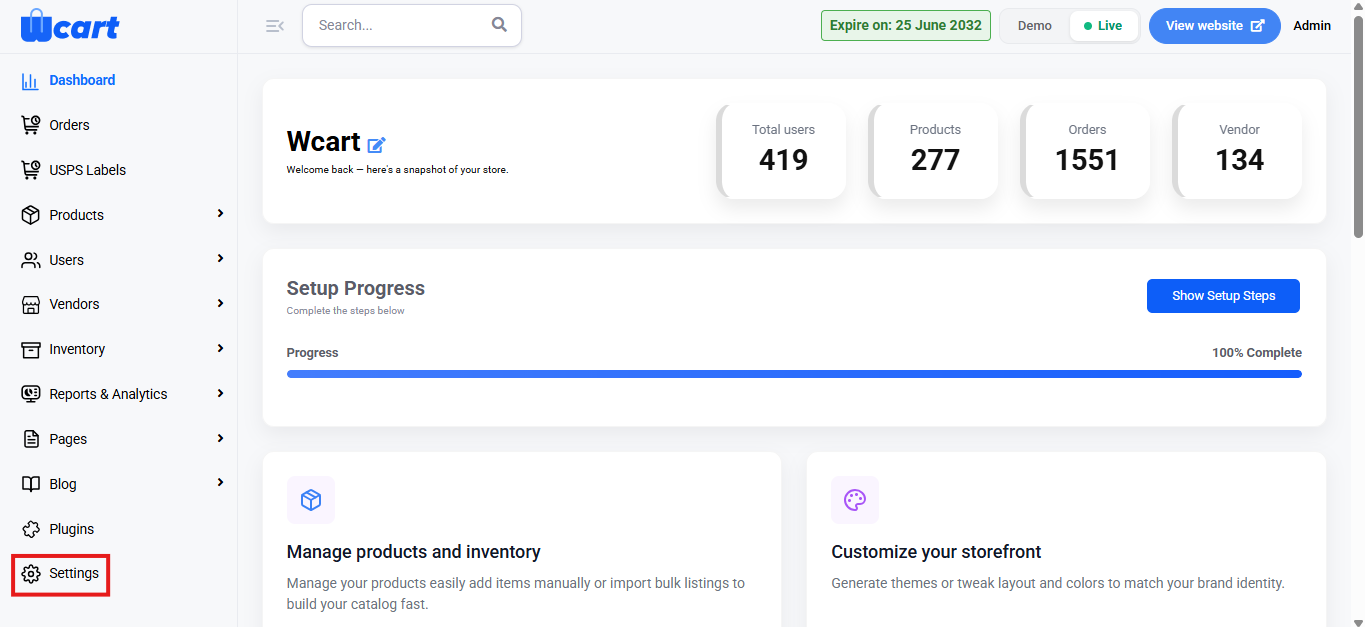
- Navigate to the sidebar menu, click ‘Settings’.
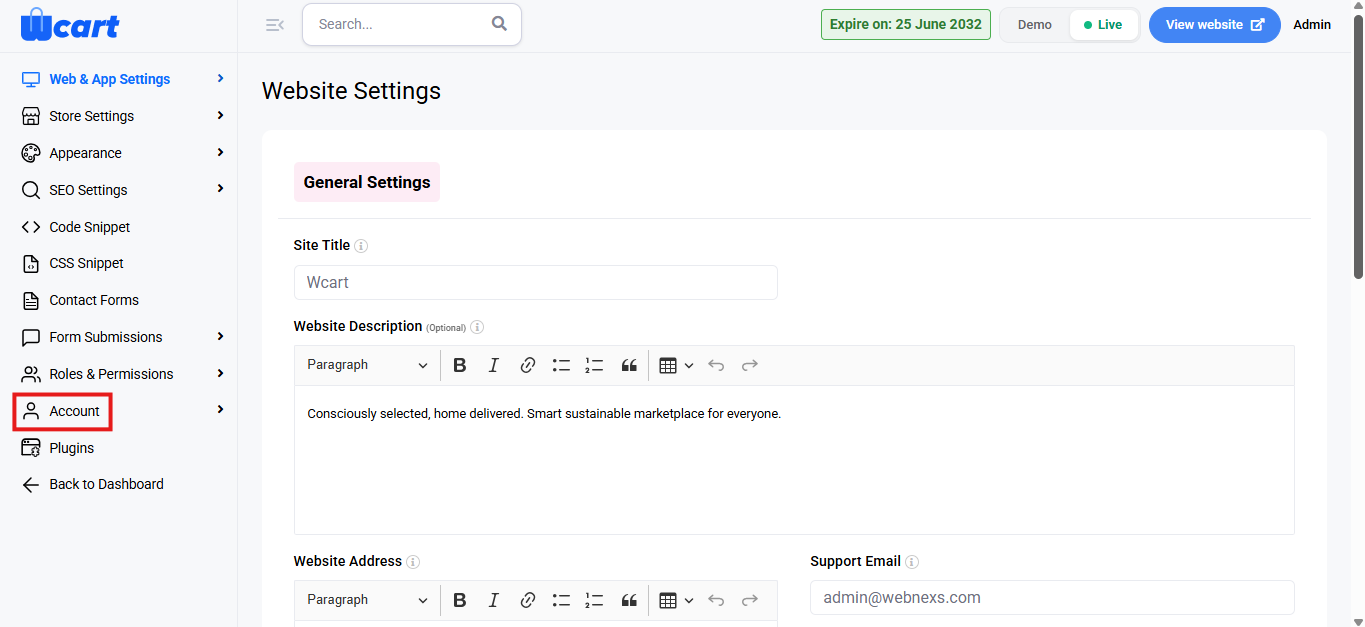
- Select ‘Account’.
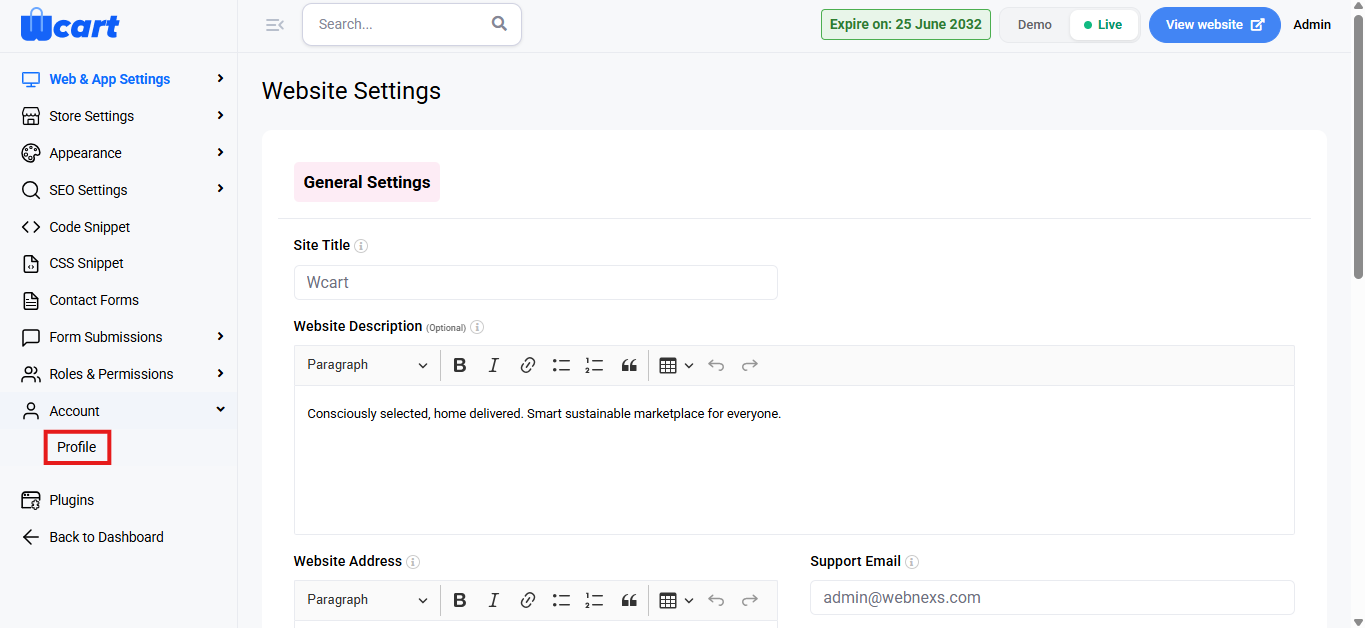
- Next, choose ‘Profile’.
The Account page displays:
- Name: Your account name.
- Role: Your access level.
- Email: The email associated with the account.
- Profile Image: Displays your current profile picture.
To edit your profile:
Click the Edit Profile icon on the top-right corner of the profile section. Update the required fields:
- Name
- Role
- Profile Image (optional)
- Update: Click this button to save changes. A toast notification ‘Staff Details Updated Successfully’ will appear to confirm the addition.
- Cancel: Click to discard.
Adding a New Staff Member
The New Staff feature allows you to create additional users with defined roles and permissions.
Fill in the staff details:
- User Name: Enter the staff member’s name
- Role: Select the appropriate role for the staff.
- Email: Enter the staff member’s email.
- Password: Set a password for the staff account.
- Profile Image (optional): Upload a profile picture.
- Status: Choose the current status of the staff member to define their level of access within the system.
- Active: The staff member is fully operational and can access the system.
- Disabled: The staff member’s account is disabled, meaning they cannot log in or access the system.
- Blocked: The staff member is blocked from performing any actions, and their account is restricted in the system.
- Submit: Click to save the new staff record. A toast notification ‘New Staff Added Successfully’ will appear to confirm the addition.
- Close: Click to discard.
Changing Staff Password
You can update the password for any staff account from the Edit Staff page.
To change a staff password:
- Click the Change Password button in the Edit Staff page.
- Enter the new password in the New Password field.
- Re-enter the password in Confirm Password to verify.
- Click ‘Change Password’ to save the new password. A toast notification ‘Password Updated Successfully’ will appear to confirm the update.
- Click ‘Close’ to cancel.
These features ensure secure, organized and efficient management of user and staff access within the system.