
The Roles & Permissions section allows you to manage staff, define roles, and assign specific permissions to control access to system features. It ensures appropriate access levels and responsibilities for each user.
This module has three navigation tabs to configure namely ‘Manage Staffs’ , ‘Manage Roles’ and ‘Manage Permissions’. This section covers ‘Manage Staffs’. Follow the links mentioned at the end of this section to the links to guide to ‘Manage Roles’ and ‘Manage Permissions’.
To manage staffs , follow these steps:
- Navigate to the sidebar menu, click ‘Settings’.
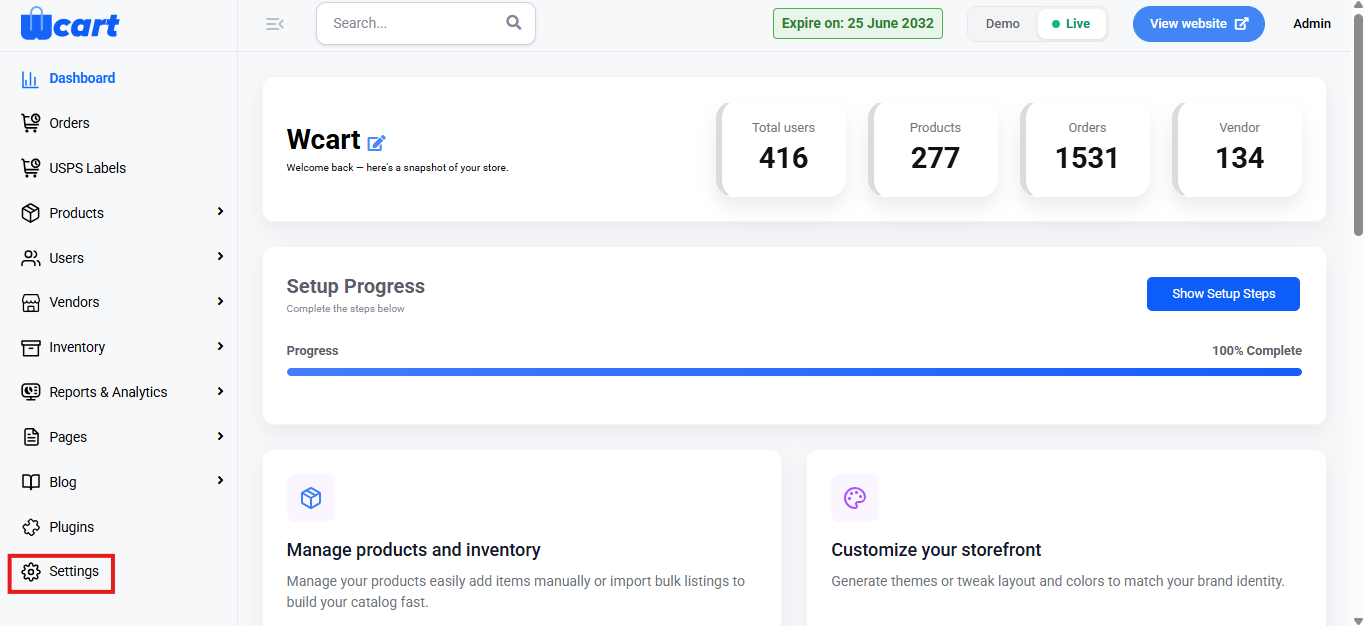
- Select ‘Roles & Permissions’.
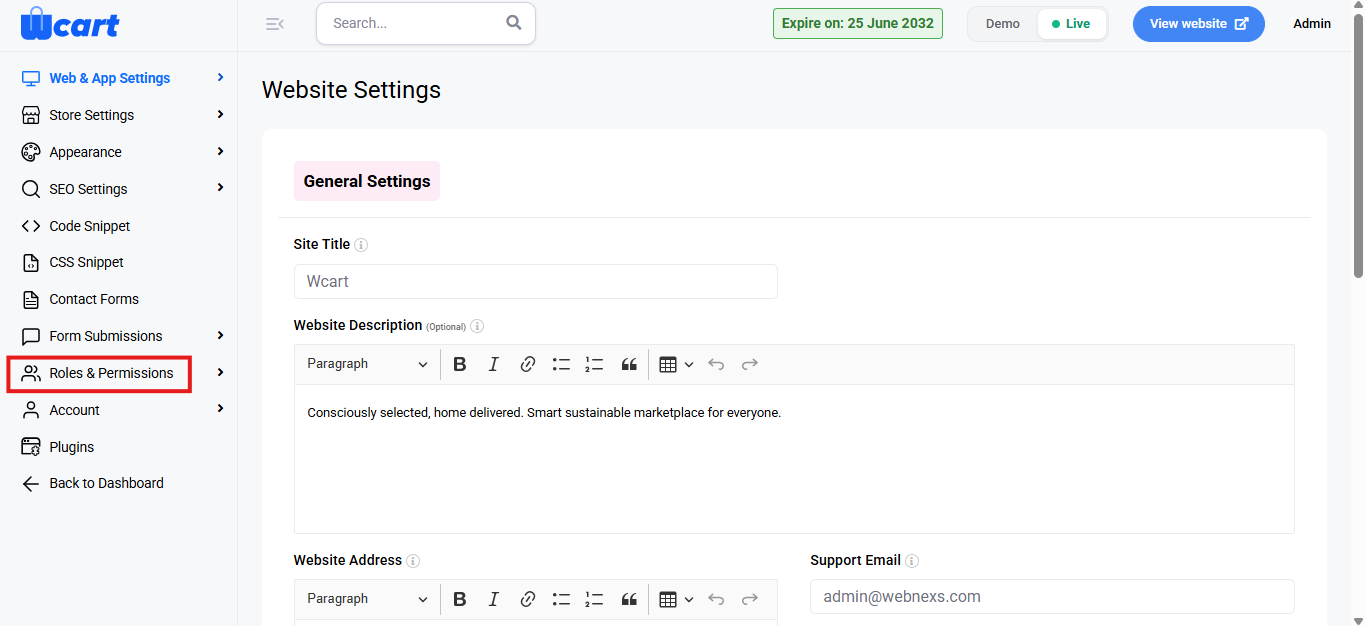
- Next, choose ‘Manage Staffs’.
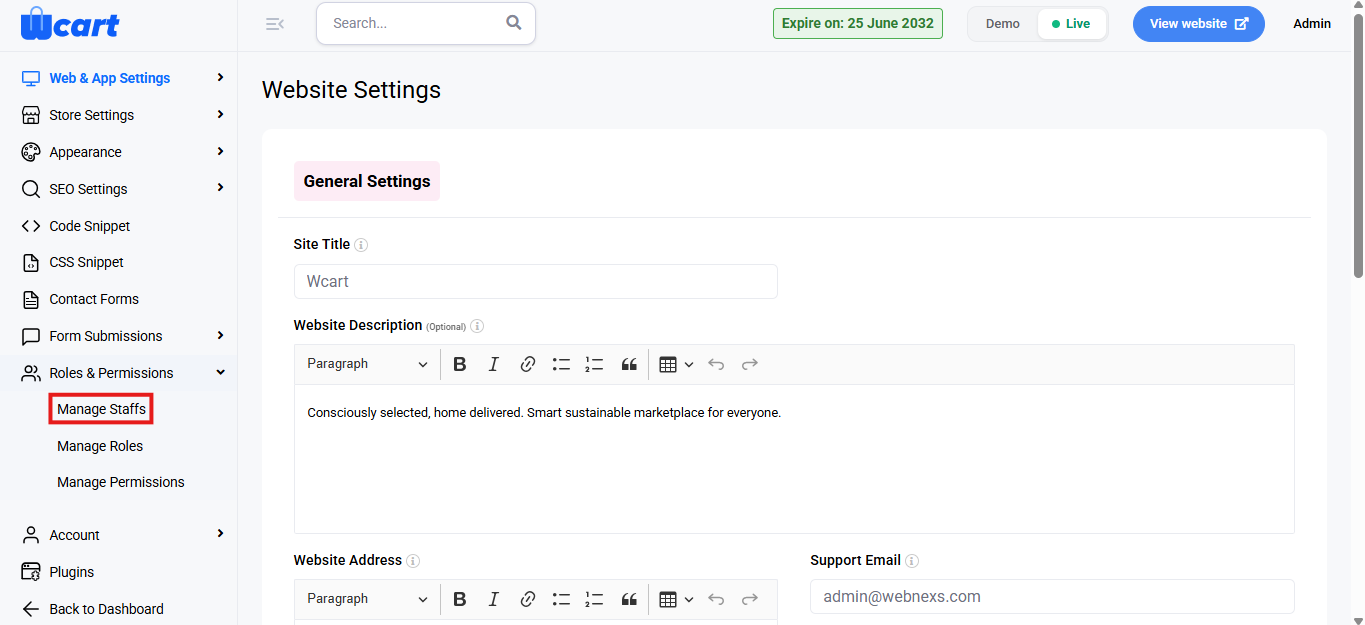
Manage Staffs
This section allows you to manage the staff members of your system.
Add New Staff
Click the ‘+’ New Staff button in the top-right corner of the ‘Manage Staffs’ page. A pop-up window will appear asking for the following details:
- User Name: Enter the name of the new staff member.
- Role: Select the role for the new staff member.
- Email: Enter the email address of the staff member.
- Password: Set a password for the staff member.
- Profile Image: Optionally, upload a profile image for the staff member.
- Status: Choose the current status of the staff member to define their level of access within the system.
- Active: The staff member is fully operational and can access the system.
- Disabled: The staff member’s account is disabled, meaning they cannot log in or access the system.
- Blocked: The staff member is blocked from performing any actions, and their account is restricted in the system.
- Submit: Click to save the new staff record. A toast notification ‘New Staff Added Successfully’ will appear to confirm the addition.
View Staff List
This page displays a list of all staff members with the following details:
S.No: Serial number.
- Name: The name of the staff member.
- Email: The staff member’s email address.
- Role: The role assigned to the staff member.
- Action: Options to edit or delete the staff record.
- Edit: The same form fields in the ‘Add Staff’ pop-up window will appear to modify the details. Additionally, password can be changed and new staffs can be added.
- Changing Password: Click on ‘Change Password’ at the top-right corner. It contains the below mentioned form fields:
- New Password: Enter the new password for the staff member. Ensure it meets any security requirements set by your system.
- Confirm Password: Re-enter the same password to confirm it.
- Change Password: Click this button to update the staff member’s password. A toast notification ‘Password Updated Successfully’ will appear to confirm the update.
- Changing Password: Click on ‘Change Password’ at the top-right corner. It contains the below mentioned form fields:
- Delete: Removes the selected staff. A dialog box will appear with the text ‘Are you sure you wish to delete this staff?’ along with ‘Ok’ and ‘Cancel’ options. Cancelling will remove the dialog box and clicking on ‘Ok’ will display this toast notification ‘Removed Staff Successfully’ to confirm deletion.
- Edit: The same form fields in the ‘Add Staff’ pop-up window will appear to modify the details. Additionally, password can be changed and new staffs can be added.
This feature ensures proper access control and helps maintain system security by managing staff access levels.