
This allows you to manage search engine optimization configurations for your website, including global SEO details and page-level SEO metadata. This helps improve your website’s visibility on search engines like Google, Bing and others.
The SEO Settings section consists four navigation tabs, they are:
- Dashboard
- General Page SEO
- Permalink
- Social links
In this section, Dashboard and General Page SEO are detailed. To configure Permalink and Social Links, follow the guide links mentioned at the end of this section.
To configure, follow these steps:
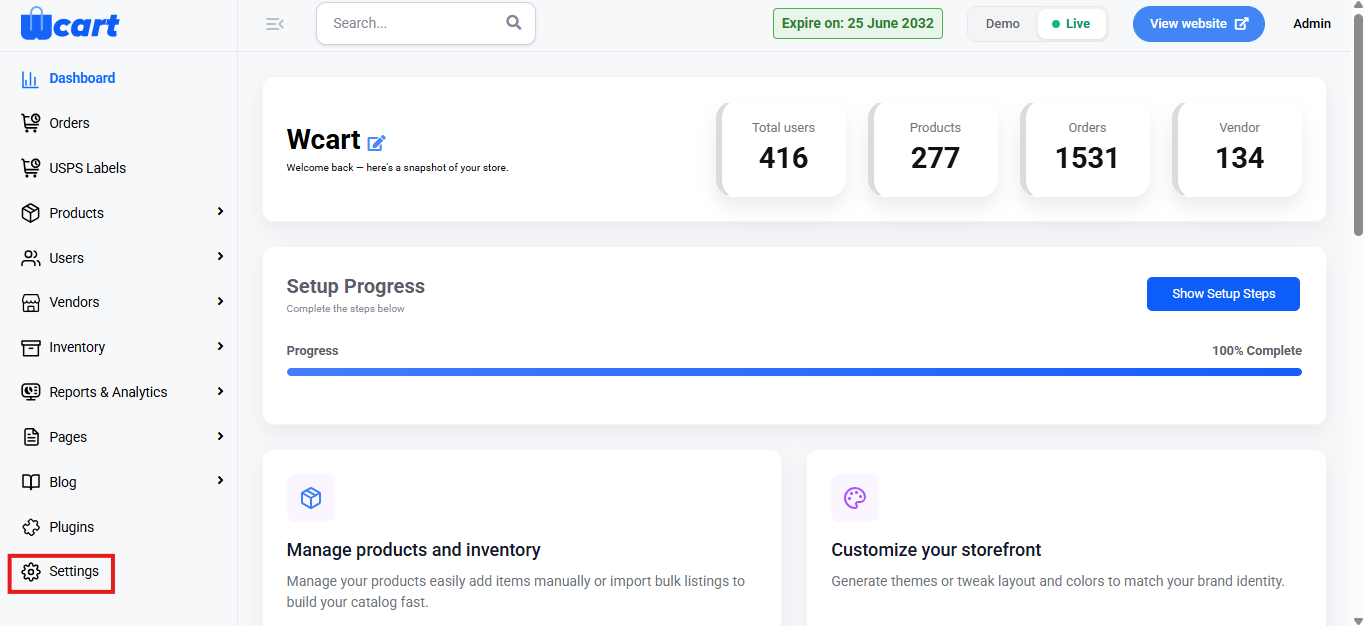
- Navigate to the sidebar menu, click ‘Settings’.
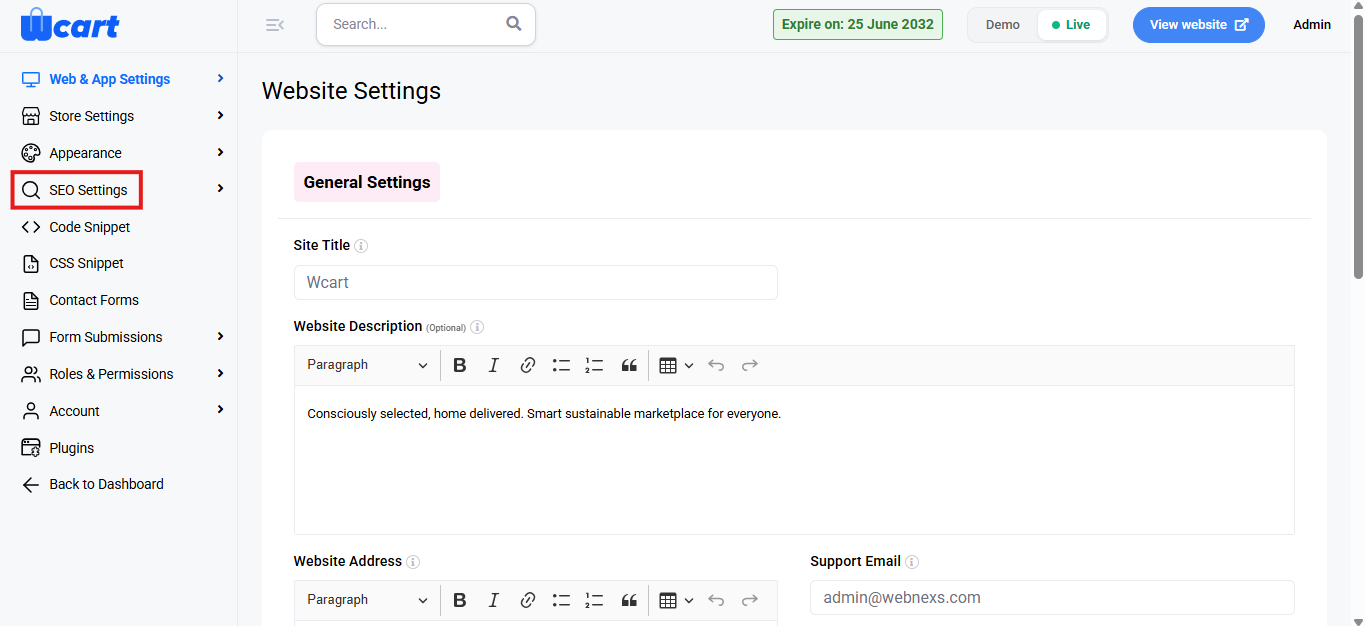
- Select ‘SEO Settings’.
- Next, choose ‘Dashboard’. After configuring it, select ‘General Page SEO’ from the submenu.
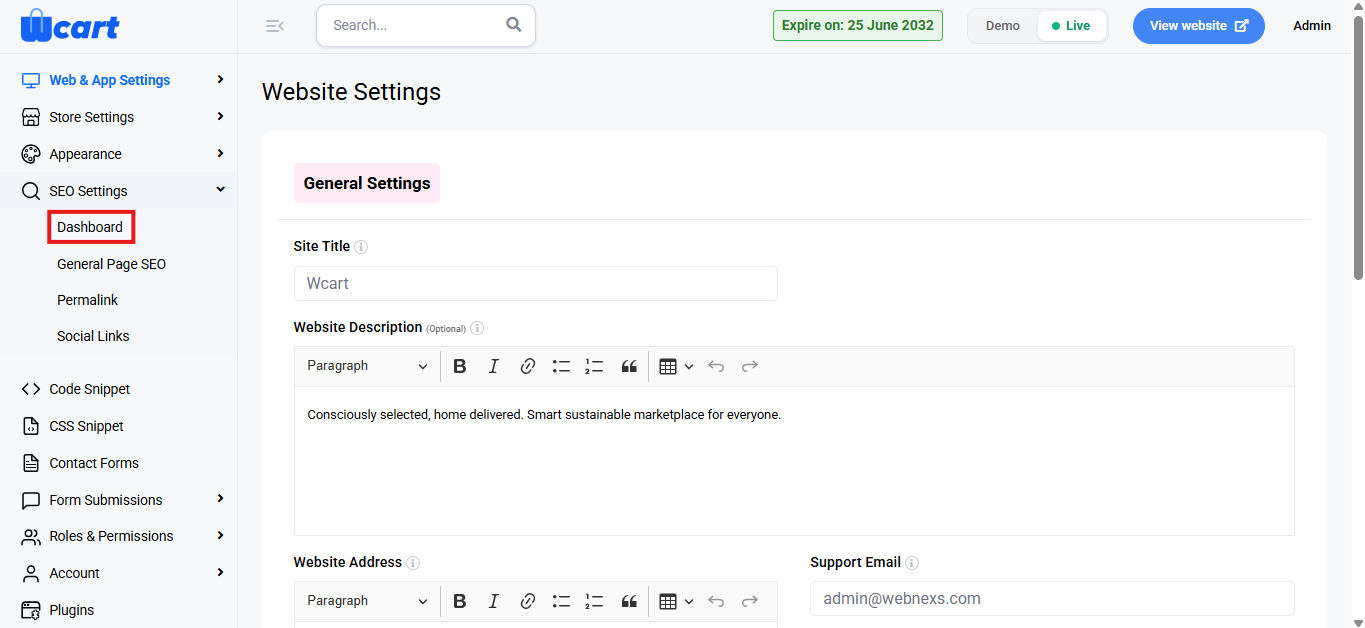
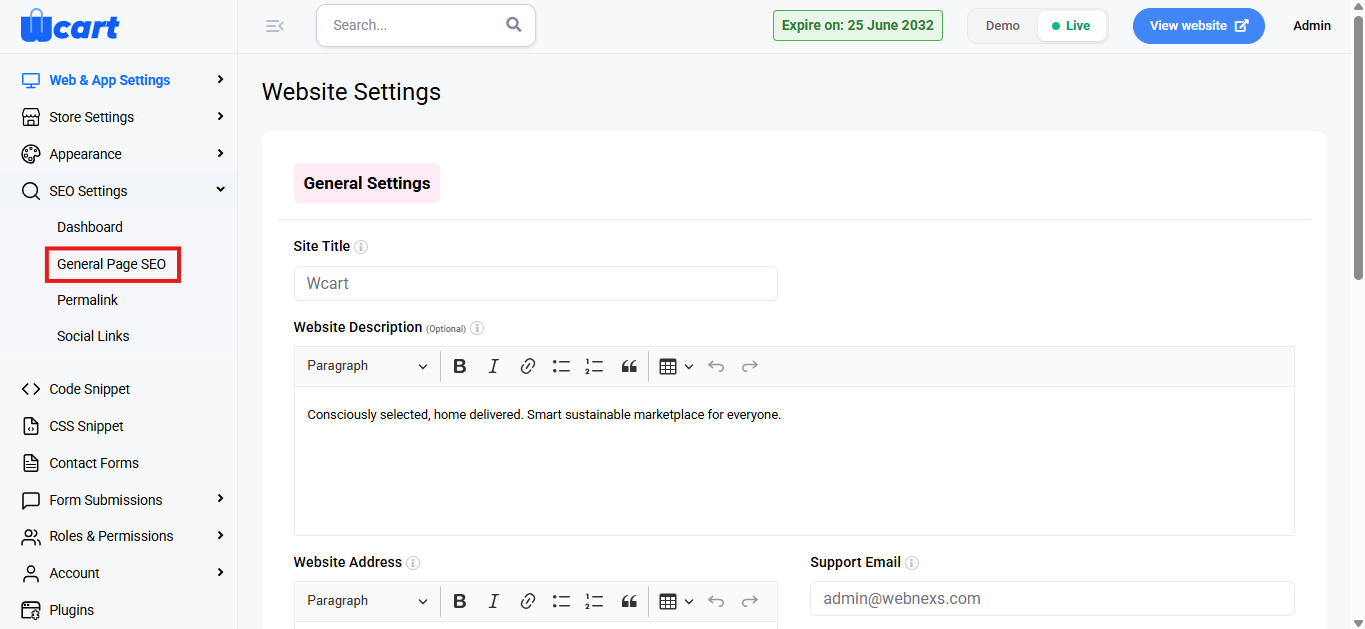
SEO Dashboard
The SEO Dashboard is the central place to configure global SEO and tracking tools for your website.
Fields and Options
- Website Name: Displays the name of your website. This is used as part of SEO metadata across the site.
- Meta Separator: Define the separator symbol used between page titles and the website name in meta titles.
- Company or Person: Select whether the website represents a company or an individual. This information is used for structured data.
Marketing Tools
- Google Tag Manager: Enable or disable Google Tag Manager integration. When enabled, enter your GTM container ID.
- Google Analytics: Enable or disable Google Analytics tracking. When enabled, enter your Google Analytics tracking ID.
- Facebook Pixel Code: Enable or disable Facebook Pixel integration. When enabled, enter your Facebook Pixel ID.
- Google Search Console: Enter the verification code provided by Google Search Console.
- Bing Webmaster Tools: Enter the verification code for Bing Webmaster Tools.
- Yandex Webmaster Tools: Enter the verification code for Yandex Webmaster Tools.
After entering the required details, click ‘Save Changes’ to apply the settings. A toast notification ‘Updated SEO Dashboard Data’ will appear to confirm the update.
General Page SEO
This section allows you to manage SEO metadata for individual website pages.
Page List View
This screen displays a list of all pages with the following information:
- S.No: Serial number of the page entry.
- Title: Name of the page.
- Meta Title: SEO meta title configured for the page.
- Status: Indicates whether the page SEO is published.
- Action: Edit the SEO details for the selected page. All form fields in ‘New Page’ SEO form will be present except ‘Title’.
Add New Page SEO
Clicking ‘New Page’ opens the Add New Page SEO form, where you can create SEO metadata for a new page.
Fields
- Title: Enter the page name. This is used internally to identify the page.
- SEO Title: Enter the meta title that will appear in search engine results.
- SEO Description: Enter a brief meta description summarizing the page content. This helps improve click-through rates from search results.
- SEO Keyword (Optional): Enter relevant keywords associated with the page for SEO reference.
Actions
- Click ‘Submit’ to save the page SEO details. A toast notification ‘Page Added Successfully’ will appear to confirm the update.
- Click ‘Close’ to exit without saving.
By configuring the SEO Dashboard and General Page SEO settings, you can manage global and page-level SEO metadata effectively. This ensures better search engine visibility and control over how your pages appear in search results.
To configure ‘Permalink’ and ‘Social Links’, follow the guide links mentioned below: