
The Permalink and Social Links settings enable you to manage SEO-friendly product URLs and maintain your social media presence effectively. Proper configuration ensures better search visibility, consistent branding, and improved user engagement across your website.
To configure, follow these steps:
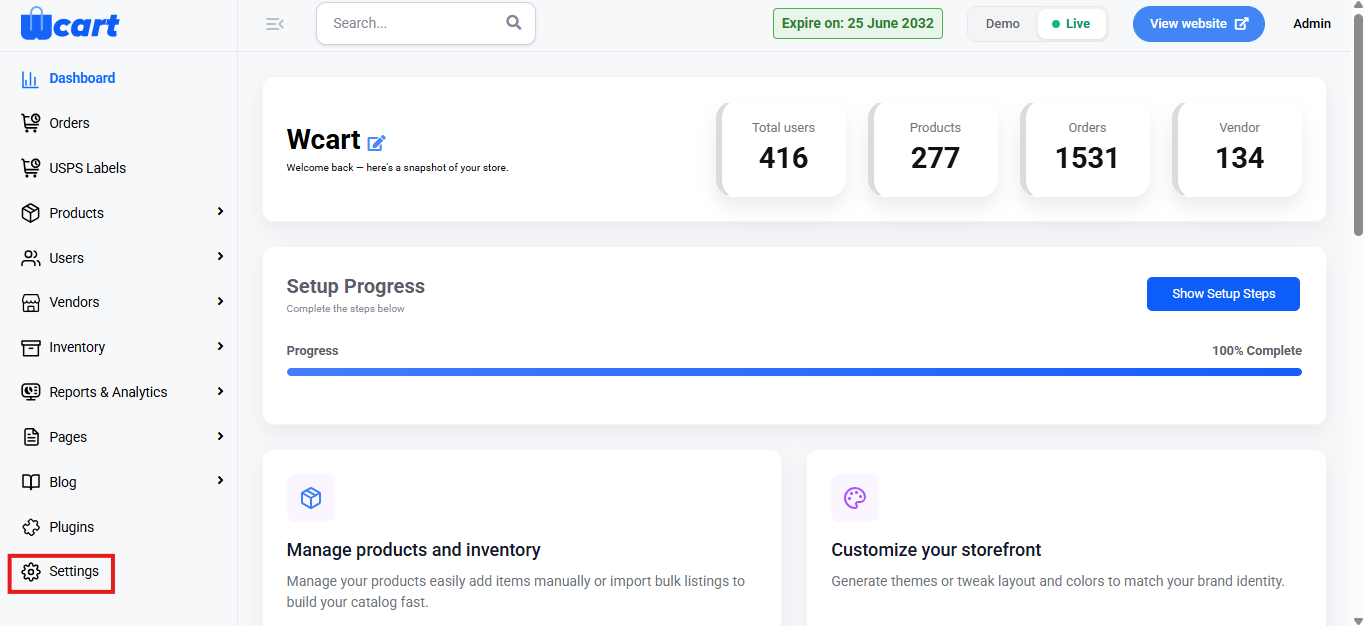
- Navigate to the sidebar menu, click ‘Settings’.
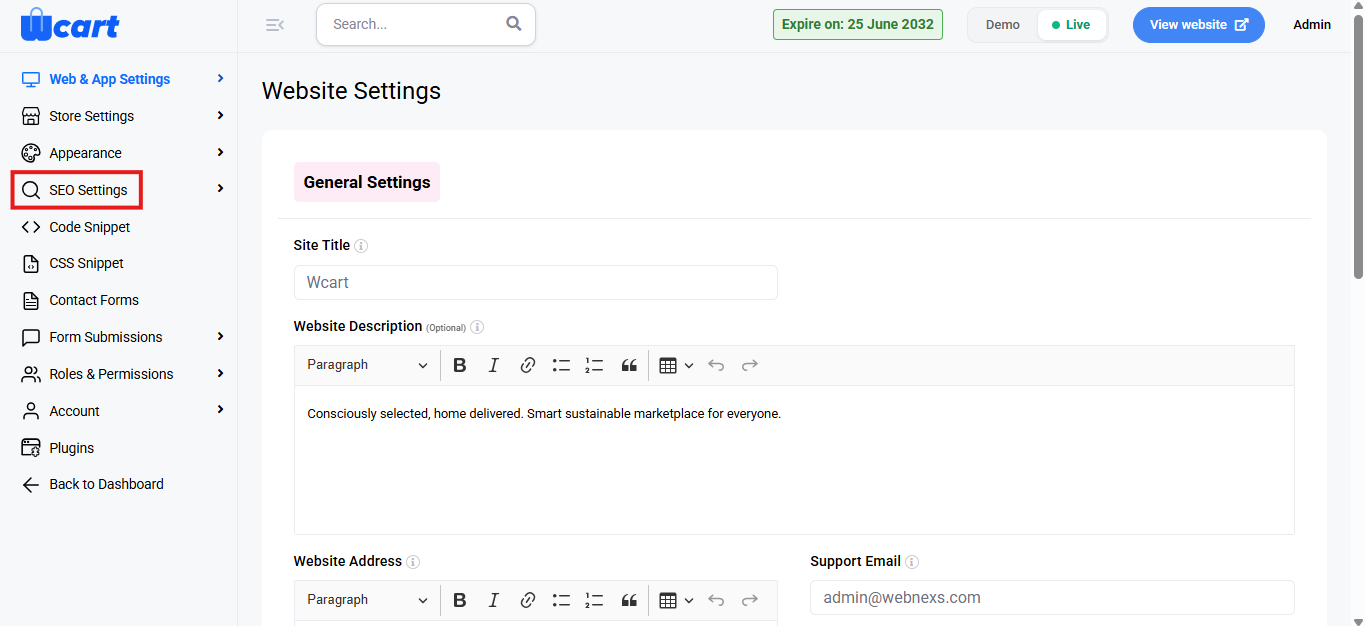
- Select ‘SEO Settings’.
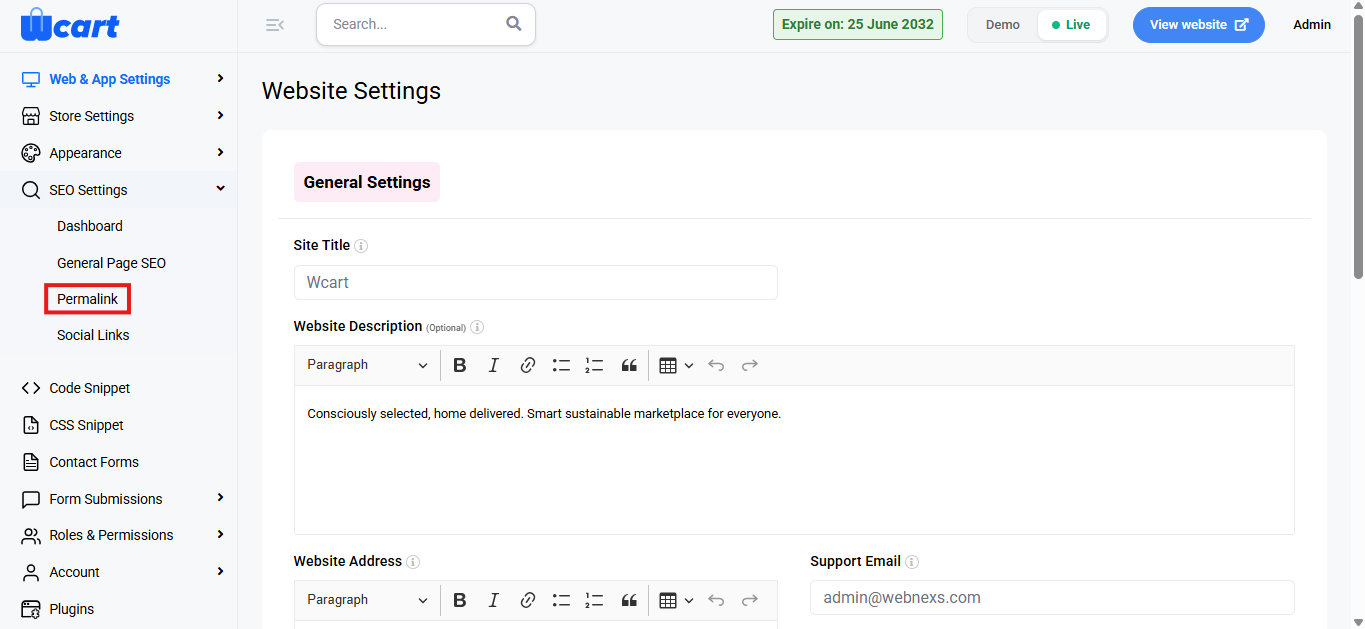
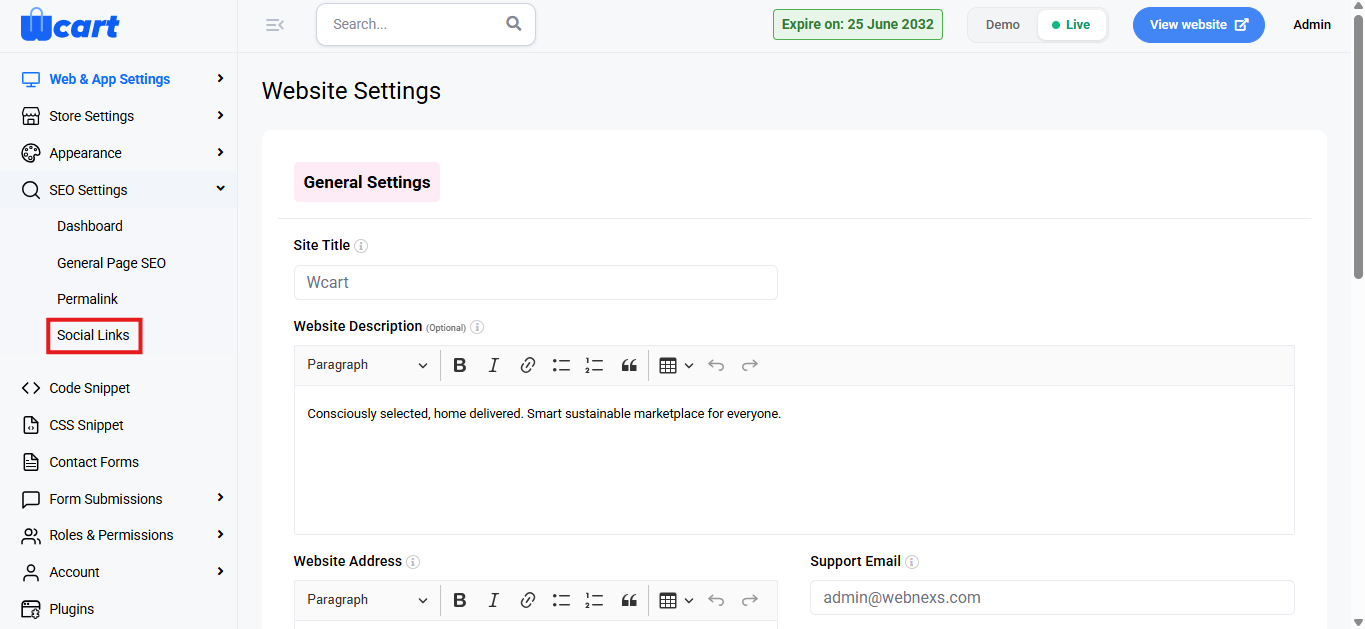
- Next, choose ‘Permalink’. After configuring it, select ‘Social Links’ from the submenu.
Permalink
This feature allows you to define the base URL structure for product pages on your ecommerce website. Configuring permalinks helps create clean, SEO-friendly URLs that are easy for users and search engines to understand.
- Product Base: Enter the base keyword that will appear in all product URLs.
- Save Changes: Click this button to apply the updated permalink structure. A toast notification ‘Updated successfully’ will appear to confirm the update.
Social Links
The Social Links section allows you to manage and display your website’s social media profiles. These links help users connect with your brand across various social platforms and improve overall trust and engagement.
Add New Social Link
Clicking New Social Link opens the form to add a new social media profile.
Fields
- Social Media Name: Enter the name of the social media platform.
- Icon: Enter the icon class to visually represent the social media platform.
- URL: Enter the complete URL of the social media profile.
Actions
- Click ‘Submit’ to save the social link. A toast notification ‘Social Link Added Successfully’ will appear to confirm the addition.
- Click ‘Close’ to exit without saving.
Social Links List View
This screen displays all configured social media links with the following details:
- S.No: Serial number of the entry.
- Name: Name of the social media platform.
- Icon: Icon class used to represent the social media platform.
- URL: Website link to the social media profile.
- Action: Manage social links with two options:
- Edit: Modify the selected social link. The same form fields available in adding a new page are available here as well to modify.
- Delete: Removes the selected social link. A dialog box will appear with the text ‘Are you sure you wish to delete this Social link ?’ along with ‘Ok’ and ‘Cancel’ options. Cancelling will remove the dialog box and clicking on ‘Ok’ will display this toast notification ‘Social Link Deleted’ to confirm deletion.
The Permalink and Social Links settings help you create SEO-friendly URLs and manage your website’s social media presence efficiently. Proper configuration improves search visibility, brand consistency, and user engagement across your platform.
To configure ‘Dashboard’ and ‘General Page SEO’, follow the guide links mentioned below: