
This plugin allows customers to compare multiple products side by side based on selected details. This section lets admins control how the comparison feature works, looks, and what information is shown.
To configure, follow these steps:
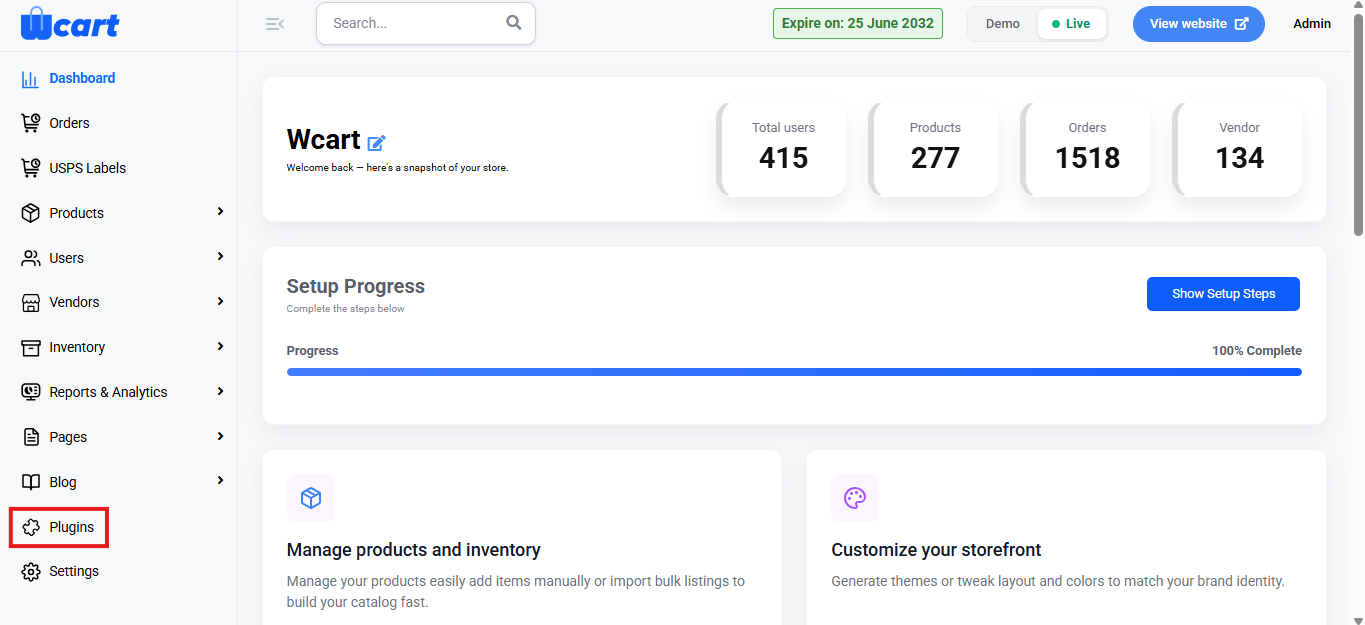
- Navigate to the sidebar menu and select ‘Plugins’.
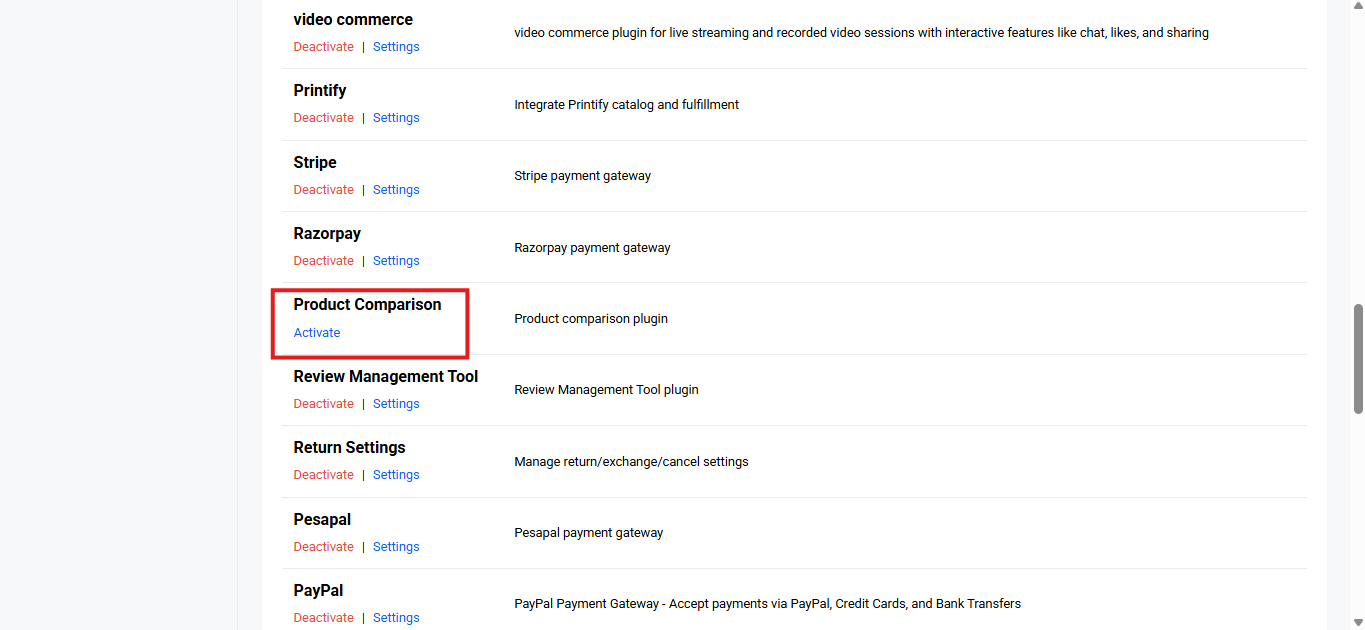
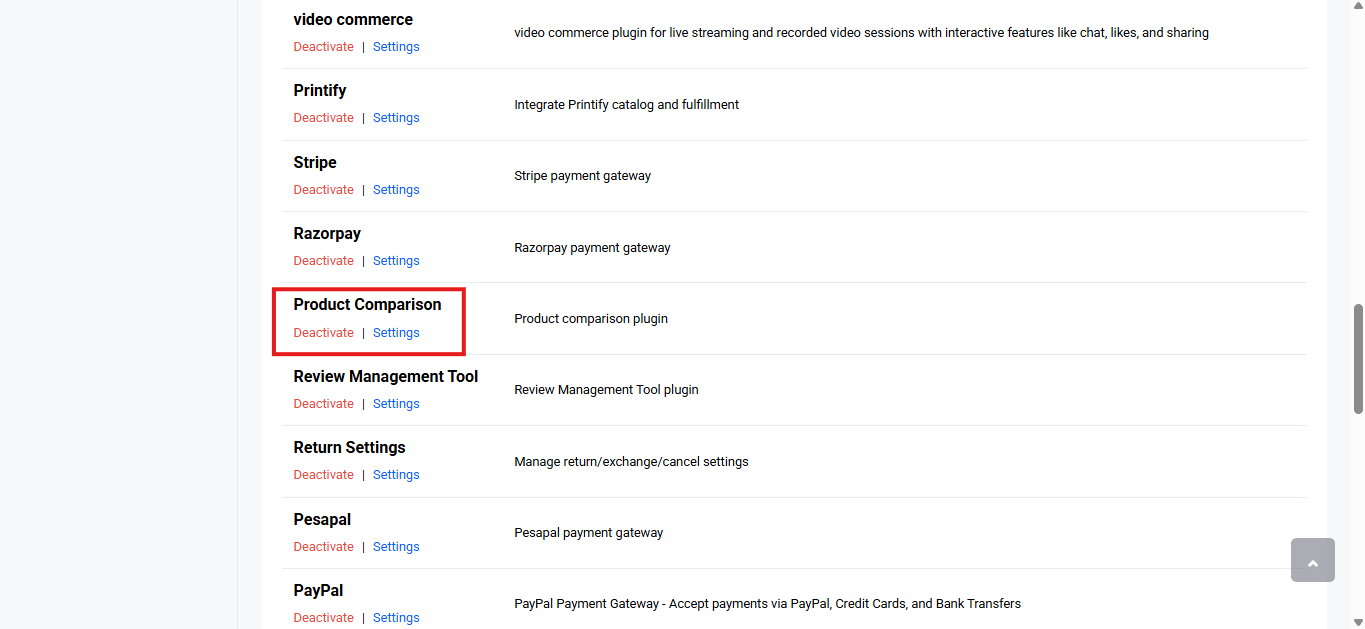
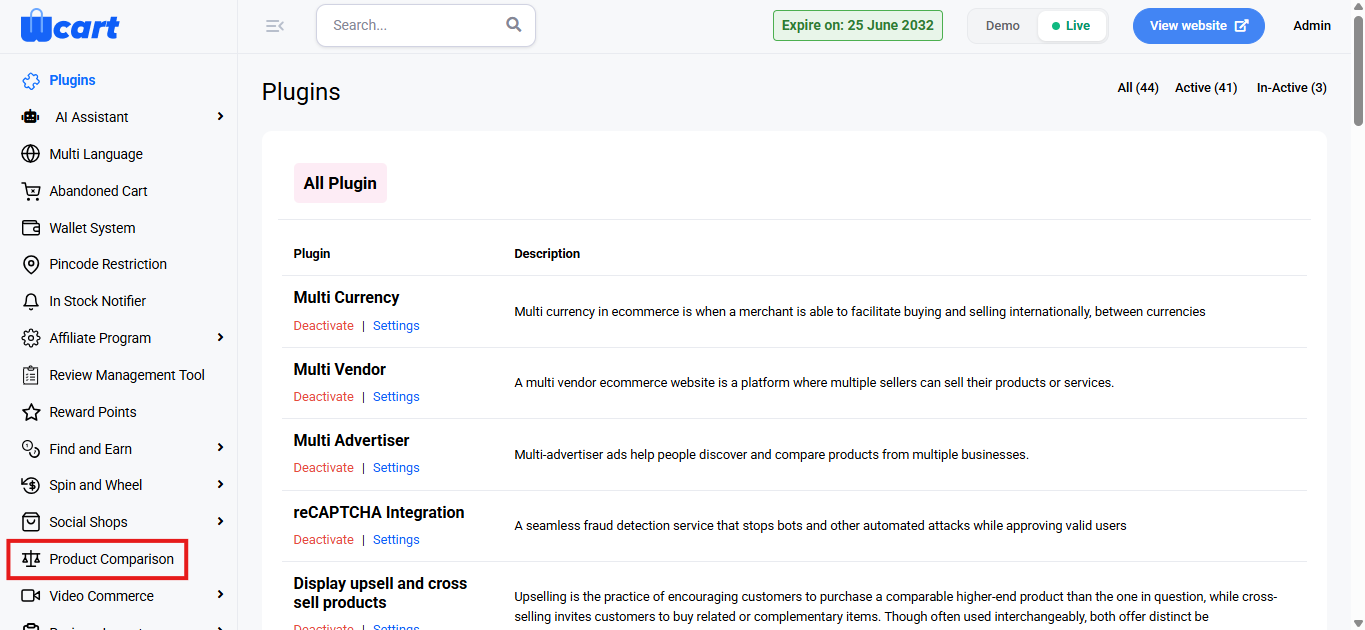
- Locate ‘Product Comparison’ and click ‘Activate’. You will now see two options: ‘Deactivate’ and ‘Settings’. When you click ‘Activate’ or ‘Deactivate’, a toast notification showing ‘Product Comparison Plugin Activated’ or ‘Product Comparison Plugin Deactivated’ will appear to confirm that the plugin has been activated or deactivated. You can configure ‘Product Comparison’ by clicking ‘Settings’ or by selecting ‘Product Comparison’ from the left sidebar menu after activation.
General Settings
- Enable Product Comparison: Enable this option to activate the product comparison feature on the store.
- Max Products to Compare: Set the maximum number of products a customer can compare at one time.
- Available options:
- 2 Products: Allows comparison between two products.
- 3 Products: Allows comparison between three products.
- 4 Products: Allows comparison between four products.
- 5 Products: Allows comparison between five products.
- 6 Products: Allows comparison between six products.
- Available options:
Button Settings
These settings control the compare button shown to customers.
- Button Placement: Choose where the Compare button appears:
- Available options:
- Product List Only: Shows the Compare button only on product listing pages.
- Product Page Only: Shows the Compare button only on individual product detail pages.
- Both Product List & Page: Shows the Compare button on both listing pages and product detail pages.
- Available options:
- Button Text: Customize the text shown on the compare button.
Appearance Settings
- Primary Color: Select the main color used for the comparison button and highlights.
- Secondary Color: Choose an additional color for styling the comparison interface.
Display Fields
Select which product information should appear in the comparison table.
Available options include:
- Product Image
- Product Title
- Product Price
- Product Rating
- Product Description
- Product SKU
- Availability Status
- Product Attributes
- Additional Fields (optional)
Only selected fields will be visible to customers during comparison.
Save Settings
Click ‘Save Settings’ to apply all changes. A toast notification ‘Updated Reward Point Settings Successfully’ will appear to confirm the update.
Product Comparison helps customers make better purchase decisions by easily viewing key differences between products, improving user experience and conversion rates.