
The reCAPTCHA Settings section allows you to add and manage your Google reCAPTCHA keys for the store. This configuration must be completed before enabling the reCAPTCHA Integration on forms.
To configure, follow these steps:
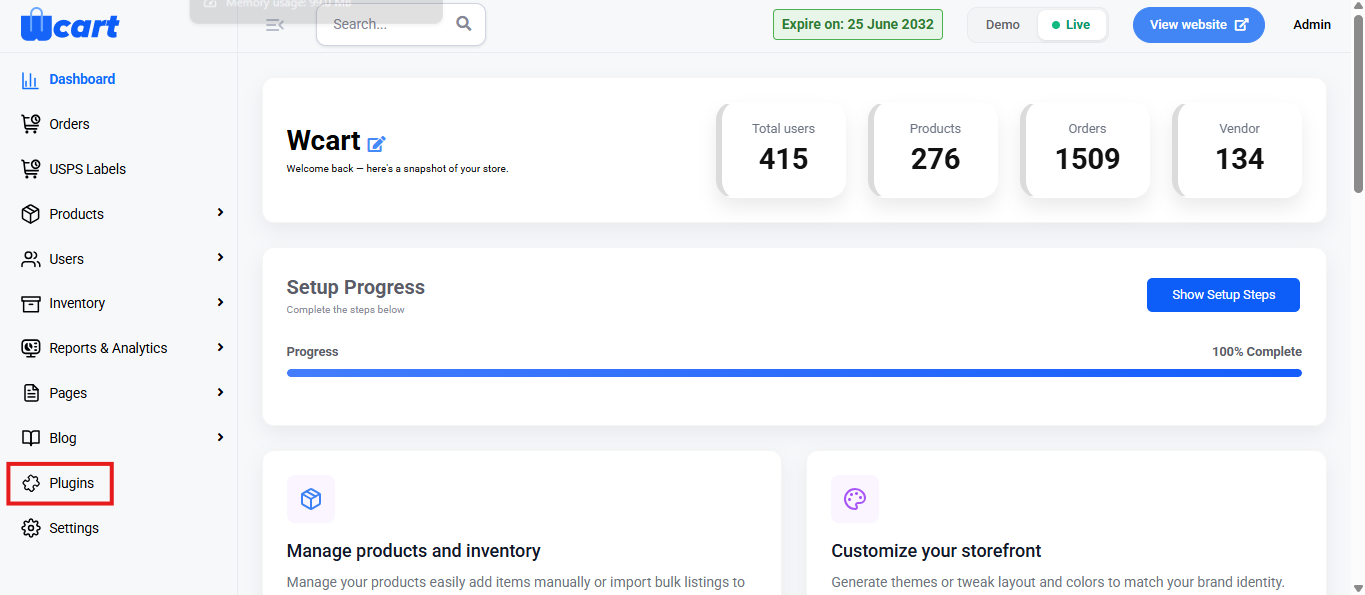
- Navigate to the sidebar menu and click ‘Plugins’.
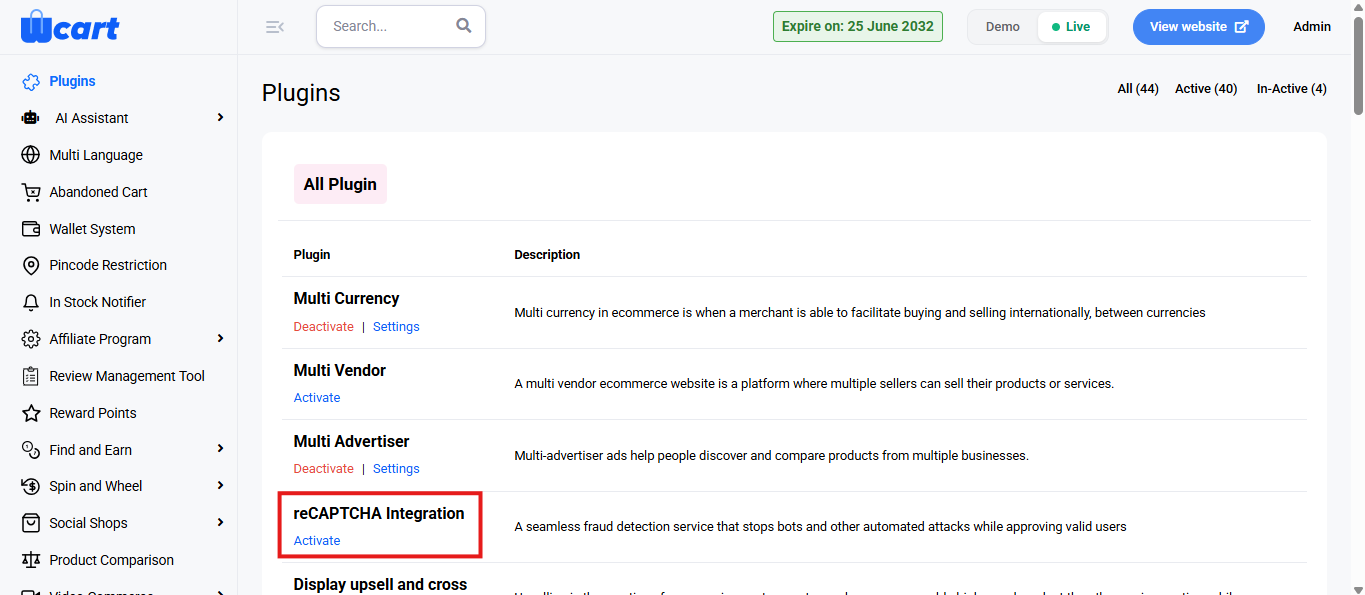
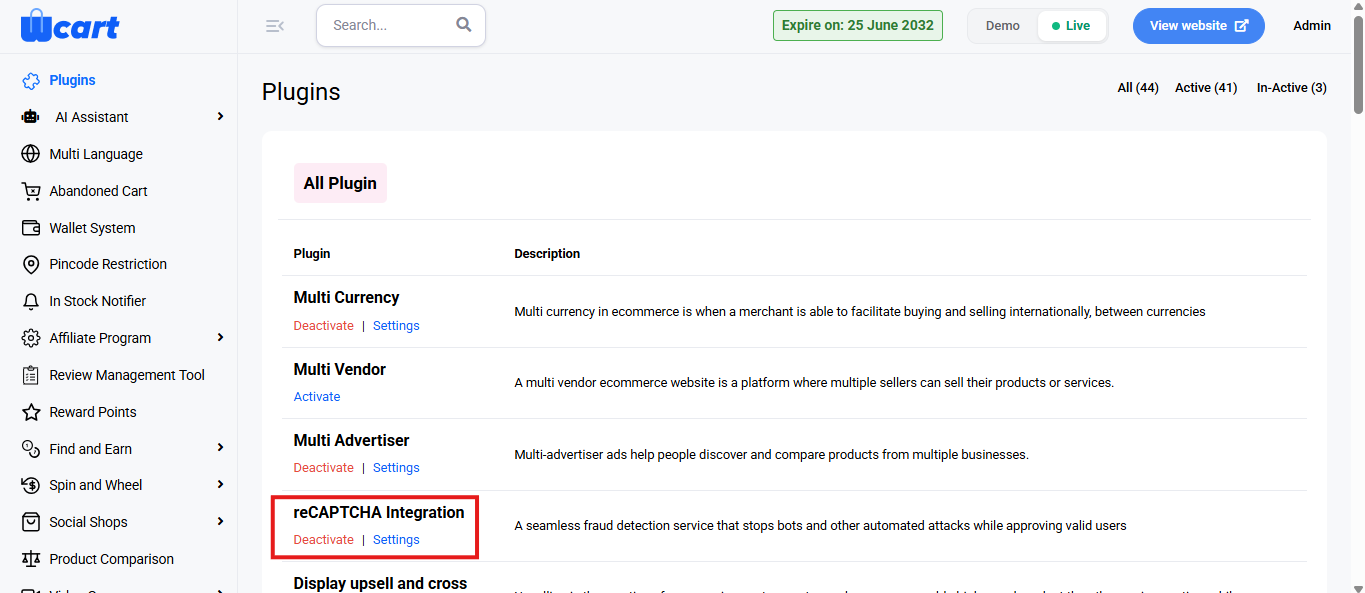
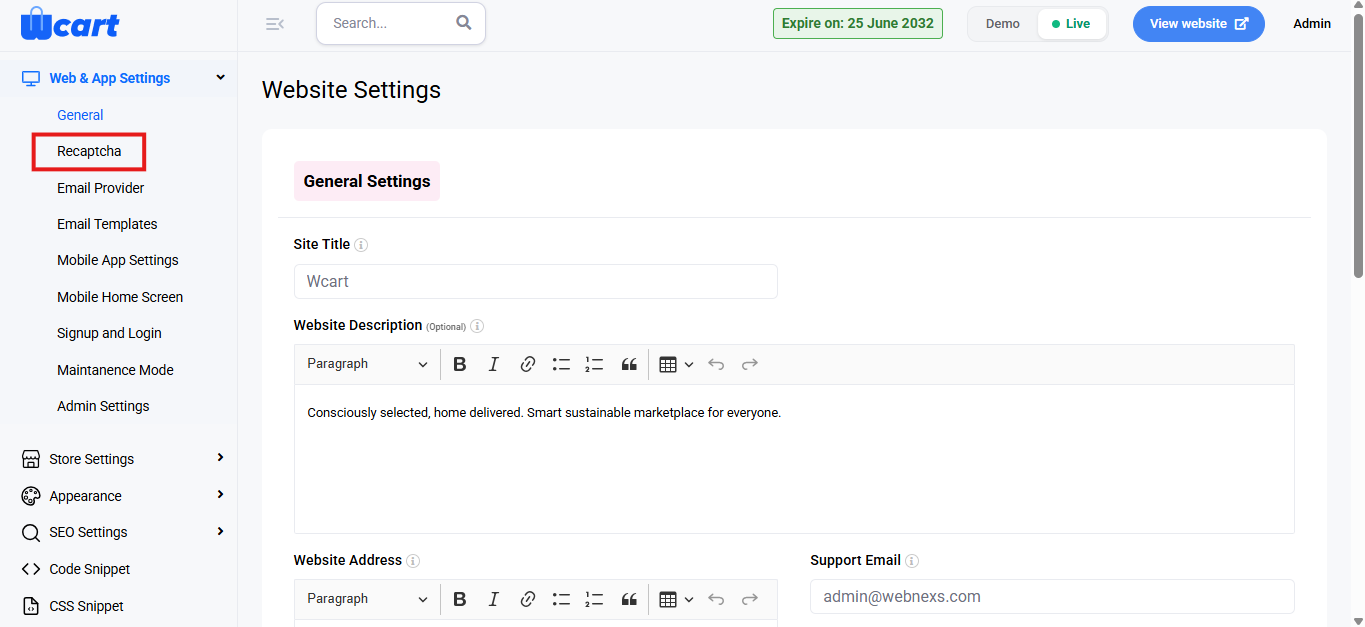
- Locate ‘reCAPTCHA Integration’ and click ‘Activate’. You will now see two options: ‘Deactivate’ and ‘Settings’. When you click ‘Activate’ or ‘Deactivate’, a toast notification showing ‘reCAPTCHA Integration Plugin Activated’ or ‘reCAPTCHA Integration Plugin Deactivated’ will appear to confirm that the plugin has been activated or deactivated. You can configure reCAPTCHA by clicking ‘Settings’ or by selecting ‘reCAPTCHA’ from the left sidebar menu after activation.
Fields for reCAPTCHA Settings:
- Label: Enter a name to identify this key set.
- Site Key: Paste the site key obtained from your Google reCAPTCHA admin console.
- Secret Key: Paste the corresponding secret key from Google reCAPTCHA.
reCAPTCHA type options:
- Score based (v3): Verifies requests in the background using a score.
- “I’m not a robot” Checkbox (v2): Shows a visible checkbox for user verification.
- Invisible reCAPTCHA badge (v2): Validates requests in the background with a badge.
Using Sample Key:
- Next to each reCAPTCHA type, click “Sample Key” to auto-fill example Site Key and Secret Key values for testing.
- The sample keys appear below the selected type in the Site Key and Secret Key fields for that mode.
- Use these sample keys only for testing in non‑production environments.
After entering your own keys or using sample keys for testing, click Complete to save the configuration. A toast notification ‘Updated reCAPTCHA Settings’ will appear to confirm the update.
Adding Integration
This reCAPTCHA Integration section allows you to choose where the configured reCAPTCHA should be applied across your store.
Click ‘+ Integrations’ in the top-right corner of the page to configure settings.
Forms in reCAPTCHA Integration Settings:
- Admin Signin: Enable to show reCAPTCHA on the admin login page.
- User Registration: Enable to protect the customer registration form.
- User Login: Enable to display reCAPTCHA on the customer login form.
- Vendor Registration: Enable to secure the vendor signup form.
- Vendor Login: Enable to add reCAPTCHA to the vendor login form.
- Order Page: Enable to validate customers on the checkout or order submission page.
Click ‘Submit’ to apply the changes. After saving, reCAPTCHA will be active on all selected forms in your storefront. A toast notification ‘Updated reCAPTCHA Form Settings’ will appear to confirm the update.
The reCAPTCHA integration enhances security by preventing spam and bot submissions on your store’s forms, ensuring a safer experience for both admins and users.