
Low Stock Alerts help administrators and store managers receive automated email notifications whenever a product’s available stock reaches a specified low quantity threshold. This ensures timely replenishment and prevents products from going out of stock on the storefront.
Draft Low Stock Alert Email Content
This must be configured before enabling email alerts.
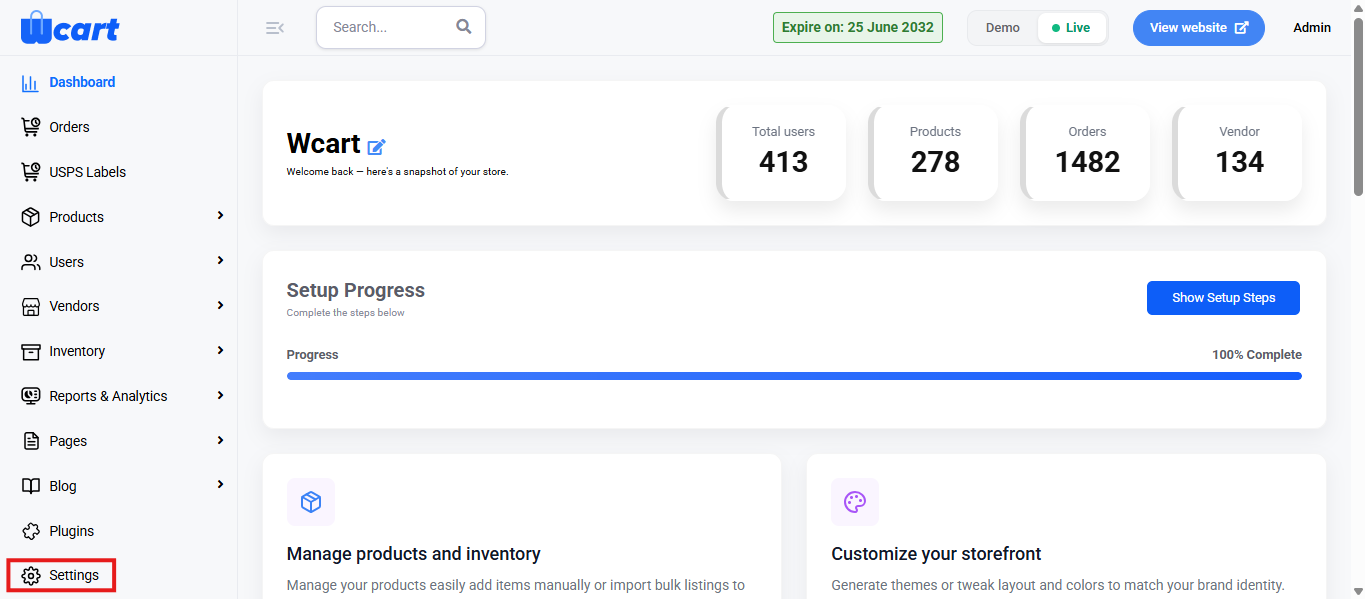
- Navigate to the sidebar menu and click ‘Settings’.
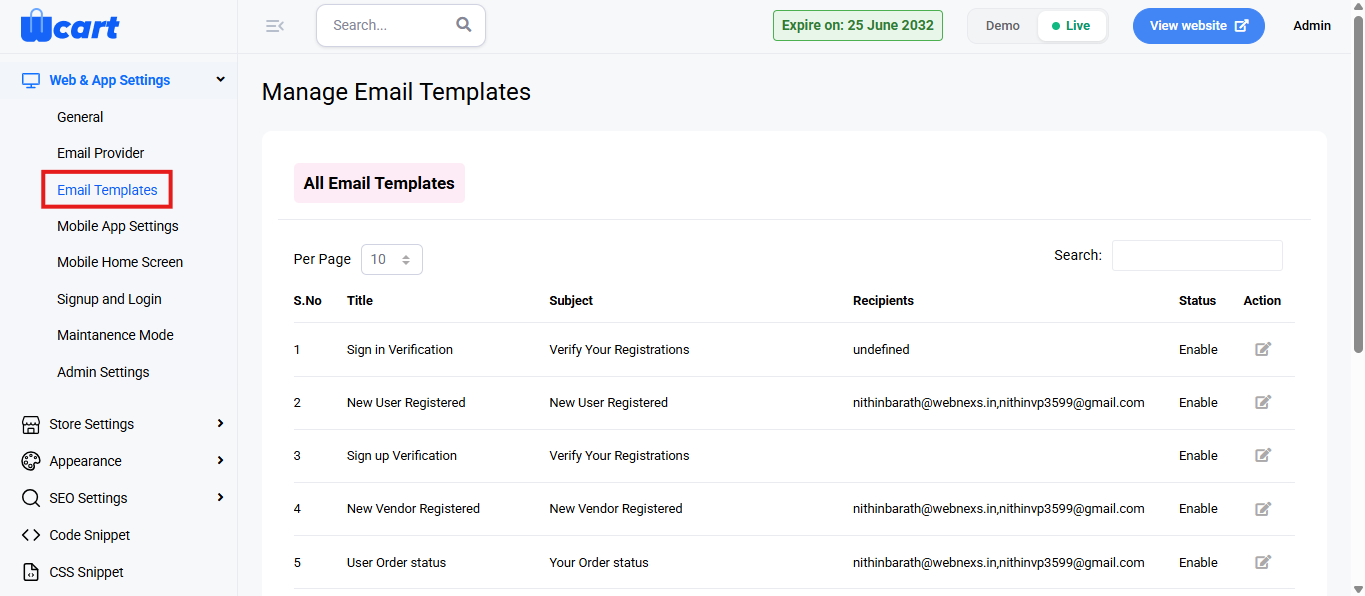
- Under ‘Web & App Settings’ select ‘Email Templates’.
- Look for the Low Stock Alert email template and update it as required. You can customize the email content for both Admins and Vendors, which are provided as separate templates.
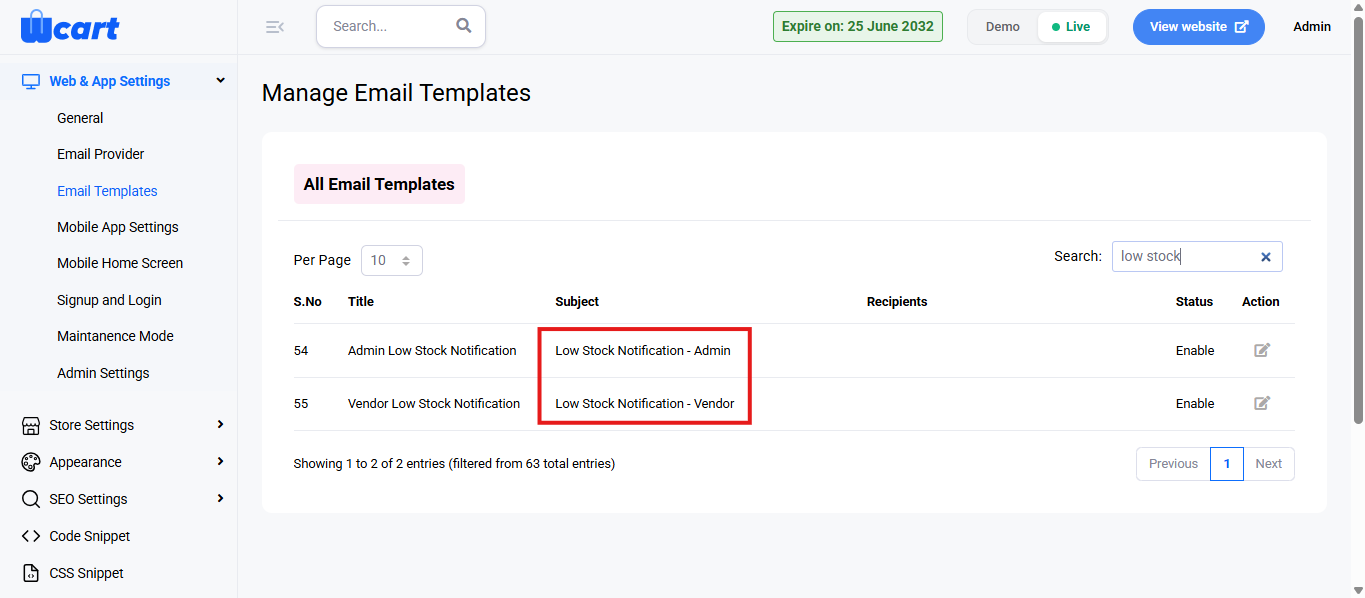
- The available sections to update are as follows:
- Subject – Title of the alert email
- Message Body – Text displayed inside the email
- After editing:
- Click Update Template
- A confirmation message will appear
This ensures email recipients receive meaningful and formatted notifications.
Configure Email Sender Service
Low Stock Alerts cannot be sent unless an email service provider is selected.
- Navigate to the sidebar menu and click ‘Settings’.
- Under ‘Web & App Settings’ select ‘Email Provider’.
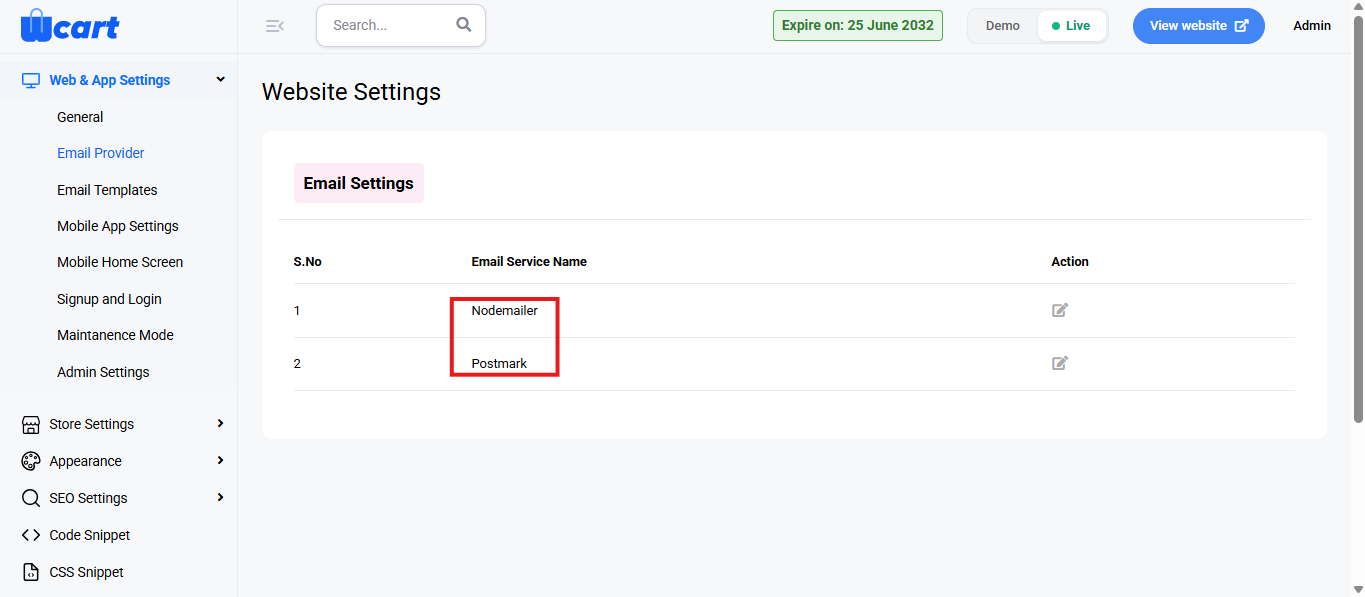
You will see two options in the table:
Option A: Nodemailer
- Select Nodemailer
- Enter SMTP details as required:
- Host
- Port
- Username
- Password
- Enable the service if disabled
Used when sending emails through your own SMTP / hosting provider.
Option B: Postmark
- Select Postmark
- Enter:
- Server Token
- Sender Email
- Enable the service
Recommended for high-delivery transactional emails.
Only one email service can be active at a time.
Select the provider you prefer and ensure it is enabled.
Enable Low Stock Notification in Store Settings
Navigate to:
Store Settings → Inventory Settings
- Locate Low Stock Notification
- Tick the checkbox to enable alerts
- Enter the Recipient Email Address
- You may enter one or multiple addresses (depending on system support)
- Save Settings after enabling
Now the system knows who should receive the alerts.
How Low Stock Alerts Work After Activation
Once all 3 setup steps are completed:
Stock levels are continuously monitored and when a product reaches the defined low stock threshold, an automatic email alert is triggered and sent to the assigned recipient(s).
Typical information included in each alert:
- Product Name
- SKU
- Available Quantity
- Timestamp of alert
This gives teams enough time to re-order or restock the product.
These settings ensure low stock alerts are properly delivered to responsible staff, helping prevent stockouts and operational disruptions. Make sure the Low Stock Alert email template is configured, an active email service provider is selected, and correct recipients are assigned so that notifications work without interruption.
Maintaining these configurations enables proactive stock monitoring and timely restocking for smooth business operations.