
This section allows administrators to create and manage product variants using defined attributes. It helps configure variant details like price, stock, shipping, and barcode to ensure accurate product listings.
You can manage product variants from All Products, Vendor Products or Admin Products under the Products module.
To configure, follow these steps:
- Navigate to the sidebar menu and select ‘Products’.
- Choose one of the following options: All Products, Vendor Products or Admin Products depending on the product type.
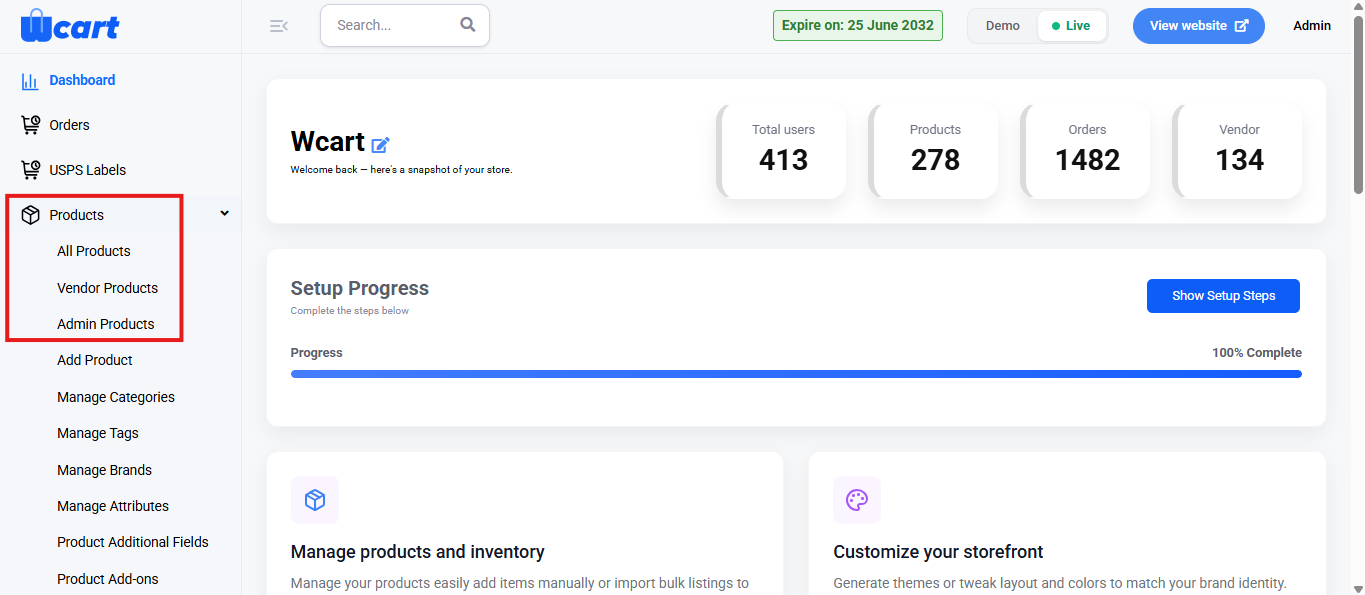
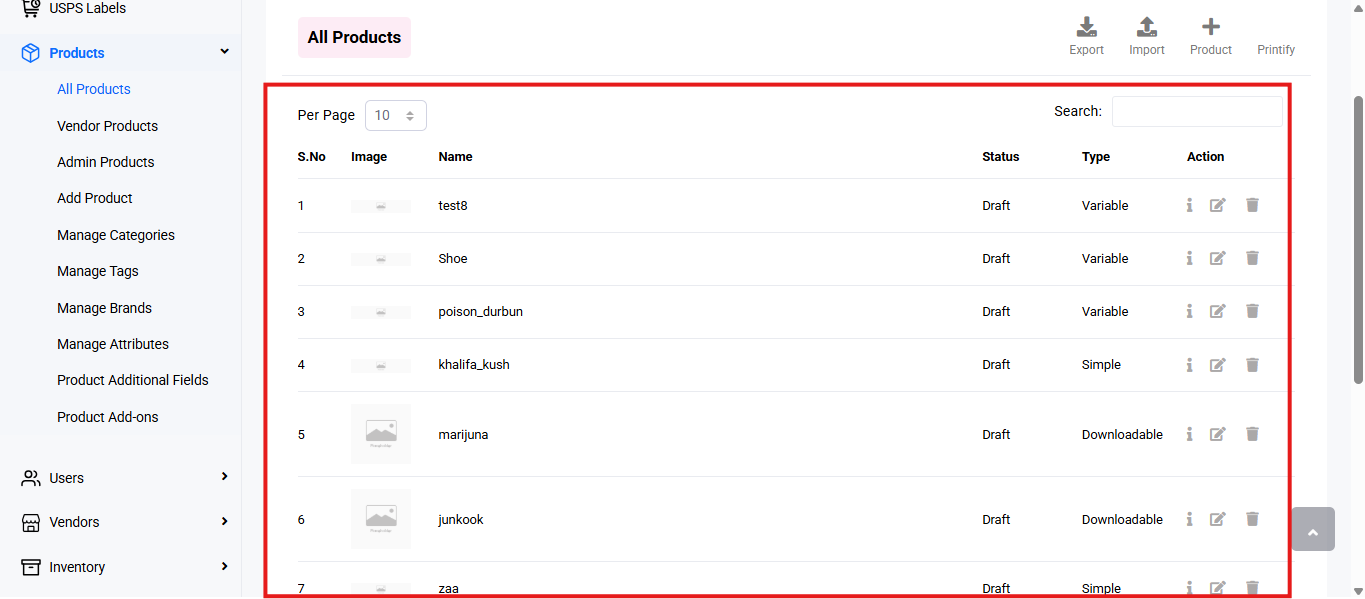
- In the product list, locate the variable product you want to manage.
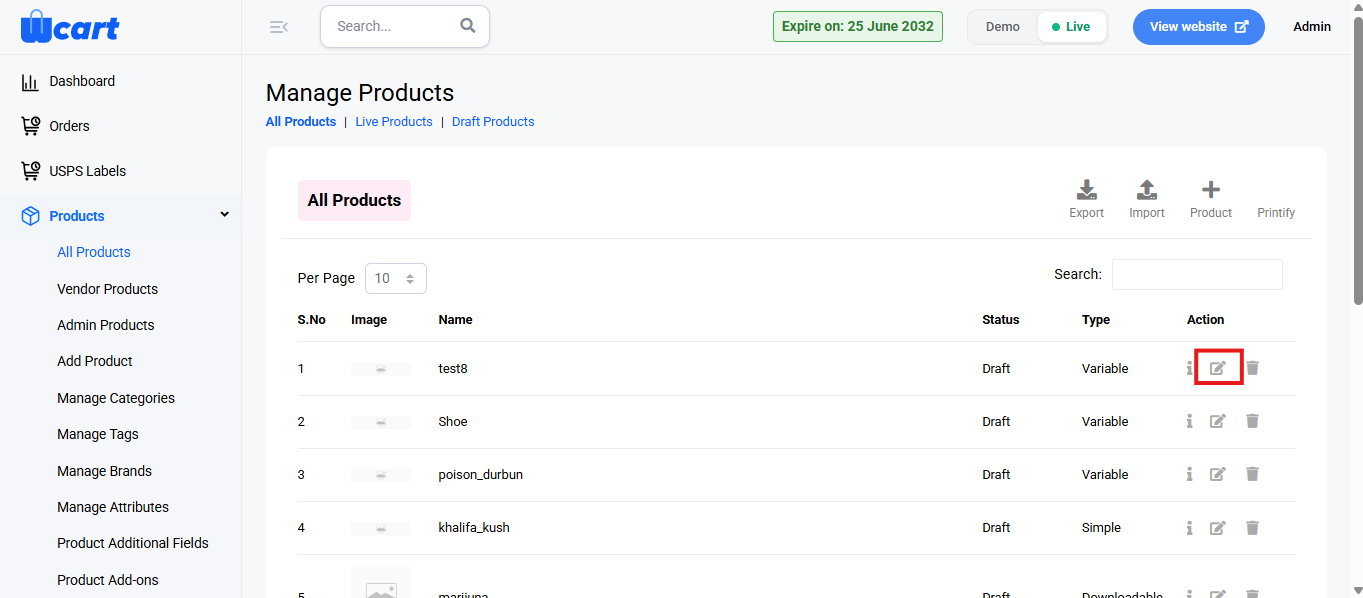
- Click the Edit icon under the Action column.
- Proceed to the second page of the configuration to modify and save your changes.
NOTE: The same product list table will be available for Vendor and Admin products. The same steps can be followed for configuration.
You will find the following form fields to configure:
- Select Attribute: Choose the type of attribute to add from the dropdown list.
- Select Attribute Value: Add multiple values for the same attribute from the dropdown list.
- Save Attribute: Click to save. A toast notification ‘Product Attributes Updated Successfully’ will appear to confirm the addition.
- View and Manage Attributes:
- After saving attributes, click ‘Continue’ to proceed to the next section titled ‘Add Product Variations’ for the selected product.
- Under the title ‘Variations’, click the ‘Create Combinations’ button to generate variant combinations automatically.
- A toast notification ‘Product Combinations Created Successfully’ will confirm the creation.
- Add Product Variations:
- Configure Each Variation: Click on a specific variation to open detailed form fields to input or modify data. The form fields include:
- Regular Price: Standard selling price before any discounts.
- Sale Price: Discounted price offered during promotions or sales.
- Tax Settings (Change): Option to modify or apply specific tax rates to product.
- Product SKU: Unique stock-keeping unit code used to identify product.
- Stock Quantity: Total number of units currently available in inventory.
- Low Stock Limit: Minimum stock level that triggers a low-stock alert.
- Weight (kg): Product weight used for shipping and logistics calculations.
- Shipping Cost: Delivery charge applied to product based on location or weight.
- Include/Exclude Pincodes: Postal codes where delivery is allowed or restricted.
- Image Upload: Option to add product images for display on storefront.
- Dimensions (cm): Product measurements including length, width, and height.
- Barcode Management
- Enter or Scan Barcode
- Upload Barcode Image
- Generate New Barcode
- Cancel / Save options in modal dialog
- Configure Each Variation: Click on a specific variation to open detailed form fields to input or modify data. The form fields include:
- Save Variant Details:
- Click Submit to add the variation details.
- Toast notification: ‘Product Inventory and Shipping Data Updated Successfully’ confirms the save.
These settings ensure each variant is correctly configured and saved, maintaining accurate inventory and a smooth customer selection experience.