
Email Templates
This section allows administrators to manage all system-generated email templates used for different store events. It provides options to view, edit, and configure template details such as subject, recipients, and content, ensuring each automated email is consistent with your brand communication.
To configure, follow these steps:
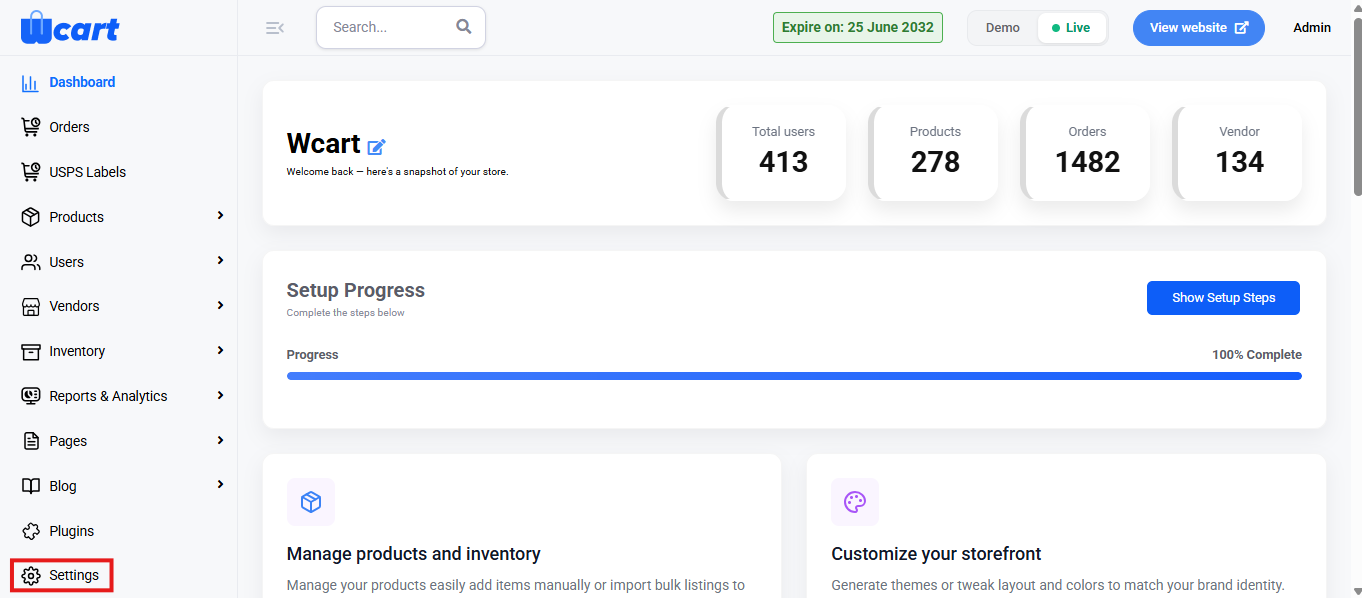
- Navigate to the sidebar menu and find the ‘Settings’ section.
- Click ‘Web & App Settings’.
- Select ‘Email Templates’ from the submenu.
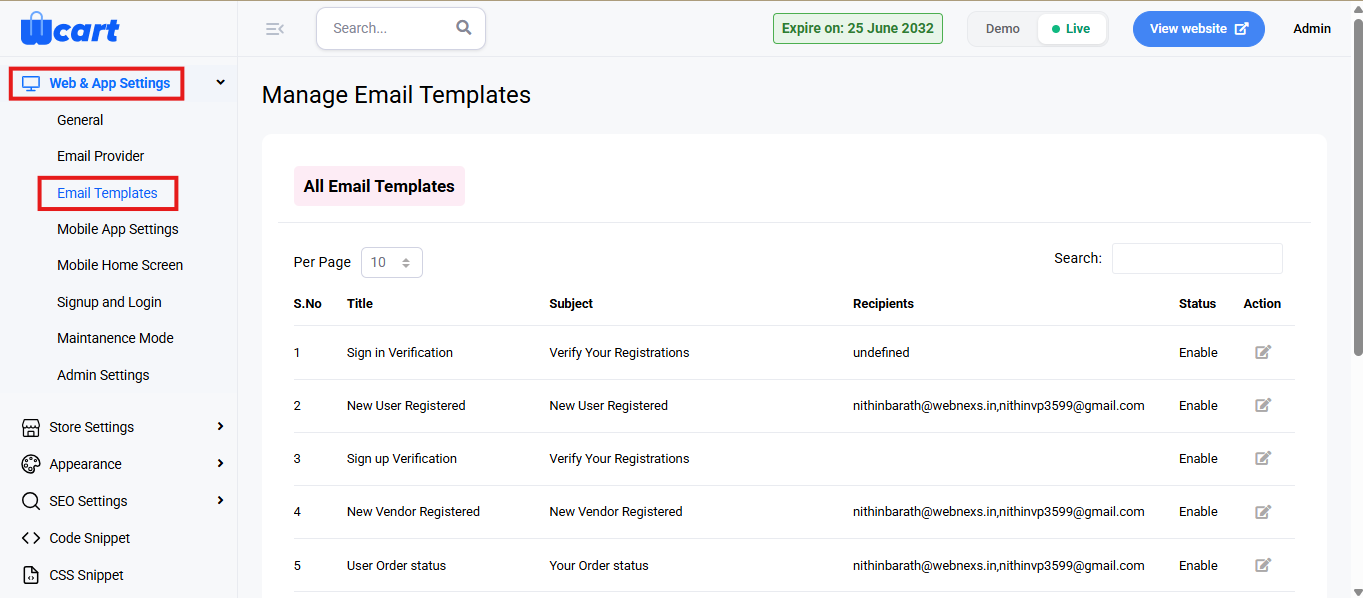
Now, click on ‘View Email Templates’ in the top-right corner of the page to return to the All Email Templates section, where you will find a table with various columns to interpret email template data quickly and accurately. The columns are listed below:
- S.No: Serial number of the email template within the current page view.
- Title: Name of the email template, typically based on the triggered event.
- Subject: Subject line used in the outgoing email.
- Recipients: The email addresses receiving the message. It can include one or multiple recipients.
- Status: Indicates whether the template is currently active.
- Enable: The template is active and will be used when its corresponding event is triggered.
- Disable: The template is inactive and will not be triggered until re-enabled.
- Action: Edit icon opens the editor to customize the email content. The form sections and fields are mentioned below:
Basic Details
- Title: Displays the name of the selected email template. This field is non-editable.
- Subject: Enter the subject line of the email that the end user will see in their inbox.
- Recipient: Specify the email address(es) that should receive this template. Leave blank if dynamically handled.
- Content: This is the email body editor where you can write and format the message content using the rich text editor.
- Short Tags: These dynamic placeholders are replaced with actual values when the email is sent.
- Email Template Status: Controls whether this specific template is active.
- Enable: The template will be triggered during the corresponding event.
- Disable: No email will be sent for this event.
- Update: Save your changes and apply. A toast notification ‘Email Template Updated Successfully’ will appear to confirm the update.
- Cancel: Discards changes and returns you to the main Email Templates list.
These settings help maintain professional and consistent email communication across all system events. Review each template carefully, update as needed, and save your changes to ensure all automated messages are correctly formatted and delivered.