
This section allows administrators to configure the login and signup options for users on the website.
To configure, follow these steps:
- Navigate to the sidebar menu, click ‘Plugins’.
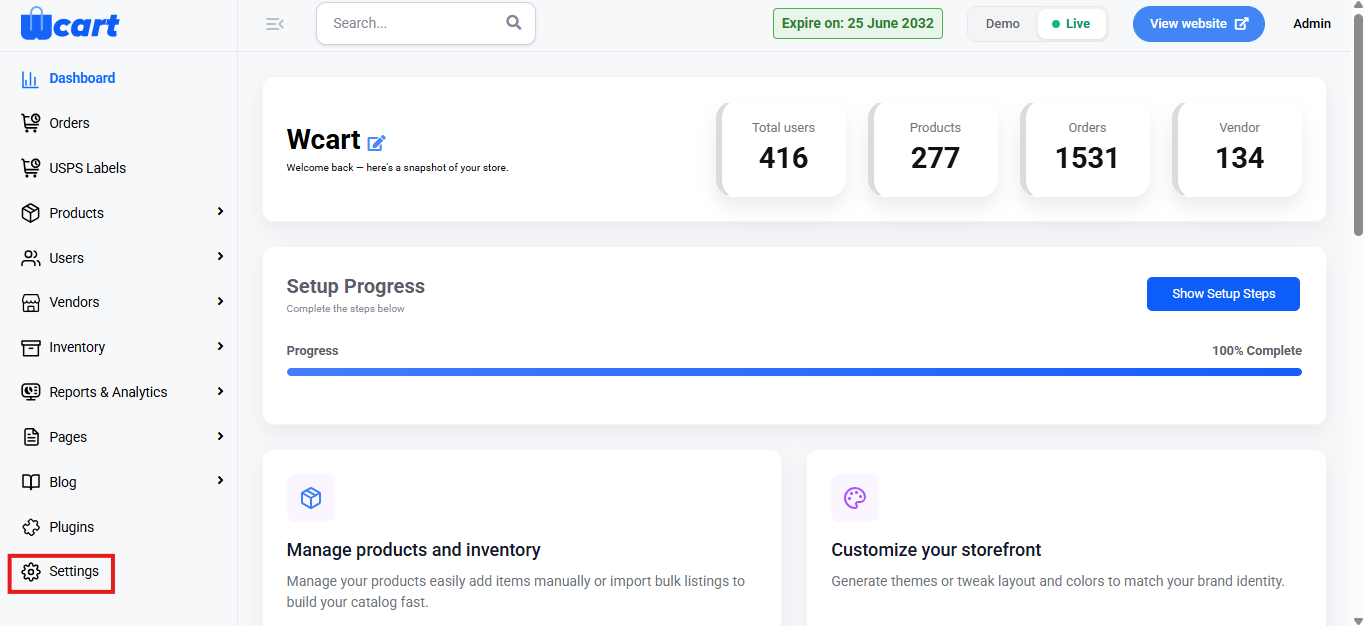
- Select ‘Web & App Settings’.
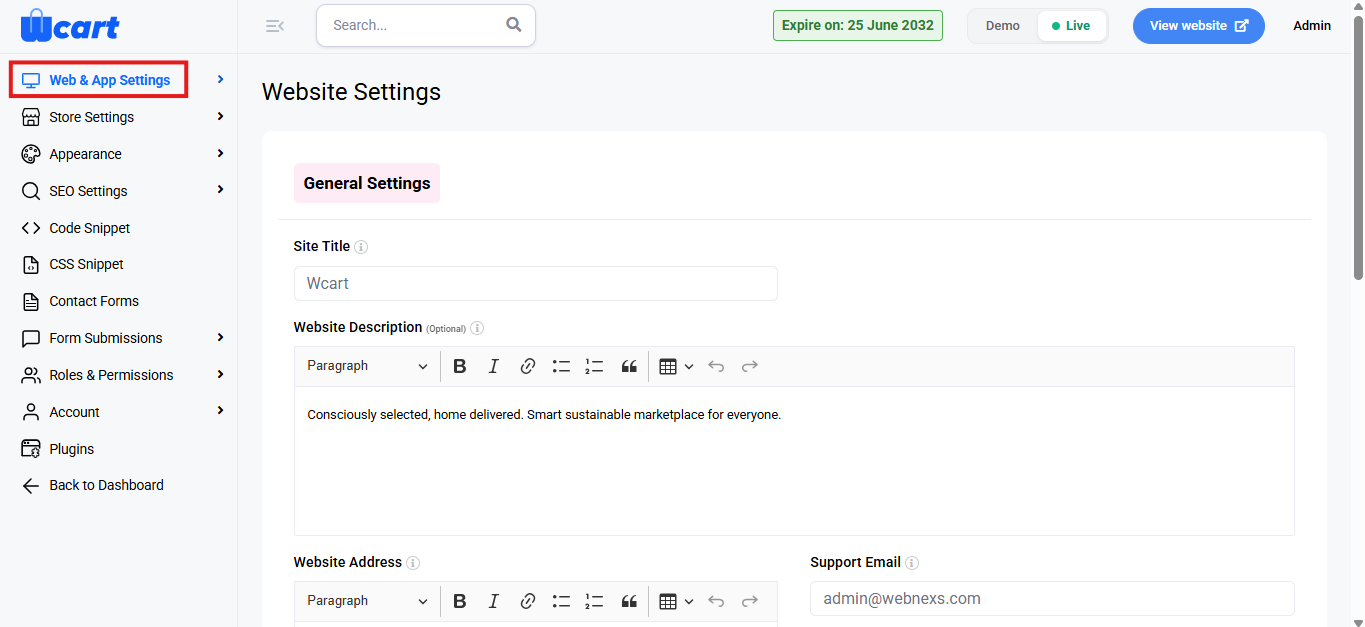
- Then, select ‘Signup and Login Settings’ from the submenu.
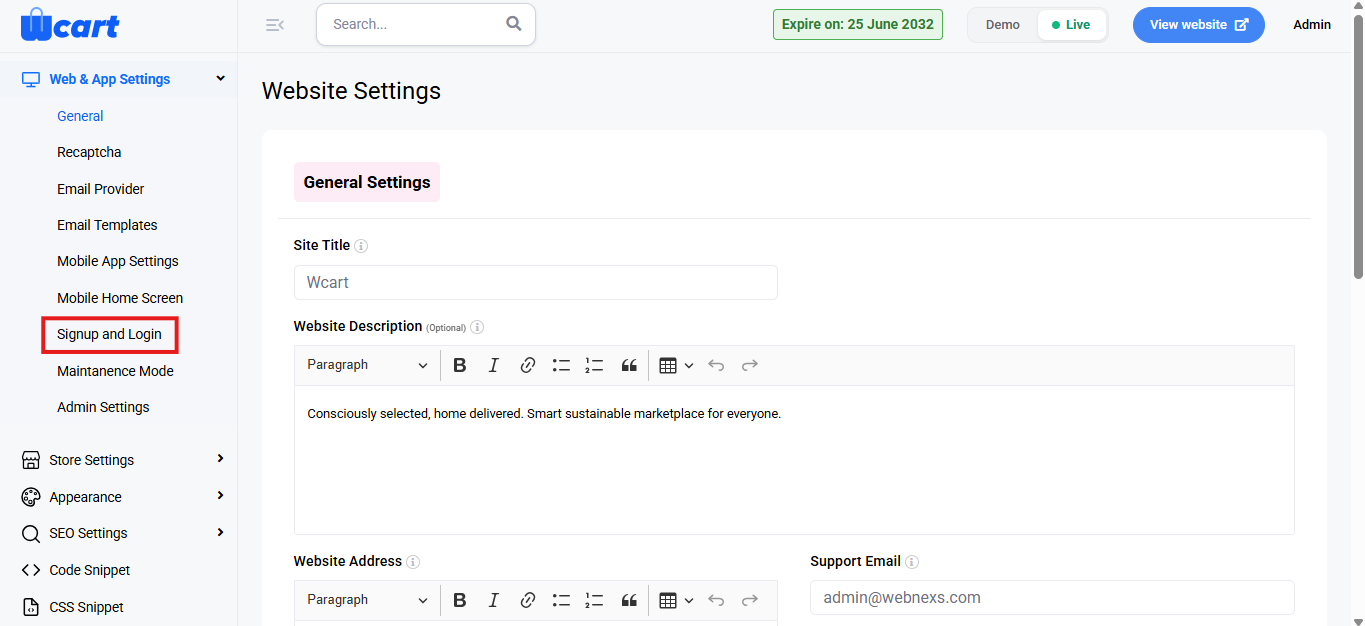
Signup Method:
Choose the method used for user signup. Available options:
- Email Verification: Users sign up by providing an email and verifying it through a confirmation email.
- OTP (One-Time Password): Users sign up by entering their mobile number, and an OTP is sent for verification.
Login Method:
Choose the login method for the website. The available options are:
- Email & Password: Users log in with their email and password.
- Email OTP: Users log in using their email and an OTP sent to their email address.
- Both: Users can log in either by using their email and password or by using an OTP sent to their email.
Social Login Configuration:
Enable or disable social login options for users.
- Yes: Allows users to log in using social media accounts like Google or Facebook.
- No: Disables social login options.
NOTE: The Google and Facebook login options only become visible when ‘Yes’ is selected for Social Login Configuration.
Google Login:
Enable or disable Google login for users.
- Yes: Users can log in with their Google account.
- No: Disables Google login.
NOTE: Client ID and Client Secret fields need to be filled in for Google login configuration.
Facebook Login:
Enable or disable Facebook login for users.
- Yes: Users can log in with their Facebook account.
- No: Disables Facebook login.
NOTE: Client ID and Client Secret fields need to be filled in for Facebook login configuration.
Select to Show Login Options:
Choose which types of users can access the login page.
- Admin: Select this option if admins should be able to log in.
- Vendor: Select this option if vendors should be able to log in.
Save Changes:
Click this button to save the changes made to the login and signup settings. This will trigger a pop-up message like the one shown in the first screenshot, confirming that the social login has been updated successfully. The system will ask if you want to restart the application. You can choose to ‘Yes, Restart’ to proceed.
Restart Confirmation:
After the application restarts, a toast notification saying ‘Application restarted successfully’ will appear, confirming that the application has restarted successfully.
This section allows administrators to customize login and signup options, enhancing security and user experience. The restart process ensures that changes are applied effectively, optimizing platform functionality.