
It displays a list of all the additional product fields configured in the system.
To add Product Additional Fields, follow these steps:
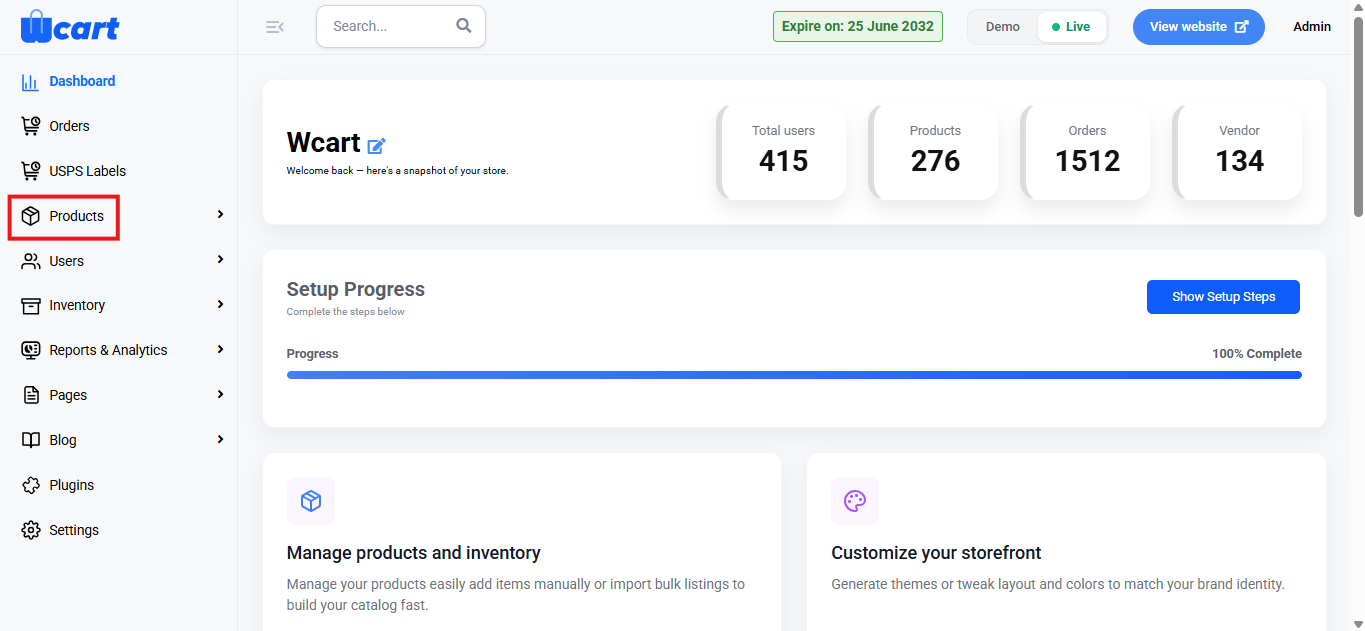
- Navigate to the sidebar menu and select ‘Products’.
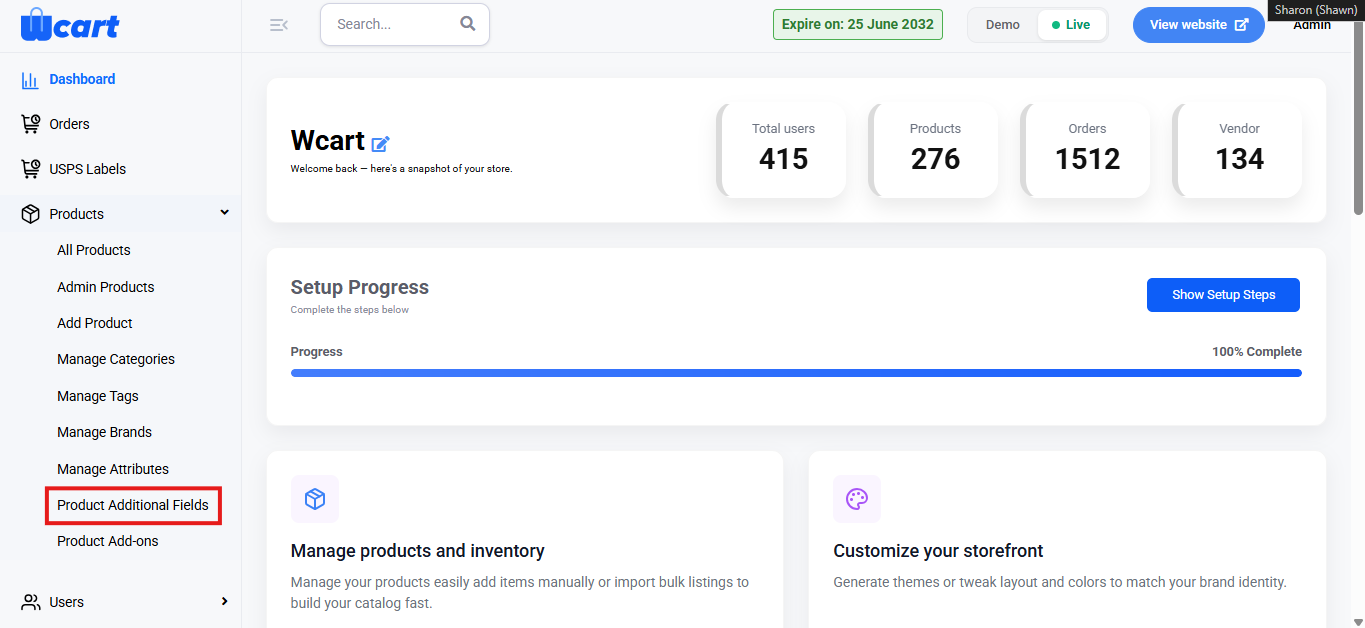
- Select ‘Product Additional Fields ’ from the submenu.
Add New Product Additional Fields: Clicking on ‘+ Product Additional Fields’ will open a popup with the following form fields:
- Product Type: Dropdown to select applicable product types. This is a mandatory field, not entering the input will display an alert message ‘Please Provide Product Type’.
- Simple: Basic product type without variations.
- Variable: Product with different variations.
- Downloadable: Product that can be delivered digitally.
- Field Type: Dropdown to select the type of field. This is a mandatory field, not entering the input will display an alert message ‘Please Provide Field Type’.
- Text
- Number
- Tel
- URL
- Date
- Select
- Checkbox
- Radio
- Field Name: The internal reference name for the field. This is a mandatory field, not entering the input will display an alert message ‘Please Provide Field Name’.
- Field Label: The display name shown to users. This is a mandatory field, not entering the input will display an alert message ‘Please Provide Field Label’.
- Field Label CSS: Apply custom CSS styles to the field’s label.
- Field Input CSS: Apply CSS styles to the input box used for user data entry.
- Field alert Msg: Text displayed if a required field is left empty or invalid input is entered. This is a mandatory field, not entering the input will display an alert message ‘Please Provide Field alert msg’.
- Placement Area: Dropdown to choose placement location.
- Before Single Product
- Before Single Product Summary
- Before Short Description
- Before add to Cart Form
- Before add to Cart quantity
- Before add to Cart button
- After add to Cart button
- After add to Cart quantity
- After add to Cart form
- After Single Product Summary
- After Single Product
- Placement Order: Numeric input to define the order of appearance.
- Field Required: Determines if the user must fill in the field with the two options below:
- Yes: Users must fill this field before submitting.
- No: Field is optional.
- Field Status: Controls the visibility of the field on the product page with the two options below:
- Show: Field will be visible on the product page.
- Hidden: Field exists but will be invisible to users.
- Enable for Variations: Shows the additional field on each variation of a variable product. The two options are:
- Yes: The field will appear for every variation within a variable product.
- No: The field will appear only at the main product level, not on individual variations.
- Submit: Click to update your inputs. A toast notification ‘Product Additional Added Successfully’ will appear to confirm the addition.
In the ‘All Product Additional Fields’ section you will find a table with various columns to interpret product additional field data quickly and accurately. The columns are listed below:
- S.No: Serial number of the row in the current view.
- Product Type: Indicates the applicable product types.
- Field Type: Specifies the data input type for the field.
- Field Name: The backend identifier for the field.
- Field Label: The name displayed to the user on the product page.
- Required: Specifies if the field must be filled by the user during product creation. The options are:
- Required: Users must enter a value.
- Unrequired: Users can leave the field empty.
- Status: Controls the visibility of the field on the product page. The options are:
- Active: Field will be displayed to users.
- Inactive: Field will be hidden from users.
- Action: Product additional fields can be managed using these two buttons:
- Edit: ‘Update Product Additional Fields’ modal form will open to update changes in all the fields mentioned above.
- Delete: Deletes the category. A dialog box ‘Remove Product Additional Field’ will appear with the text ‘Are you sure you want to delete this Product Additional Field? along with ‘Close’ and ‘Delete’ options. Closing will remove the dialog box and clicking on ‘Delete’ will display this toast notification ‘Removed Additional Product Field Successfully’ to confirm deletion.
Overall, this section enables administrators to efficiently create, manage, and control additional product fields, ensuring flexible product customization and accurate data capture across the product page.