
This section allows administrators to create, view, and manage product attributes used for classification, filtering, and specification display.
To configure, follow these steps:
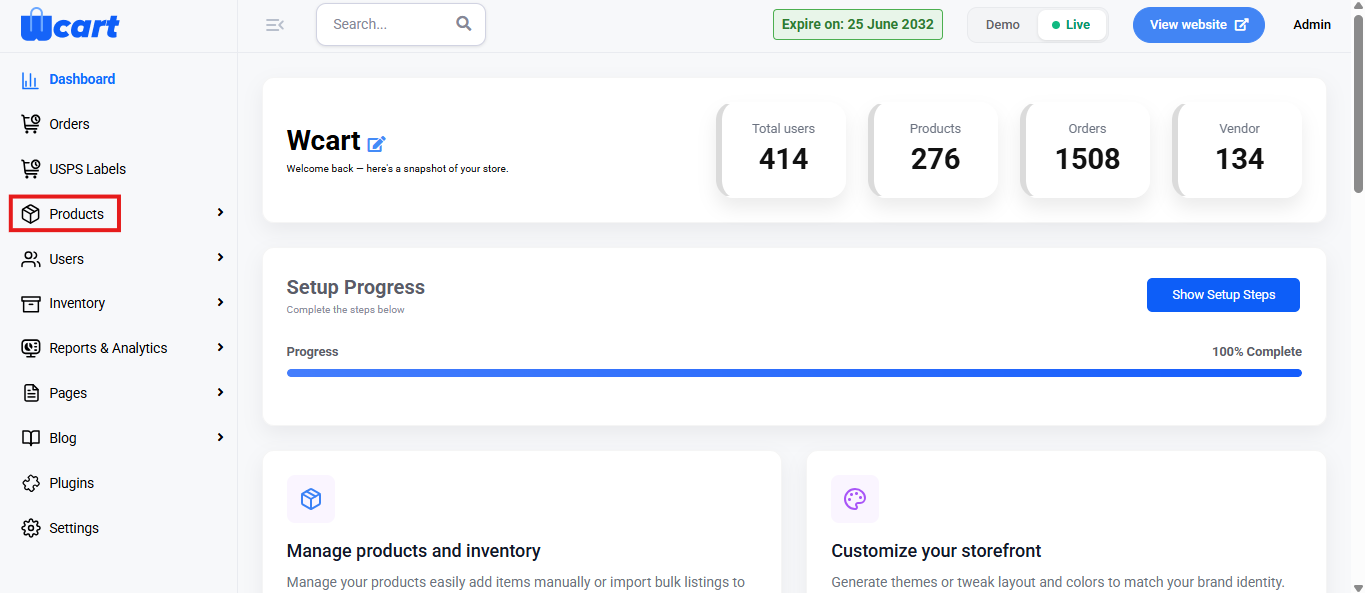
- Navigate to the sidebar menu and click ‘Products’.
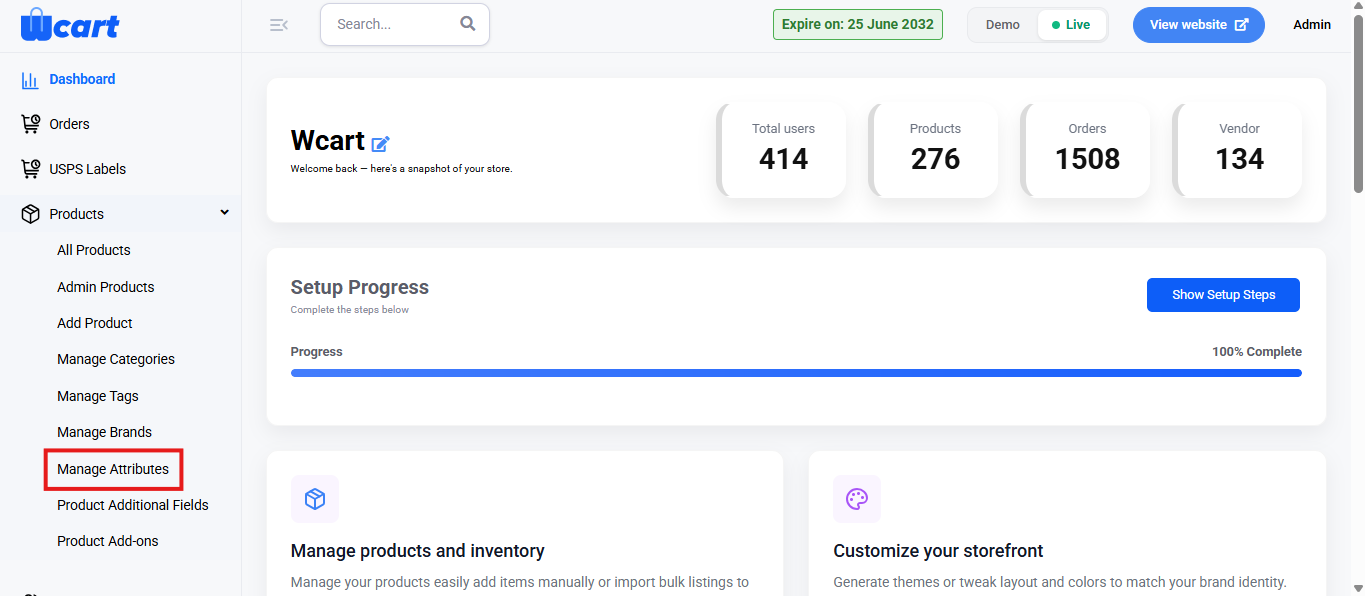
- Select ‘Manage Attributes’.
Manage Attribute
- Title: Enter the name of the attribute. This is a required field. If left empty, an alert message will appear requesting input.
- Add Attribute: Clicking this button saves the new attribute and adds it to the list on the right. A toast notification ‘Attribute Added Successfully’ will appear to confirm the addition.
Attributes
It is the second table to the right corner displaying existing attribute records with relevant details and available actions for each. It contains the following:
The table has various columns to interpret attribute data quickly and accurately. The columns are listed below:
- S.No: Serial number of the attribute row in the current view.
- Name: Displays the title of the attribute.
- Slug: URL-friendly version of the attribute name.
- Action
- Settings: Opens the ‘Manage Attribute Items’ form section to manage specific values assigned to a particular attribute. The following options are available in the first section titled ‘Add Attribute Name Item’:
- Title: Input field to enter the name of a new item/value under the selected attribute. This is a mandatory field, not entering the input will display an alert message ‘Please provide Title’.
- Add: Adds the entered item to the attribute’s list. A toast notification ‘Attribute Item Added Successfully’ will appear to confirm the addition.
- Settings: Opens the ‘Manage Attribute Items’ form section to manage specific values assigned to a particular attribute. The following options are available in the first section titled ‘Add Attribute Name Item’:
In the second section titled ‘Attribute Name Attribute Data’, the following options are available:
The table has various columns to interpret attribute data quickly and accurately. The columns are listed below:
- S.No: Displays the serial number of each attribute item in the list.
- Name: Displays the actual value/item of the attribute.
- Slug: URL-safe version of the attribute item name.
- Action: Manage the attribute items with the following options:
- Edit: Update the name of the Attribute Item. After updating, click the ‘Update’ button to save the changes. A toast notification ‘Updated Attribute Item Successfully’ will appear to confirm addition. If you choose not to update, click on ‘Cancel’ to return to the ‘Manage Attribute’ page.
- Delete: Deletes the category. A dialog box ‘Remove Attribute’ will appear with the text ‘Are you sure you want to delete this Attribute? along with ‘Close’ and ‘Delete’ options. Closing will remove the dialog box and clicking on ‘Delete’ will display this toast notification ‘Removed Attribute Item Successfully’ to confirm deletion.
The edit and delete options mentioned below belong to the ‘Attributes’ table.
- Edit: Click on the ‘Edit’ option for the record you want to edit the name, enter it in the text box under Title, and click ‘Save’. A toast notification ‘Updated Attribute Successfully’ will appear to confirm the update.
- Delete: Deletes the category. A dialog box ‘Remove Attribute’ will appear with the text ‘Are you sure you want to delete this Attribute? along with ‘Close’ and ‘Delete’ options. Closing will remove the dialog box and clicking on ‘Delete’ will display this toast notification ‘Removed Attribute Item Successfully’ to confirm deletion.
This section helps you create and manage product attributes and values efficiently. Well-defined attributes improve product organization and filtering.