
This section allows administrators to create and manage Downloadable Products that customers can access digitally after purchase. It provides fields to define product details, pricing, download limits, and access duration to ensure the product is delivered securely and correctly through the storefront.
To add Variable products follow these steps:
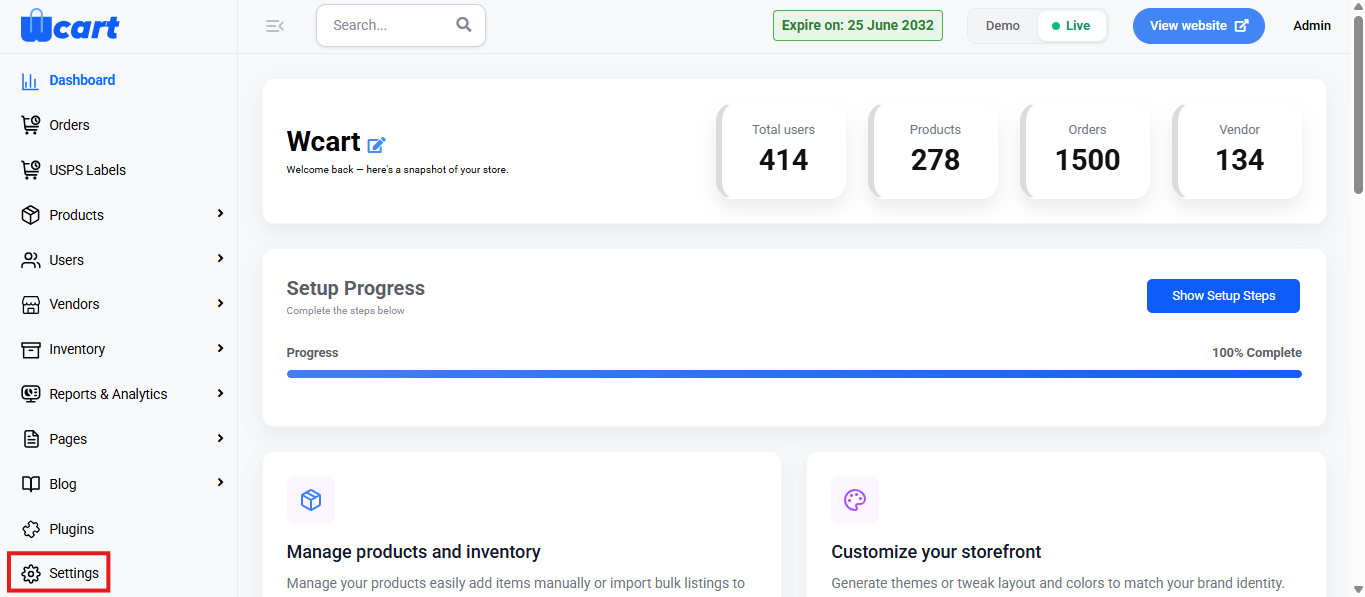
- Navigate to the sidebar menu and select ‘Settings’.
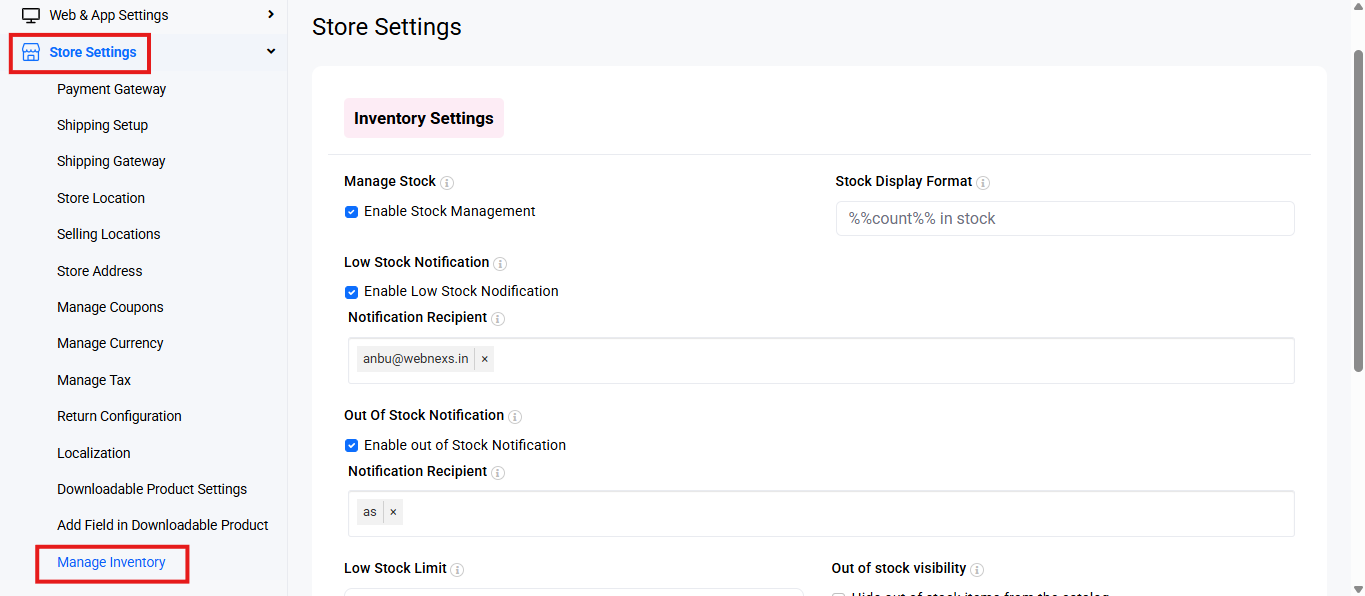
- Select ‘Store Settings’.
- Click Manage Inventory’.
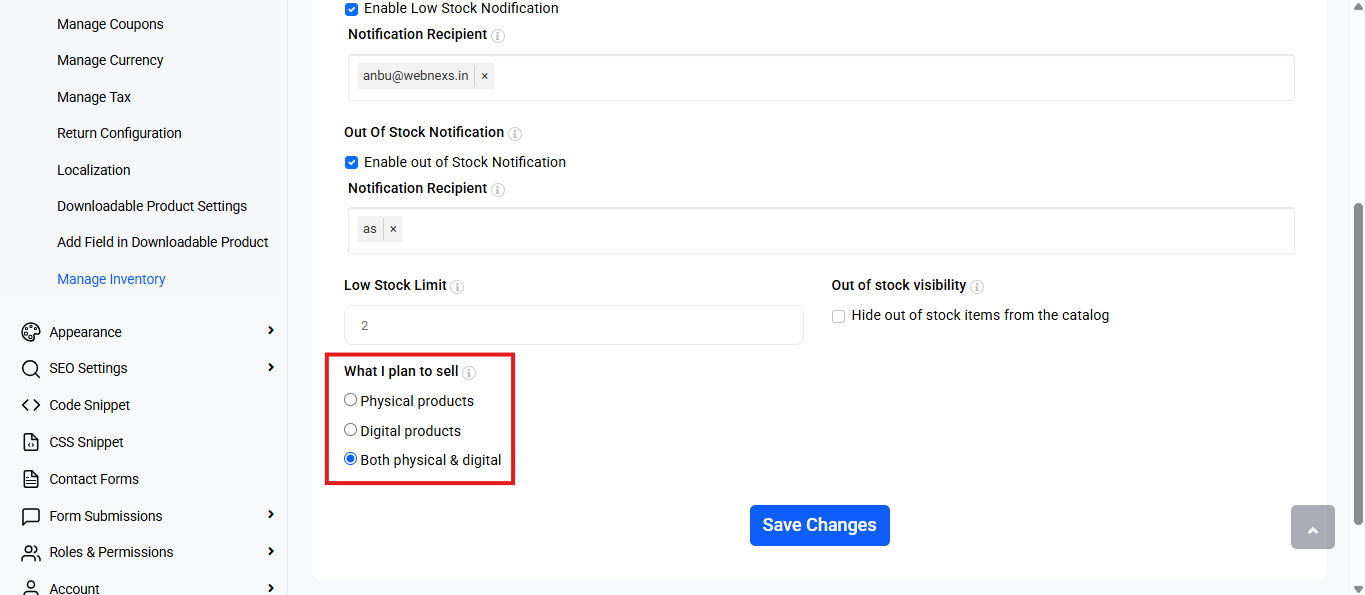
- Scroll down to the ‘What I plan to sell’ section and enable ‘Physical products’, ‘Digital products’ or ‘Both physical & digital’ as required.
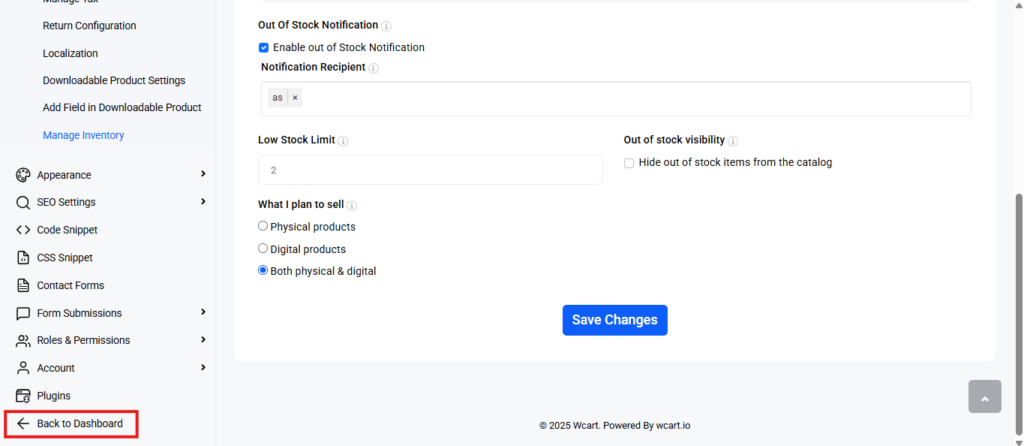
- Then, navigate back to the sidebar menu and select ‘Back to Dashboard’.
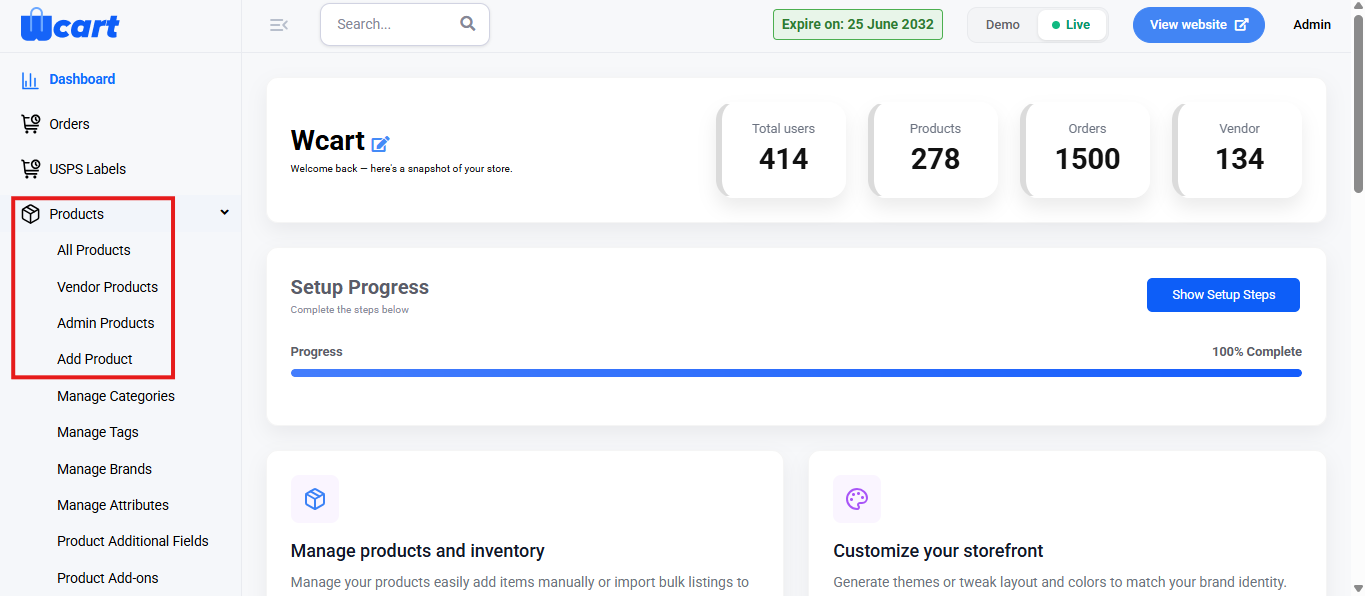
- Click ‘Products’ from the sidebar menu and choose from the available options: ‘All Products’, ‘Vendor Products’, ‘Admin Products’ or ‘Add Product’. Downloadable products can be created from any of these four sections.
- Click the ‘Add Product’ button at the top-right corner of the page. This is common across all four sections: ‘All Products’, ‘Vendor Products, ‘Admin Products’ and ‘Add Product’.
- Then, select ‘Product Type’ and choose ‘Downloadable Product’.
- Click ‘Submit’ to apply the changes.
There will be third editable pages to configure the product details. Enter all the required and mandatory fields to list the product.
The below are the fields in the first page:
- Product Name: Enter the name of the product.
- Select Categories: Identify and select the most appropriate categories for the product’s classification.
- Primary Category: Set the main category for filtering and navigation purposes.
- Select Tags: Add searchable keywords or tags related to the product to improve discoverability.
- Select Brand: Choose the associated brand from the available list.
- Regular Price: Enter the original price of the product.
- Sale Price: Enter a discounted price, if applicable, for promotions or sales.
- Short Description: Provide a brief summary of the product’s highlights.
- Long Description: Provide a detailed description of the product, including features, benefits, and any other relevant information.
- Upload Product Images: Drag-and-drop or browse to upload one or more images for the product.
- Upload Product Video: Click ‘Choose File’ to upload a video related to the product.
- Save & Continue: Click to add this new product to the list. A toast notification ‘Added Downloadable Product Successfully’ will appear to confirm the new addition.
The below are the fields in the second page:
- Product SKU: Enter a unique code used for tracking and identification of the product.
NOTE: If you omit entering, a validation message ‘Please fill out this field’ will appear, as this is a mandatory field.
- Download Expiry Days: Set the number of days the download link remains active after purchase.
NOTE: If you omit entering, a validation message ‘Please fill out this field’ will appear, as this is a mandatory field.
- Download Limit: Specify the maximum number of times a customer can download the product.
NOTE: If you omit entering, a validation message ‘Please fill out this field’ will appear, as this is a mandatory field.
- Text: Add any extra notes or custom messages related to this downloadable product.
NOTE: This is an optional field, you can choose to omit this field.
- Save & Continue: Click to update the download settings. A toast notification ‘Downloadable Option Updated Successfully’ will appear to confirm the update.
To return to the Manage Products page, click on the icon ‘Products’ where all existing products are listed under the All Products tab.
NOTE: This icon can be found on the next product edit page as well.
The below are the fields in the third page:
Meta Details
Product Feed
Configures feed-related details for product distribution.
- Hide from the Feed (Optional): Determines if the product is excluded from appearing in the product feed. The following options control this setting:
- No (Default): Includes the product in the feed.
- Yes: Excludes the product from the feed.
- Availability: Defines the current stock status of the product for listing and feed purposes. The following options are available:
- In Stock: The product is available for immediate purchase and fulfillment.
- Available for Order: The product is not currently in stock but can still be ordered and will be shipped once available.
- Pre-Order: The product has not yet been released but can be reserved in advance by placing an order.
- Out of Stock: The product is currently unavailable for purchase and cannot be ordered.
- Condition: Indicates the physical state of the product for listing and feed classification. The available options include:
- New: The product is brand new, unused, and in original packaging.
- Refurbished: The product has been restored to a like-new condition by the manufacturer or a certified provider.
- Used: The product has been previously owned or used, and may show signs of wear.
- Product Type: Defines the internal classification hierarchy of the product.
- Google Product Category: Selects a category from the official Google product taxonomy to enhance feed accuracy and third-party integration.
- Brand: Specifies the manufacturer or brand name associated with the product.
- Delivery Label: Indicates the shipping profile or method associated with the product in the feed.
- Add Feed: Click to submit the current product feed settings. A toast notification ‘Product Feed Added Successfully’ will appear to confirm the addition of a new feed. The modal dialog box automatically closes and displays the Meta Details form section.
Add Additional Feed
Custom fields to collect or display extra information about a product that is not part of the default product form.
Adding Additional Fields:
Only fields already added will appear here, this section does not include any input elements for creating new fields. Follow the steps mentioned below to create a new product field.
- Go to the sidebar and click on ‘Product Additional Fields’ under ‘Products’.
- Click the ‘+ Product Additional Fields’ button at the top-right corner of the page.
- A modal form labeled ‘Add New Product Additional Fields’ will open for input.
- Fill in the required information to define the custom fields.
- Click to ‘Submit’ to save the field. A toast notification ‘Product Additional Field Values Added Successfully’ will appear to confirm the addition. After saving, the new field will:
- Appear on the downloadable product creation page.
- Appear on the storefront for customers to view.
- Meta Title: Sets the title shown in browser tabs and search engine results.
- Allow Search Results? (Optional): Specifies search engine indexing behavior for the product page. Use the following settings to control visibility in search engine listings:
- Yes (Default): The product page will be visible in search engine results.
- No: Prevents the product page from appearing in search engine results.
- Search Follow (Optional): Determines search engine crawling behavior for links on the product page. Use the following setting to control if search engines follow links.
- Yes (Default): Allows search engines to follow internal and external links on the product page.
- No: Prevents search engines from following any links on the product page.
- Meta Keywords (Optional): Defines keywords relevant to the product.
- Meta Description: Compelling summary intended to appear in search engine results.
- Canonical URL: Specifies the original or preferred URL.
Additional Details
- Trending: Marks the product as trending to highlight it on the storefront.
- Yes: Highlights the product in the Trending section (if configured).
- No: The product will not appear in trending-specific sections.
- Product Status: Controls the visibility of the product on the storefront.
- Publish: Makes the product live and visible to customers.
- Draft: Saves the product as a draft without making it publicly accessible.
- Link Products: Allows linking of related products to promote upselling and cross-selling.
- Upsell Products (Optional): Assigns higher-value or upgraded alternatives to the current product.
- Enter the product name to select from existing catalog items.
- Multiple products can be added as upsells.
- Cross Sell Products (Optional): Specifies complementary products often purchased together.
- Enter the product name to select from existing catalog items.
- Multiple products can be added as cross-sells.
- Complete: Click to save the updates. A toast notification ‘Product Additional Settings Updated Successfully’ will appear upon saving.
- Product Attribute Summary Page: Upon completing, the page will be redirected to present a consolidated display of all product information in one place with the edit option to modify and update all the form sections.
- Preview: Navigate to the top-right corner and click the preview button to view the product with the updated information in the storefront available for display to the public.
These settings ensure the downloadable file is properly configured and accessible to customers after purchase. Make sure all mandatory fields are completed and saved to guarantee a smooth digital delivery experience.
Here are the setup links for adding Simple and Variable products: