
Navigation & Controls
This section outlines the key controls and features that help you manage your store efficiently, with tools that enhance both admin panel management and storefront visibility. At the top, a set of global tools provides quick access to essential actions and settings. Below are the key controls available in the top bar and their functions:
- Sidebar Toggle Button: Collapses or expands the left sidebar navigation menu.
- Demo/Live Toggle Button: Toggles the storefront between Live Mode and Demo Mode.
- Live Mode: Customers can place orders as usual.
- Demo Mode: The storefront remains visible, but checkout is disabled. The Site-Wide Notification Banner displays the message: “This is a demo store. You can’t place orders here…”. This mode is enabled during site maintenance or ongoing backend operations.
- View Website: Lets you view the storefront, including all recent updates or changes made through the admin panel.
- Admin Profile Access: Displays the currently logged-in admin user. Clicking it opens a dropdown menu with options such as:
- Profile: View or update admin account details.
- Logout: Securely exit the admin panel.
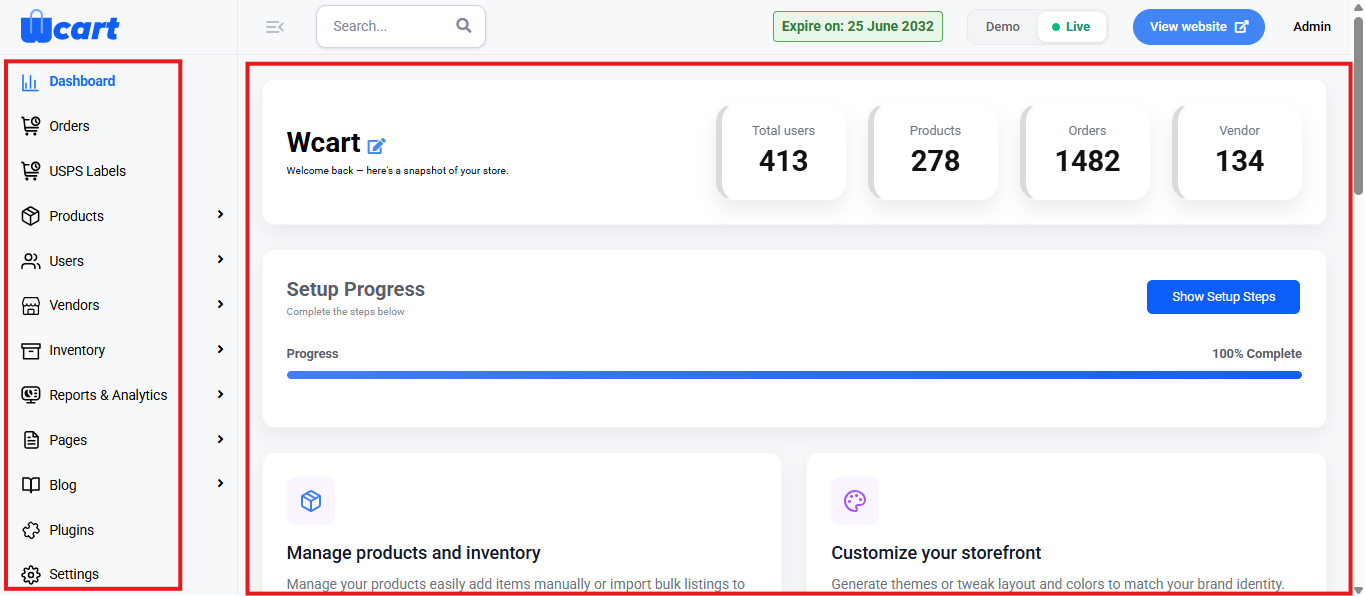
In addition to the top bar, the left-hand sidebar serves as the main navigation hub for the admin panel, providing centralized access to all key areas of the platform.
Sidebar Navigation Menu
This section allows you to efficiently manage and control all aspects of your ecommerce platform. Below is a list of the primary menu items available in the sidebar:
- Dashboard: Takes you back to this main overview page.
- Orders: View, manage, and track customer orders.
- Products: Add new products, edit existing ones, and manage your product catalog.
- Users: Manage customer accounts and view user activity.
- Vendors: Add or manage vendors/sellers participating in your marketplace.
- Inventory: Monitor stock levels and control product availability.
- Reports & Analytics: Access reports and performance metrics to track business growth.
- Pages: Create and manage static pages.
- Blog: Post and manage blog articles for your storefront.
- Plugins: Enable or disable integrations and additional features.
- Settings: Configure platform settings such as payment gateways, email, etc.
The main Dashboard view serves as a central space for accessing key information and tools within the platform.
Metrics & Activity
It offers a centralized view of your platform’s key metrics, providing at-a-glance insights and direct access to essential management modules. Below is a list of the primary metrics and activity sections displayed:
Total Users
- Value Displayed: Total number of registered users.
- Usage: Clickable summary box that redirects to the User Management page.
Total Products
- Value Displayed: Total number of active products listed by all vendors.
- Usage: Clickable summary box that redirects to the Product Management page. Allows admins to quickly view, add, or edit product listings.
Total Orders
- Value Displayed: Total number of orders placed.
- Usage: Clickable summary box that redirects to the Order Management page. Enables tracking, processing, or updating order statuses efficiently.
Total Vendors
- Value Displayed: Total number of registered vendor accounts.
- Usage: Clickable summary box that redirects to the Vendor Management page. Useful for approving, editing, or reviewing vendor activity and details.
Latest Products
This section displays the most recently added products to the marketplace.
There are two columns in this section that help admins manage newly added items quickly:
- Product Name: Displays the name of the newly added product.
- Action: Contains quick-action icons for product management:
- View icon: Clicking the Preview button in the ‘Action’ column shows a read-only view of the product details for quick verification. If you need to make changes, you can edit each field directly by clicking the ‘Edit’ icon beside the title of each section.
- In Preview mode, you will see a Preview icon located opposite the ‘Product Name’ section title. Clicking this icon opens the product page as it appears on the storefront.
- Edit icon: Redirects to the product edit page to update details.
Latest Orders
There are three columns in this section that provide a quick overview of recent transactions:
- Order ID: Displays the unique identifier assigned to each order.
- Name: Displays the name of the customer placing the order.
- Amount: Indicates the total value of the order.
NOTE: The currency displayed here is based on the store’s configured currency settings.
Top Customers
This section shows the users who have placed the highest number of orders on the platform.
There are 2 columns in this section:
- Name: Displays the name of the customer.
- Order Count: Shows the total number of orders placed by that customer.
Country Based
This section displays the order distribution based on countries.
There are 2 columns in this section:
- Country Name: Shows the detected country name from customer data.
- Order Count: Indicates the total number of orders originated from that particular country.
This centralized interface allows admins to efficiently manage products, orders, users, and vendors while providing real-time insights for smooth and effective store operations.